カメラモジュールに2本のマイクを接続して録音する方法
屋外で撮影しているとき、2つの異なる音源を明瞭かつ個別に録音する必要に迫られたことはありませんか? 2人のインタビューを撮影している場合や、ドキュメンタリーの被写体にインタビューしながら、相手の回答だけでなく自分の質問も録音したい場合などです。
音声をカメラに直接録音する場合、この状況で壁に突き当たることがあるでしょう。ほとんどのデジタル一眼レフカメラにはマイク入力が1つしかないためです。しかし、1台のカメラに2本のマイクを接続して録音するための、非常に手軽で低コスト、しかも簡単にセットアップできる方法があります。詳しく見てみましょう。
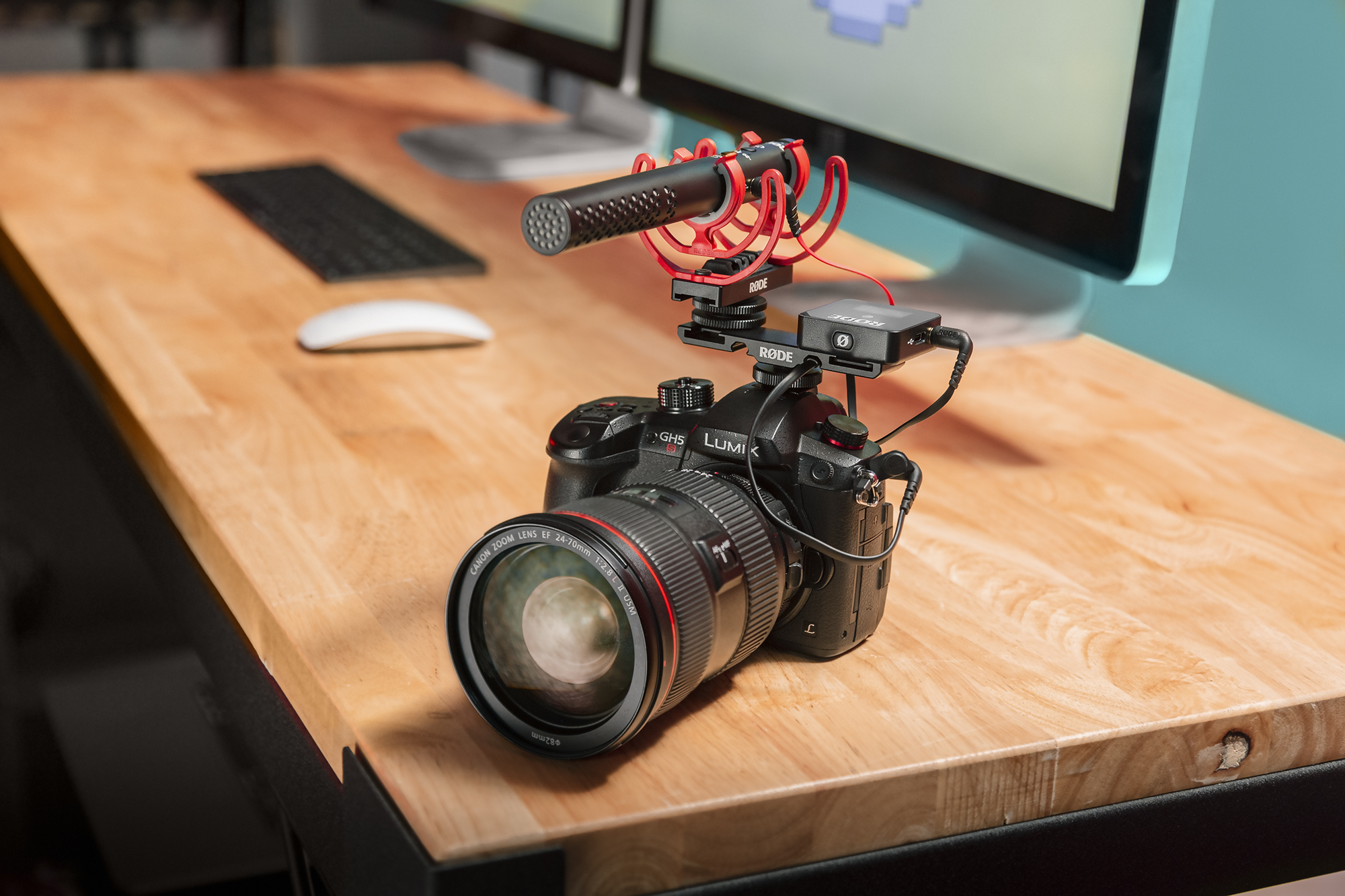
必要な機材
2本のマイクを1台のカメラに接続するには、2つの音声出力を1つの入力にまとめるケーブルが必要です。RØDE SC11 が最適です。これは、2つのモノラル3.5mm出力を、カメラに搭載されているような1つのステレオ3.5mm入力に接続するための高品質なTRS Yスプリッターケーブルです。
このケーブルは2つの音声信号をまとめ、信号を分離したまま1台のデバイスで録音できるようにします。つまり、ポストプロダクションでそれぞれを個別に編集・ミックスできるということです。これは非常に重要です。詳しくは後ほど説明します。
2つのモノラル端子をそれぞれ2本のマイクに接続し(赤い端子はカメラの右チャンネル、黒い端子は左チャンネルに録音されます)、もう一方の端子をカメラに接続すれば準備完了です。
マイクを取り付けるための機材も必要です。例えばRØDE DCS-1です。これは便利なデュアルコールドシューバーで、2本のマイク(もちろん、その他のアクセサリーも)をカメラのコールドシューに取り付けられます。
SC11 とDCS-1 を組み合わせれば、1台のカメラに2本のマイクを接続して録音するための完璧な組み合わせになります。DCS-1 には便利なケーブルマネジメント用スロットも備わっているため、リグをすっきりと整理できます。
これで準備完了です。録音を始められます。
2本のマイクを使った録音セットアップと、その必要性
2つの異なる音源を同時に録音する必要が生じる場面は数多くあります。実際、このようなセットアップに必要な2本目のマイクとアクセサリーを、いつでもバッグに用意しておくことを強くおすすめします。いつ必要になるか分かりませんから。ここでは、よくあるケースをいくつか紹介します。
2人のインタビューやプレゼンテーションを録音するためのワイヤレスマイク2本
2本のマイクでの録音が不可欠となる、最も一般的な状況でしょう。2人のインタビューやプレゼンテーションを録音する際は、それぞれの話す内容を明瞭かつ聞き取りやすく収録したいものです。Wireless GO のようなワイヤレスマイクが最適です。音源の近くで録音しながら、2人の被写体をフレームに収めるために少し離れた位置に立てるからです。
この状況でカメラ上のショットガンマイクを1本だけ使うと、特に混雑した場所や反響の多い場所で撮影する場合、背景ノイズが録音に入り込み、仕上がりに悪影響を及ぼします。ワイヤレスマイク2本が最適です。
推奨セットアップ:Wireless GO × 2、DCS-1 × 1、SC11 × 1、Interview GO × 2(オプション)、Lavalier GO × 2(オプション)。
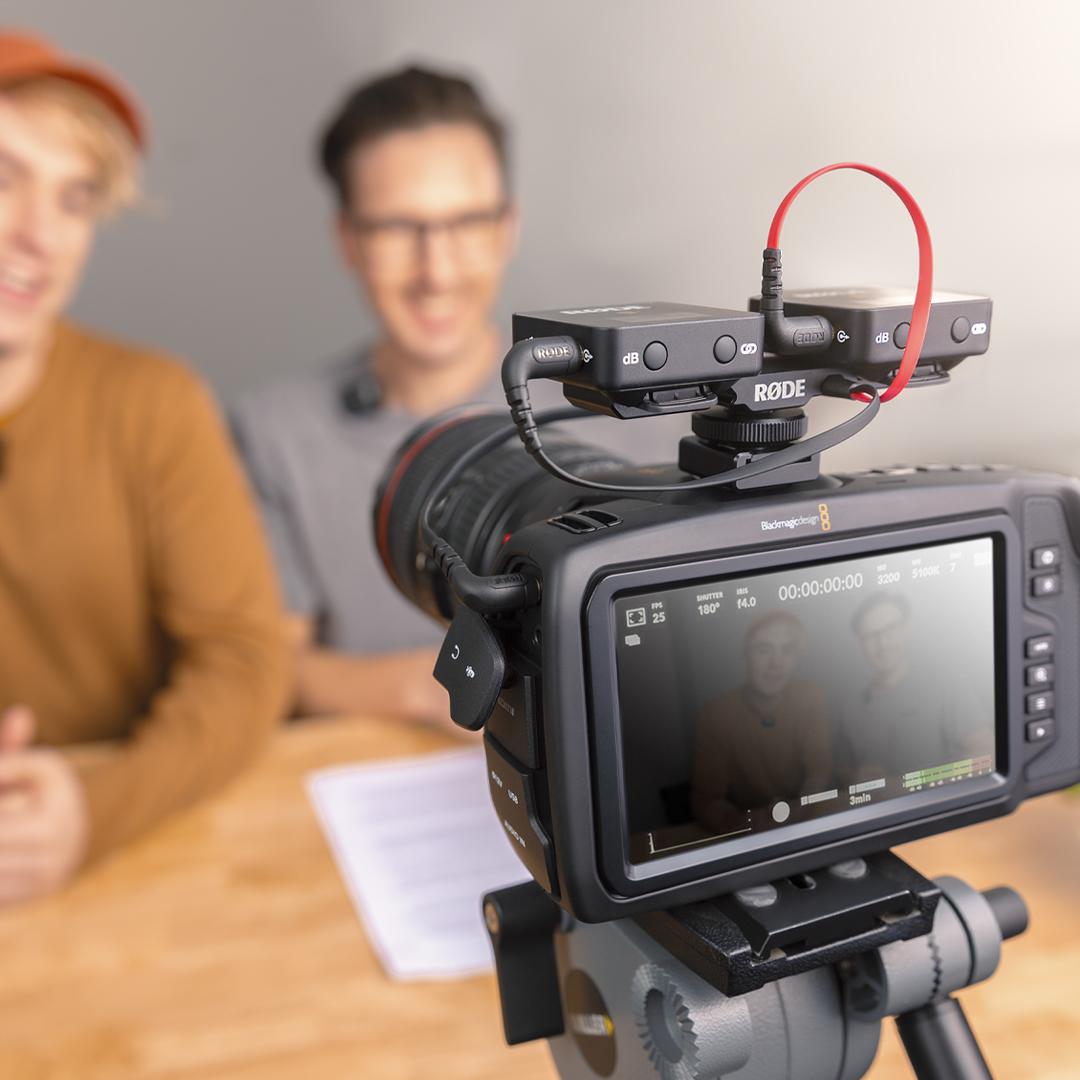
Vlog撮影にワイヤレスマイク1本とVideoMic 1本
多くのVloggerにとって定番のセットアップは、Wireless GO 1本とVideoMic 1本をデジタル一眼レフカメラに取り付ける方法です。これは2つの理由で便利です。1つ目は、片方のマイクが途切れたり、録音がうまくいかなかったりした場合に備えた、確実なバックアップ録音として使えることです。例えば、ラベリアマイクの装着位置が適切でない場合などです。
2つ目は、Wireless GOを使ってカメラの後ろにいる自分の声を常に明瞭に録音しながら、VideoMic でカメラが向いている対象を収録できることです。インタビューしている相手でも、シーンの環境音でも構いません。VideoMicroのようなコンパクトなマイクを使えば、リグを軽量に保ち、機動性を高められます。
推奨セットアップ:Wireless GO × 1、VideoMicro × 1、DCS-1 × 1、SC11 × 1
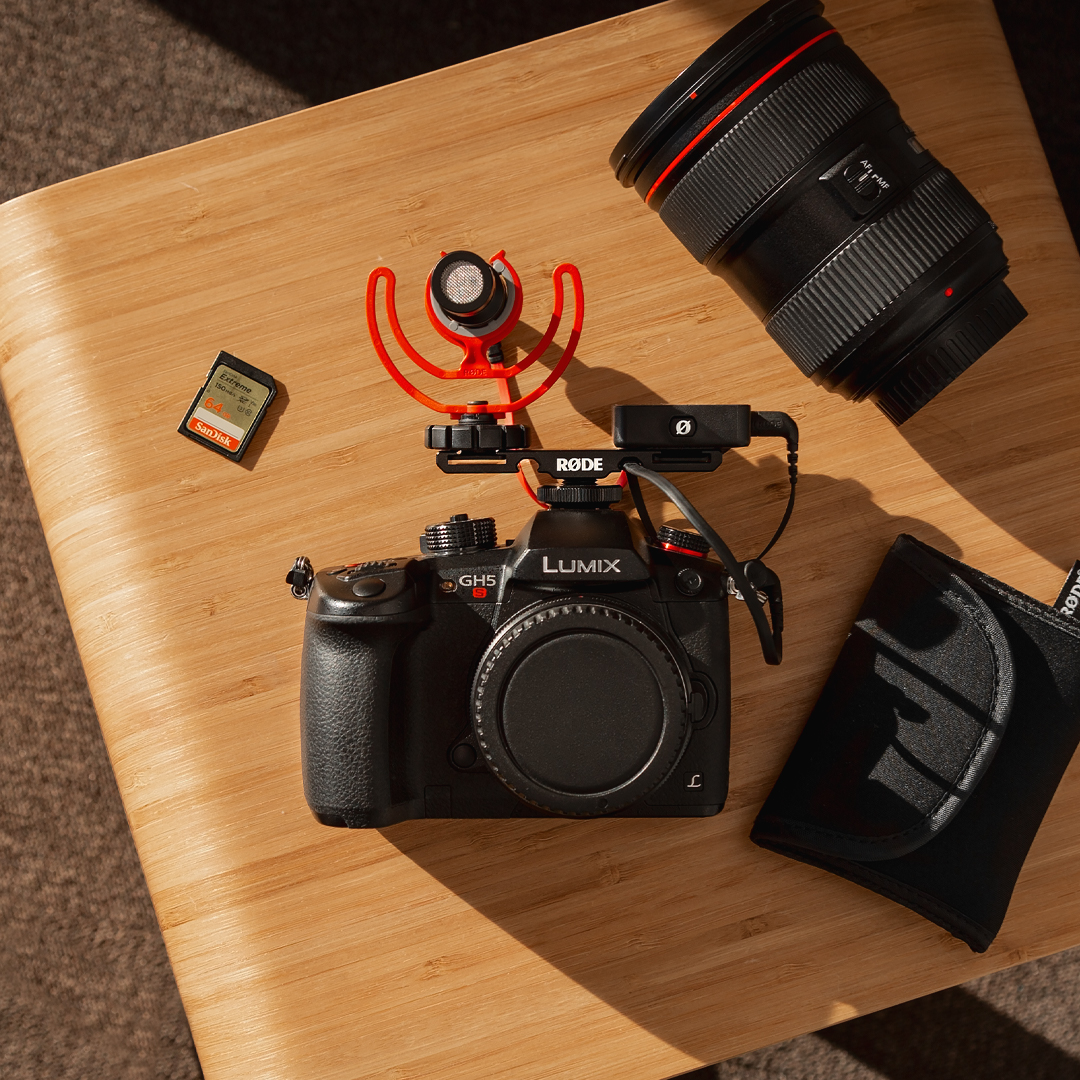
映像制作におけるVideoMic 2本
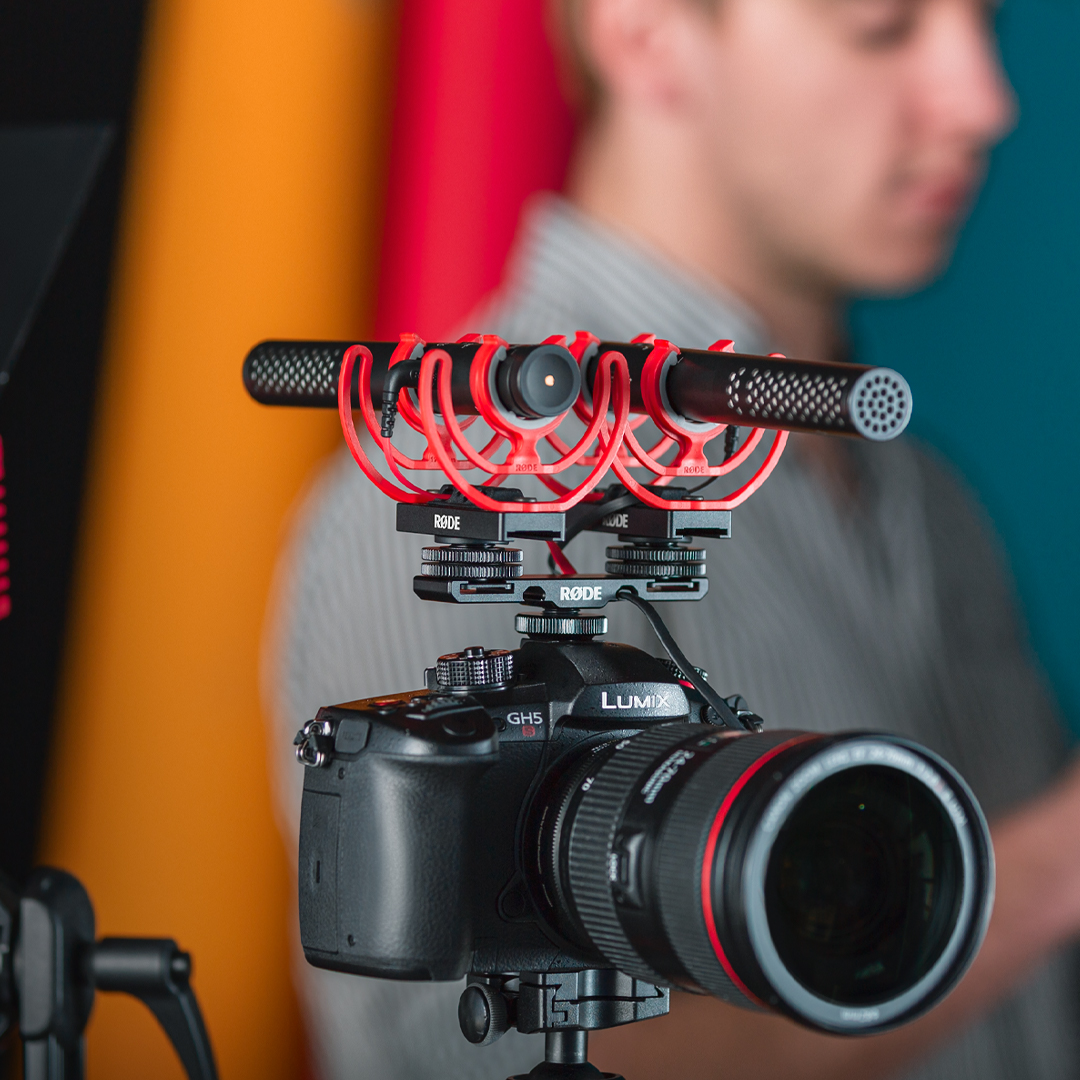
バッグにワイヤレスマイクがない場合は、もう1本のVideoMicで簡単に代用できます。このセットアップにはVideoMic NTGが最適です。柔軟な可変ゲインコントロールに加え、-20dB パッドを備えているため、2本のマイク間のレベルを正確に調整でき、ポストプロダクションの時間を短縮できます。また、他の音源よりもマイクに近い自分の声が、カメラのプリアンプをオーバーロードするのを防ぐこともできます。
推奨セットアップ:VideoMic NTG × 2、DCS-1 × 1、SC11 × 1
音声モニタリングとポストプロダクションに関する注意点
前述のとおり、SC11を使って2本のマイクを1台のカメラに接続して録音すると、2つの音声信号は1つの入力にまとめられますが、分離された状態でカメラのステレオマイク入力の左チャンネルと右チャンネルに録音されます。
ケーブルの黒い端子は左チャンネルに、赤い端子は右チャンネルに録音されます。この区別は、音声をモニタリングする際に特に役立ちます。例えば、Wireless GO を使って2人のインタビューを録音していて、一方のチャンネルの音量が大きく、ピークに近づいていることに気づいた場合、どちらのマイクかを簡単に特定し、話者に声を抑えてもらうか、レシーバーのゲインを下げることができます。
2つの信号を別々のチャンネルに保持することは、ポストプロダクションにおいても不可欠です。これにより、2つの音源を個別に編集・ミックスできます。
例えば、デュアルマイクのセットアップを録音のバックアップとして使用している場合、一方のマイクから使えない音声を簡単に切り出し、2本目のマイクで収録したクリアな音声に置き換えられます。また、2人のインタビューを録音していて、一方の話者の声がもう一方より小さい場合は、そのトラックの音量を上げて音声のバランスを整えられます。
オーディオを読み込む方法
オーディオを編集ソフトウェアに読み込むと、Logic Proのようなデジタル・オーディオ・ワークステーション(DAW)でも、Premiere Proのような動画編集ソフトウェアでも、両方のチャンネルが同じトラックに収録されたステレオファイルとして読み込まれます。そのため、各チャンネルを個別に編集できるよう、分離する必要があります。
Premiere Proでこれを行うには、オーディオトラックを右クリックして「複製」を選択し、トラックを複製します。同一のトラックが2つできたら、それぞれのトラックから出力するマイクチャンネルを選択できます。
最初のオーディオクリップを右クリックし、「オーディオチャンネル」を選択します。ここで、このオーディオトラックで使用するチャンネルを選択できます。このクリップの右チャンネルのチェックボックスをオフにして、「OK」をクリックします。これで、1つのオーディオチャンネルだけを含むモノトラックが作成されたことを確認できます。
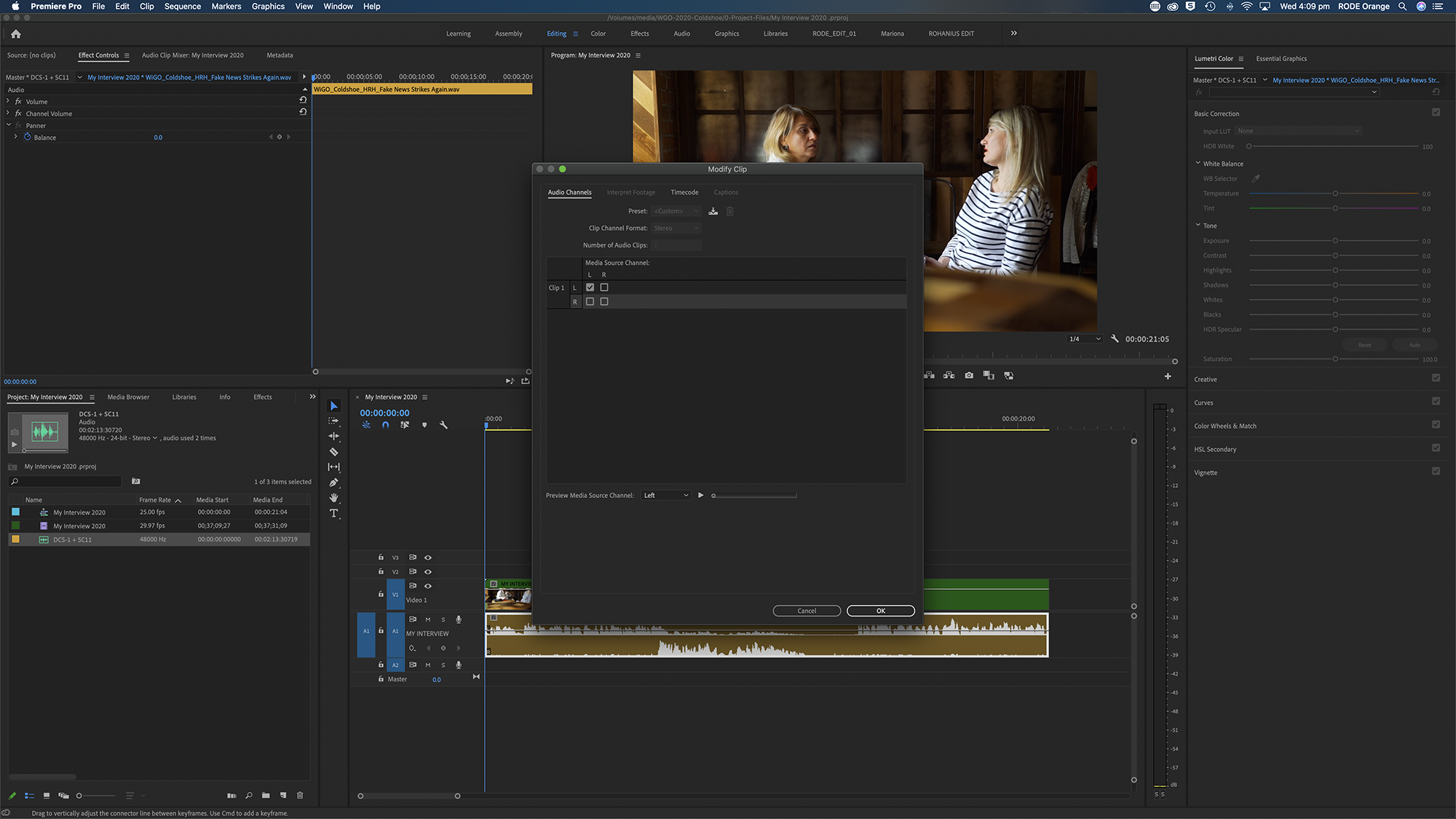
もう一方のトラックでも同じ手順を繰り返しますが、今度は左チャンネルの選択を解除します。「OK」をクリックすると、個別に名前を付けて編集できる、2つの独立したモノラルオーディオトラックが表示されます。
この手順は、使用するソフトウェアによって多少異なります。ただし、上記の手順に従えば、簡単に設定方法を見つけられるはずです。
これで完了です!1台のカメラで2本のマイクを録音する、とてもシンプルな方法です。2チャンネルレコーダーやオーディオインターフェースを新たに購入する必要はありません。必要なのは2本のRØDE マイク、SC11 、そしてDCS-1だけです。