UNIFY
UNIFY ist eine leistungsstarke virtuelle Mischlösung für Streaming und Gaming, mit der du dein gesamtes Audio über eine intuitive Softwareoberfläche steuern kannst – mit flexiblen Routing-Optionen, Submixing, professioneller Audiobearbeitung, Mehrspuraufnahmen und mehr.
So funktioniert es
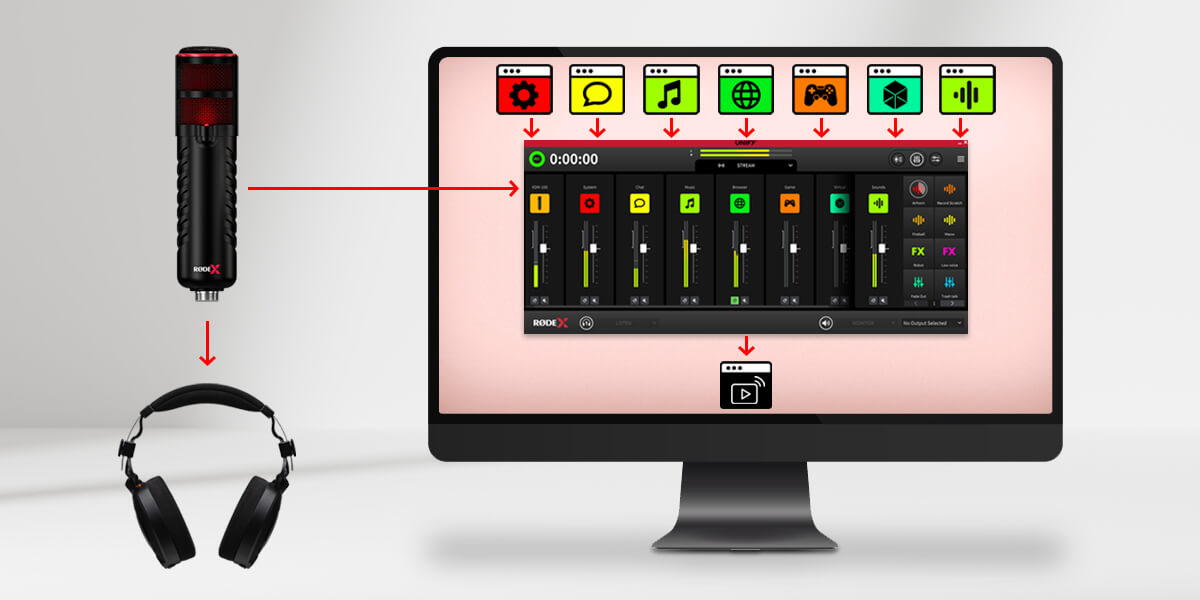
Bevor wir ins Detail gehen, sehen wir uns einige grundlegende Prinzipien von UNIFY und ihre Anwendung an. UNIFY ist eine Software, die mehrere Audioquellen zusammenführt. Sie funktioniert wie ein Audiomixer, den Sie vielleicht auf Ihrem Schreibtisch haben, ist jedoch eine Software auf Ihrem Computer. Jede Audioquelle wird in UNIFY auf einem Fader angezeigt, sodass Sie ihren Pegel anpassen können. Beispielsweise möchten Sie vielleicht, dass Ihre Musik leiser und Ihre Stimme lauter ist. Anschließend wird der Ausgang von UNIFY in Ihre Streaming-Software eingespeist.
Das ist wichtig! UNIFY liegt zwischen Ihren Audioquellen und Ihrem Stream. Der Ton von Ihrem Mikrofon, Ihrem Spiel und anderen Quellen wird also in UNIFY eingespeist, während der Ausgang von UNIFY in Ihren Stream gelangt. Sie müssen diese Audiogeräte in Ihrer Streaming-Software nicht erneut auswählen, da UNIFY sie bereits alle für Sie verwaltet.
Funktionen
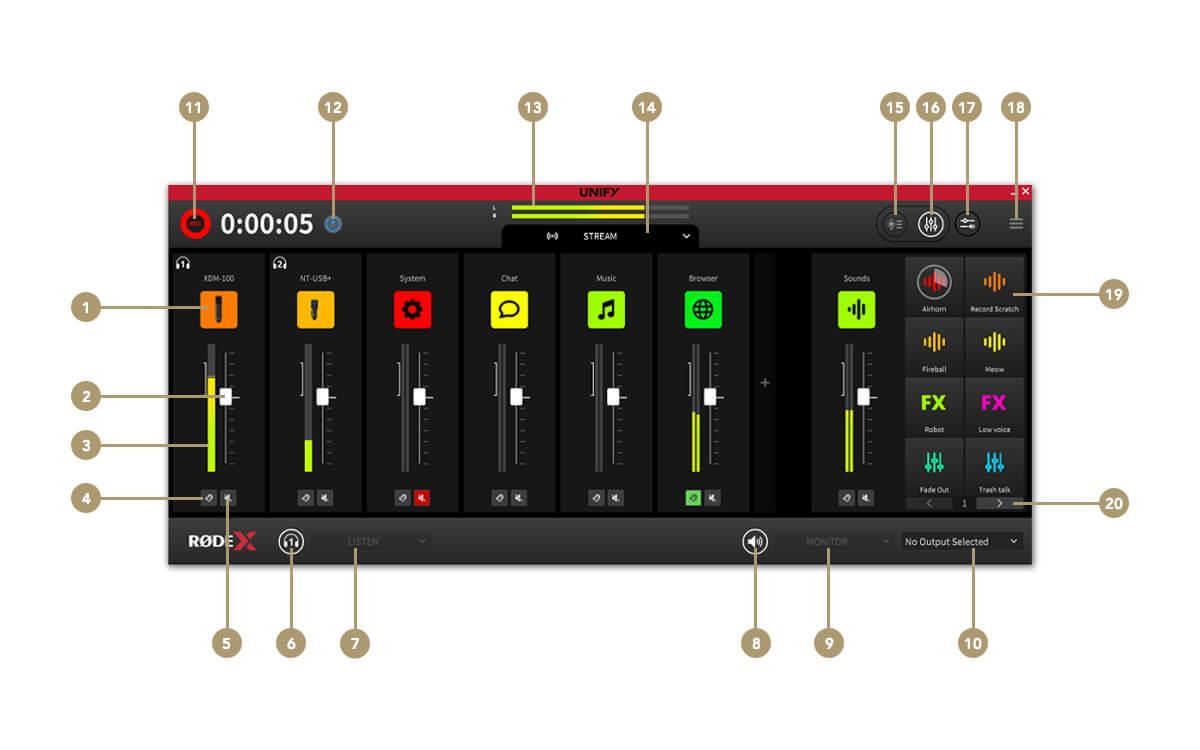
1Kanaleingangsquelle
2Kanalfader (Pegel)
3Kanalpegelanzeige
4Abhören (Cue)
5Kanal stummschalten
6Kopfhörer stummschalten
7Kopfhörer-Monitorauswahl
8Externen Monitor stummschalten
9Monitorquellenauswahl
10Monitorauswahl
11Aufnahme starten / stoppen
12Aufnahmemarker setzen
13Stream-Ausgangspegel
14Submix-Auswahl
15Zum Aufnahmefenster wechseln
16Zum Mischpultfenster wechseln
17App-Audio-Routing (nur Windows )
18Einstellungsmenü
19SMART-Pads
20Schalter und Bänke
Die Submix-Regler
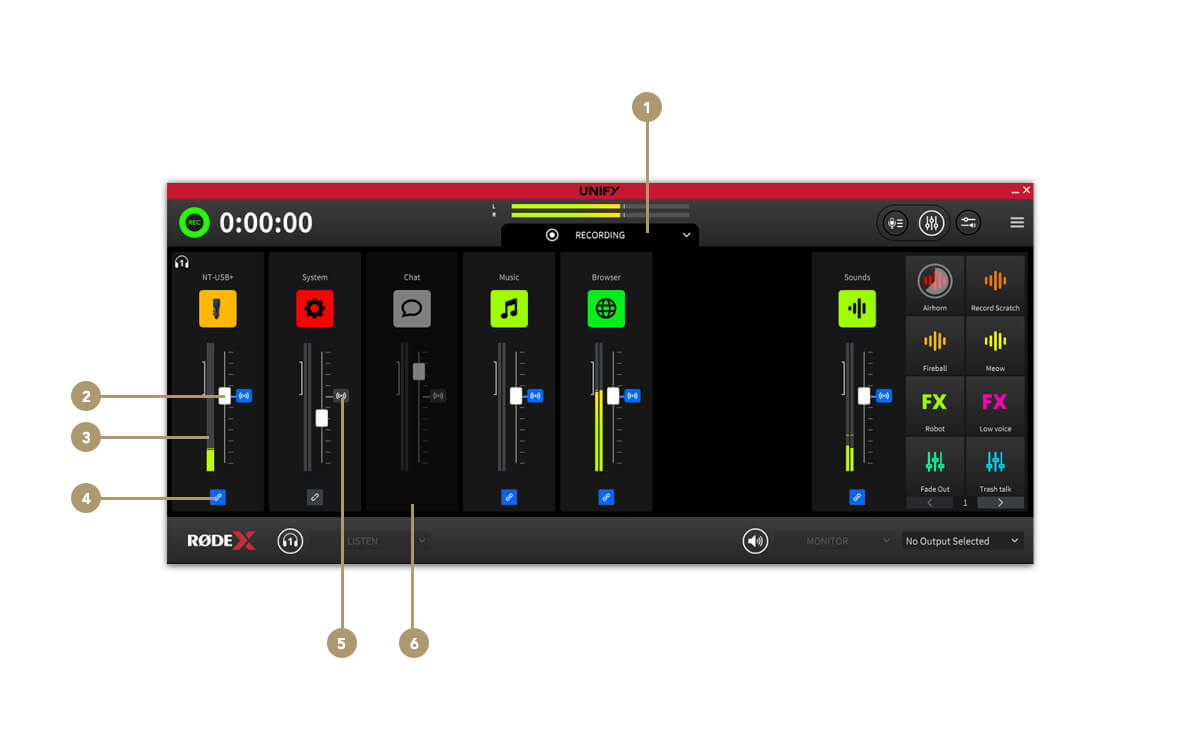
1Submix-Auswahl
2Submix-Pegel-Fader
3Submix-Pegelanzeige
4Kanal mit dem Stream-Mix verknüpfen bzw. Verknüpfung aufheben
5Audiopegelanzeige des Stream-Mix
6Kanal aus dem Submix entfernt
Das Aufnahmefenster
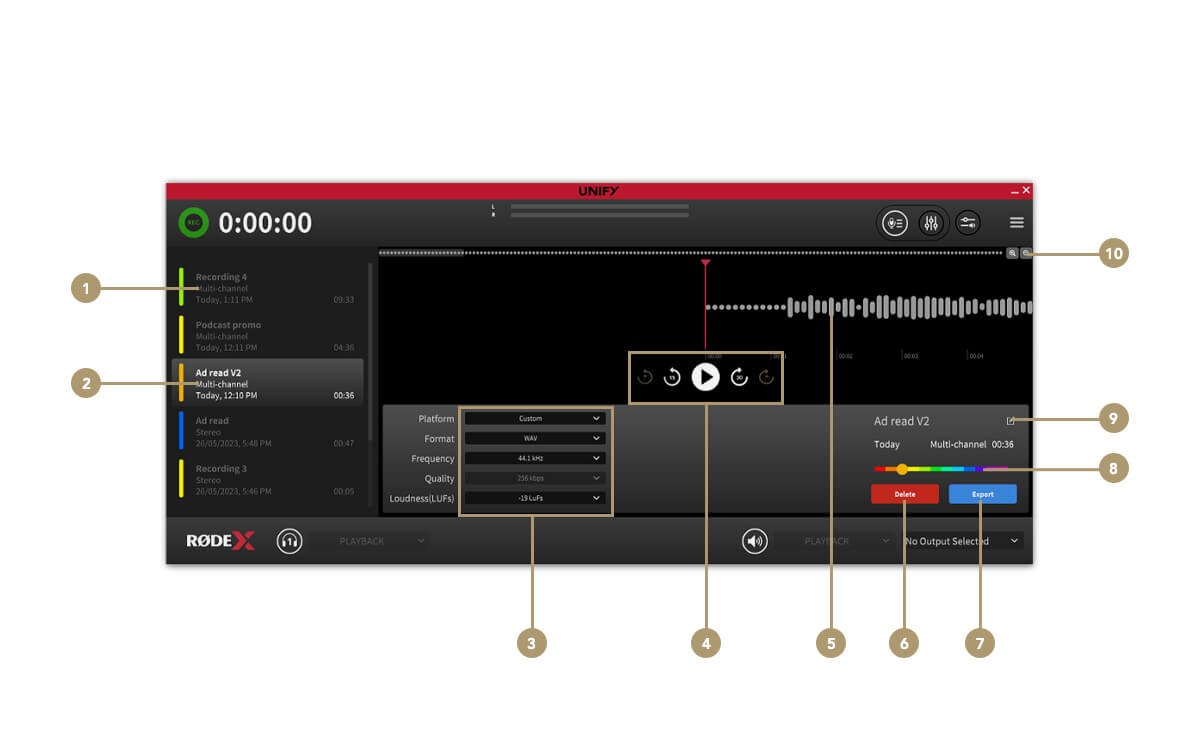
1Aufnahmenliste
2Ausgewählte Aufnahme
3Dateiexporteinstellungen
4Transportsteuerung
5Audio-Wellenform/Wiedergabe
6Aufnahme löschen
7Aufnahme exportieren
8Farbauswahl
9Aufnahme umbenennen
10Zoomsteuerung