Direct Connect Bluetooth® Pairing Extends to Premium Wireless Range
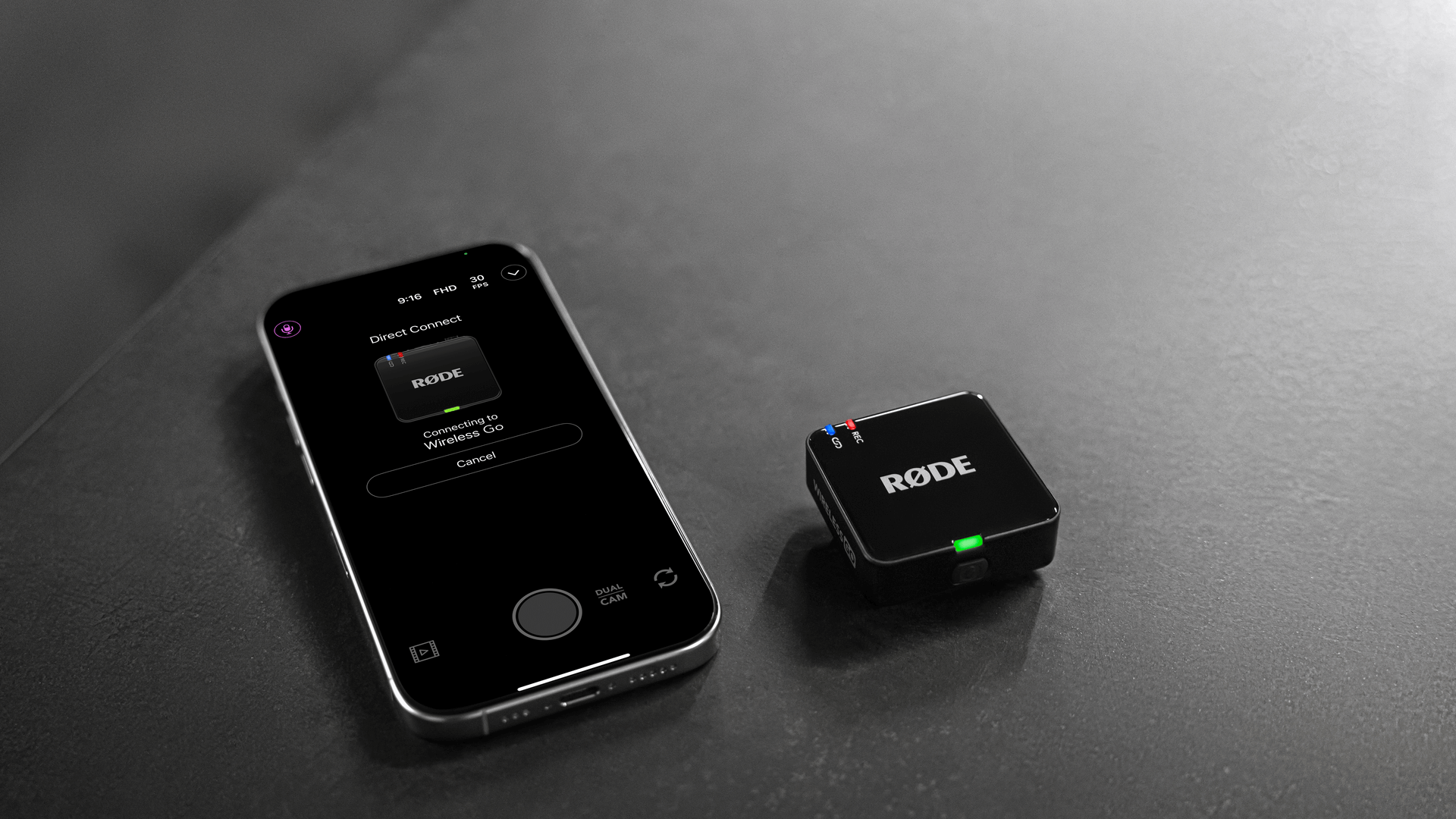
Wireless Micro users the world over have been enjoying the effortless Bluetooth® connectivity that Direct Connect brings to capturing content and now, we’re happy to announce this powerful feature has extended to the Wireless GO (Gen 3) and Wireless PRO.
This feature unlocks the ability to pair your transmitters directly to your iPhone via Bluetooth® using the RØDE Capture app, completely eliminating the need for a receiver in your mobile setup and making pristine wireless audio capture on your smartphone easier than ever before.
How to Get Started
Getting started is simple, but there is a crucial first step regarding your firmware. To ensure your devices can communicate via Bluetooth®, your wireless system must be running the latest firmware.
Step 1: Update Your Device Firmware via RØDE Central
Important: You cannot update the firmware required for Direct Connect using the mobile app alone. You must use the desktop version of RØDE Central.
- Download the latest version of RØDE Central on your Mac or PC.
- Connect your Wireless PRO or Wireless GO (Gen 3) units (both receiver and transmitters) to your computer.
- Launch RØDE Central. If a firmware update is available, you’ll be prompted to Install it.
- Follow the on-screen prompts to complete the update for all units.
Step 2: Prepare RØDE Capture
Once your hardware is updated, move to your iPhone.
- Ensure you have the latest version of the RØDE Capture app installed from the App Store.
- Open RØDE Capture.
Step 3: Pairing Your Transmitters
- Turn on your transmitters.
- In RØDE Capture, follow the on-screen prompts to enter the pairing menu.
- Select the option to pair via Direct Connect.
- The app will scan for available transmitters. Once they appear, tap to connect.
You are now connected wirelessly, directly to the app, ready to record broadcast-quality audio.
Unlocking Professional Control in RØDE Capture
Connecting is just the beginning. RØDE Capture is designed to give you complete control over your sonic environment. Once paired via Direct Connect, you can adjust key parameters directly from the screen of your iPhone.
Output Gain
Every environment is different, and proper gain staging is essential for clean audio. Through the app, you can adjust the Output Gain for each transmitter independently. This controls the volume level of the audio being recorded into the video file. Whether you have a soft-spoken interviewee or a loud environment, you can dial in the perfect level instantly.
Split and Merged Modes
Flexibility in post-production can save a project. We’ve included the ability to toggle between Split and Merged recording modes directly in the app.
- Merged Mode (Default): This records audio from both transmitters onto both the left and right channels of your video file. This is the "ready-to-publish" mode. It’s ideal for content that needs to go live immediately without editing, ensuring the audio sounds full and centred.
- Split Mode: This records one transmitter to the left channel and the other to the right channel. We highly recommend this mode if you plan to edit your video later. It allows you to isolate each speaker's voice in your editing software (like DaVinci Resolve or Premiere Pro), giving you the power to adjust levels or EQ for each person independently.
LED Brightness
If you are filming in low light or want the transmitters to be less distracting on camera, you can adjust the LED Brightness. Toggle between bright for visibility or dim for a more discreet, professional appearance.
Now more versatile than ever before, the Wireless GO (Gen 3) and Wireless PRO are the ultimate grab-and-go premium wireless choices in their respective classes.
Update RØDE Capture, connect your GO or PRO and experience for yourself the unbridled freedom Direct Connect offers.