Capture Modes (4K & FHD)
Overview
4K Capture Mode is an additional operating mode that transforms the RØDECaster Video Core from a Full HD live production switcher into a dedicated 4K (UHD - 3840×2160) capture card and distribution system. It accepts multiple 4K30 inputs via HDMI, outputs them as NDI streams, records ISO tracks to external USB storage, and retains full audio mixer functionality, all at 4K resolution.
An additional “Full HD Capture” mode is available for users wanting the flexibility of multiple NDI outputs while maintaining a full 60fps with 1080p video feeds.
Both modes are parallel operating modes. In order to attain this performance, these modes will feature simple switching via HDMI (primarily for the purpose of monitoring) but many other advanced features will be disabled, including USB Video Output, keying, media and graphic playback, transitions, direct live streaming (RTMP/SRT) and multi-camera scenes.
Mode Selection
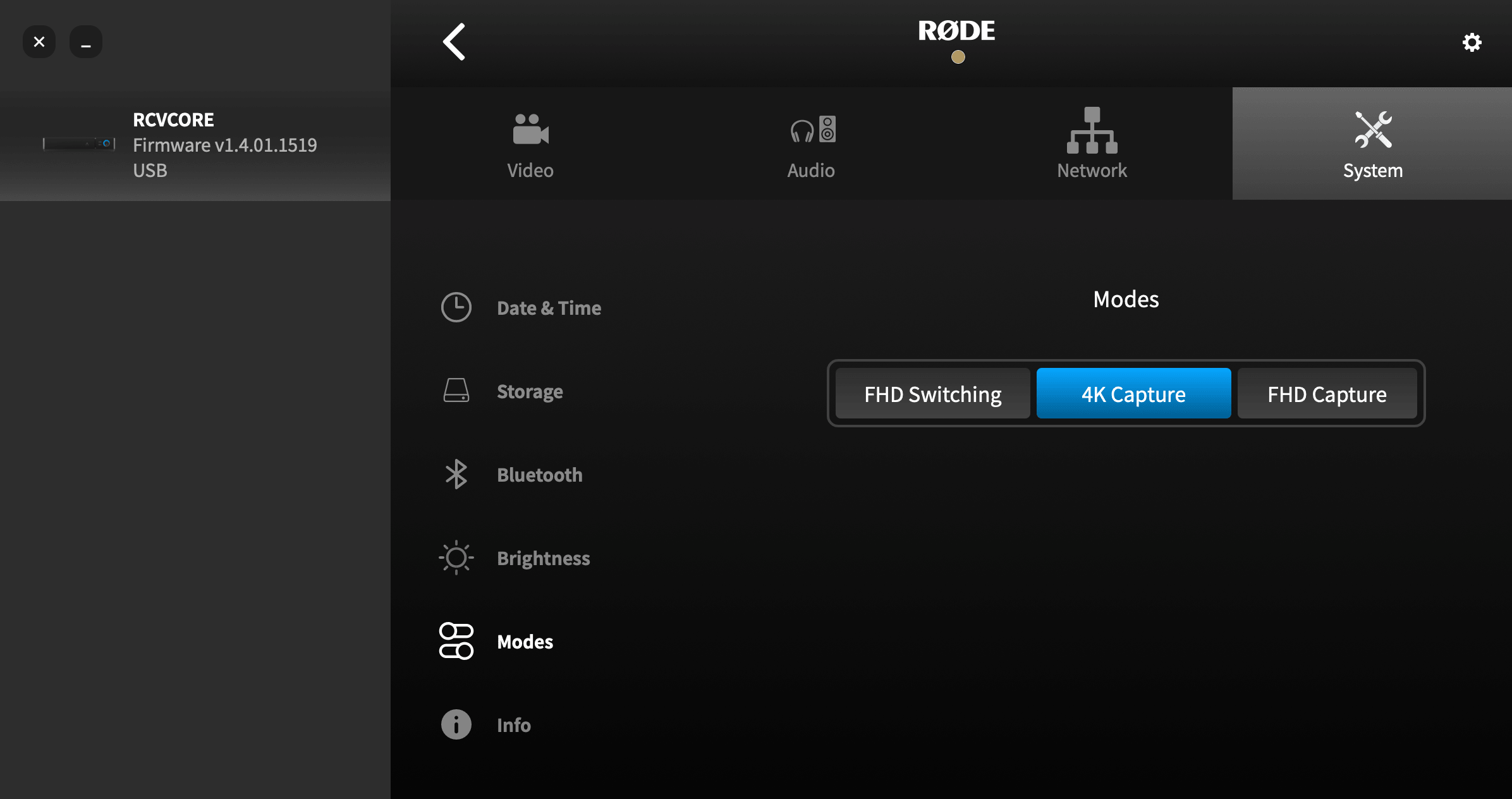
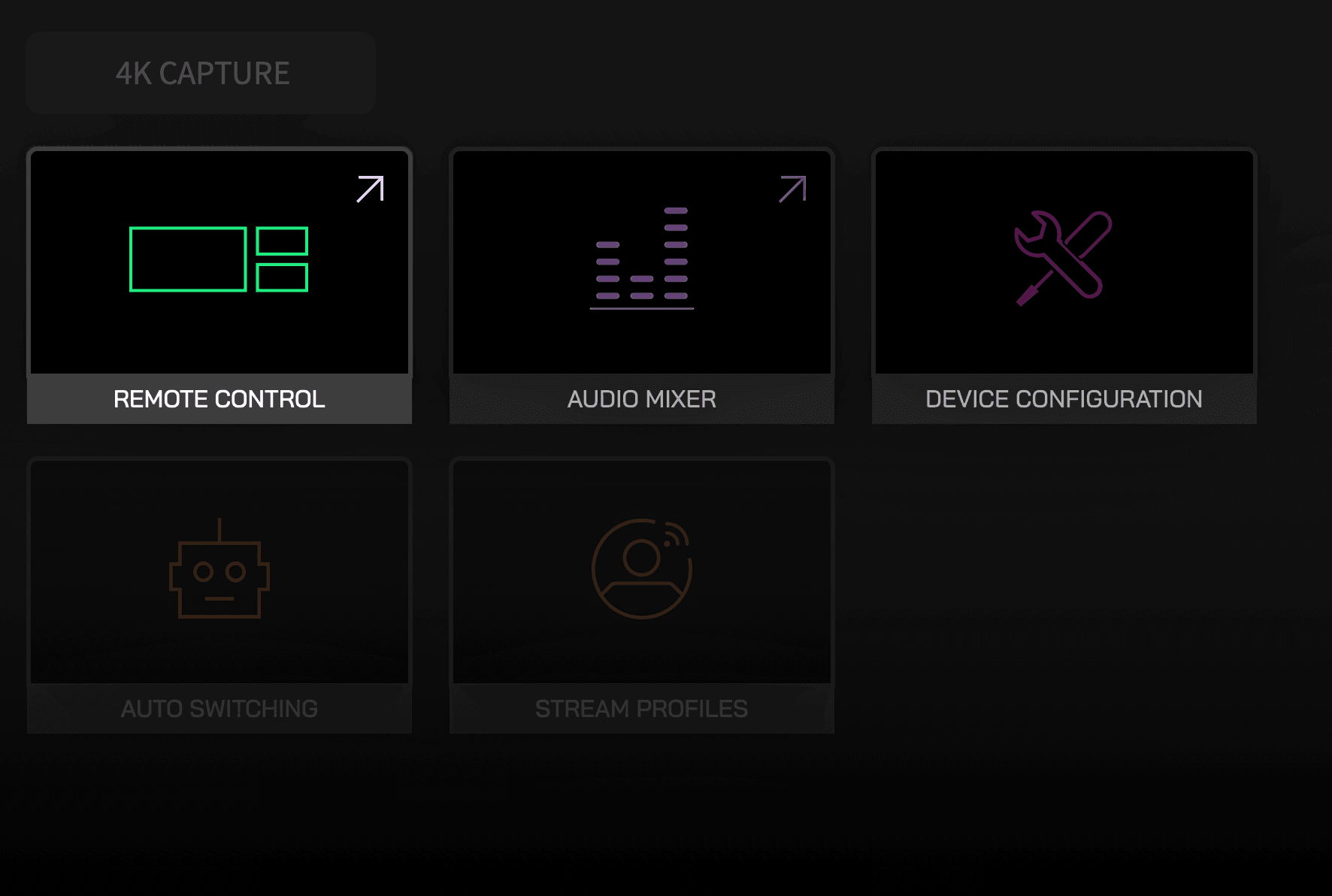
Entering 4K or FHD Capture modes is accessed via Device Configuration > System > Modes within the RØDECaster App. Changing modes from standard to either capture mode (or vice versa) will reboot the machine. If you are in a capture mode, it will be displayed in the Remote Control section of the RØDECaster App.
New Capture Mode Settings
When using either 4K Capture or FHD Capture modes, your RØDECaster Video Core will have a different set of settings available, either on the device itself or within the RØDECaster App.
Outputs
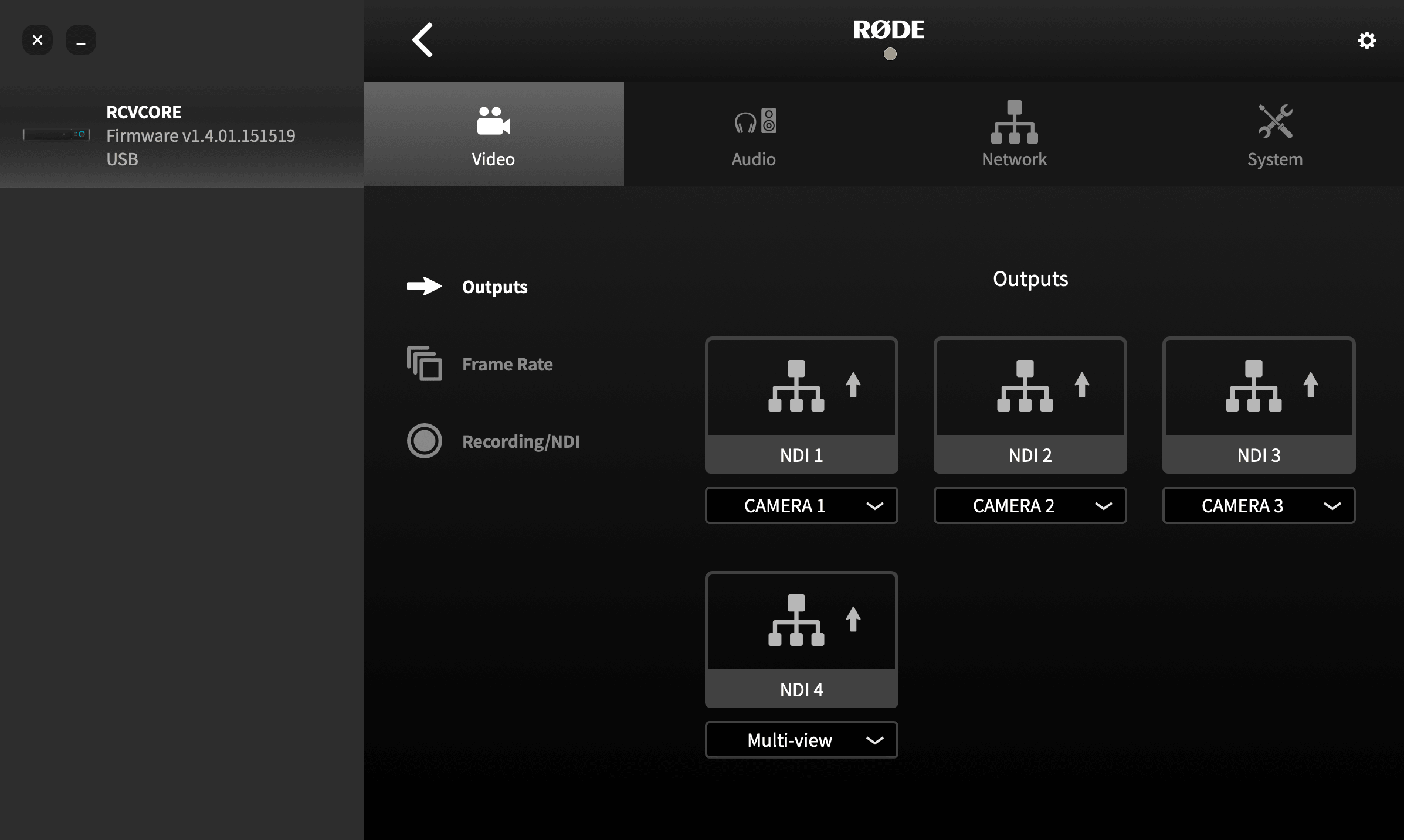
Here you can enable/disable each of your NDI outputs. NDI 4 will be assigned the Multi-view output.
Pro Tip
When connected to a computer via USB1, the NDI outputs will also be available for compatible NDI software via the RØDECaster Video Core's virtual network connection. No ethernet connection required!
Frame Rate
In 4K Capture mode, your RØDECaster Video Core is capable of global frame rates up to, and including, 30fps. In FHD Capture, this is increased to 60fps.
Note
Sources with higher frame rates will still be recorded and saved at the selected global frame rate. (E.g. a 1080p60 source will be recorded at 1080p30 when 4K Capture mode is set to 30FPS)
Recording/NDI
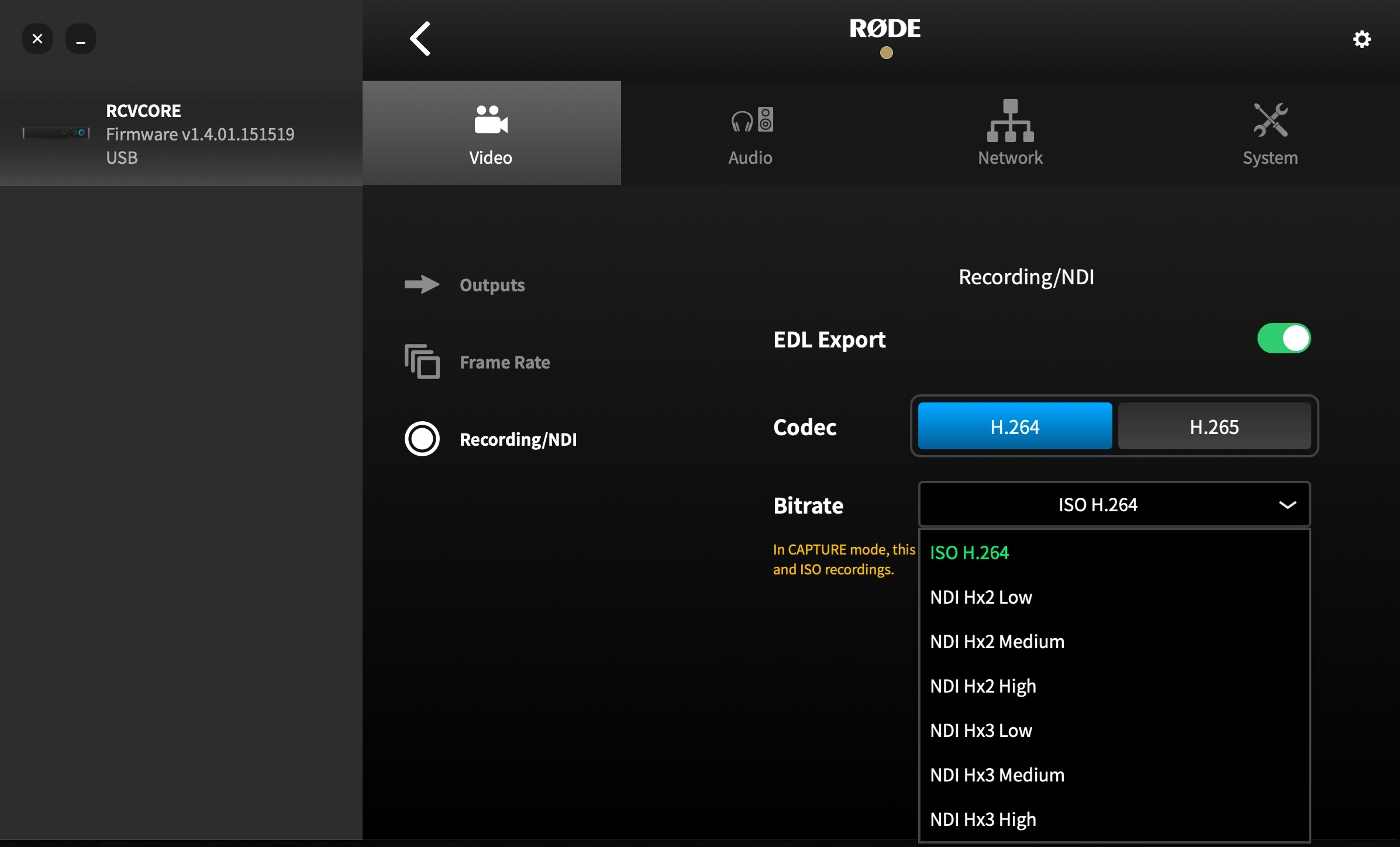
This menu allows you to select the codec and bitrate of your NDI outputs - H.264 or H.265 for the former, with a variety of options for each for the latter. When in either 4K or FHD Capture mode, this bitrate setting controls both the ISO recordings and NDI outputs.
Remote Control
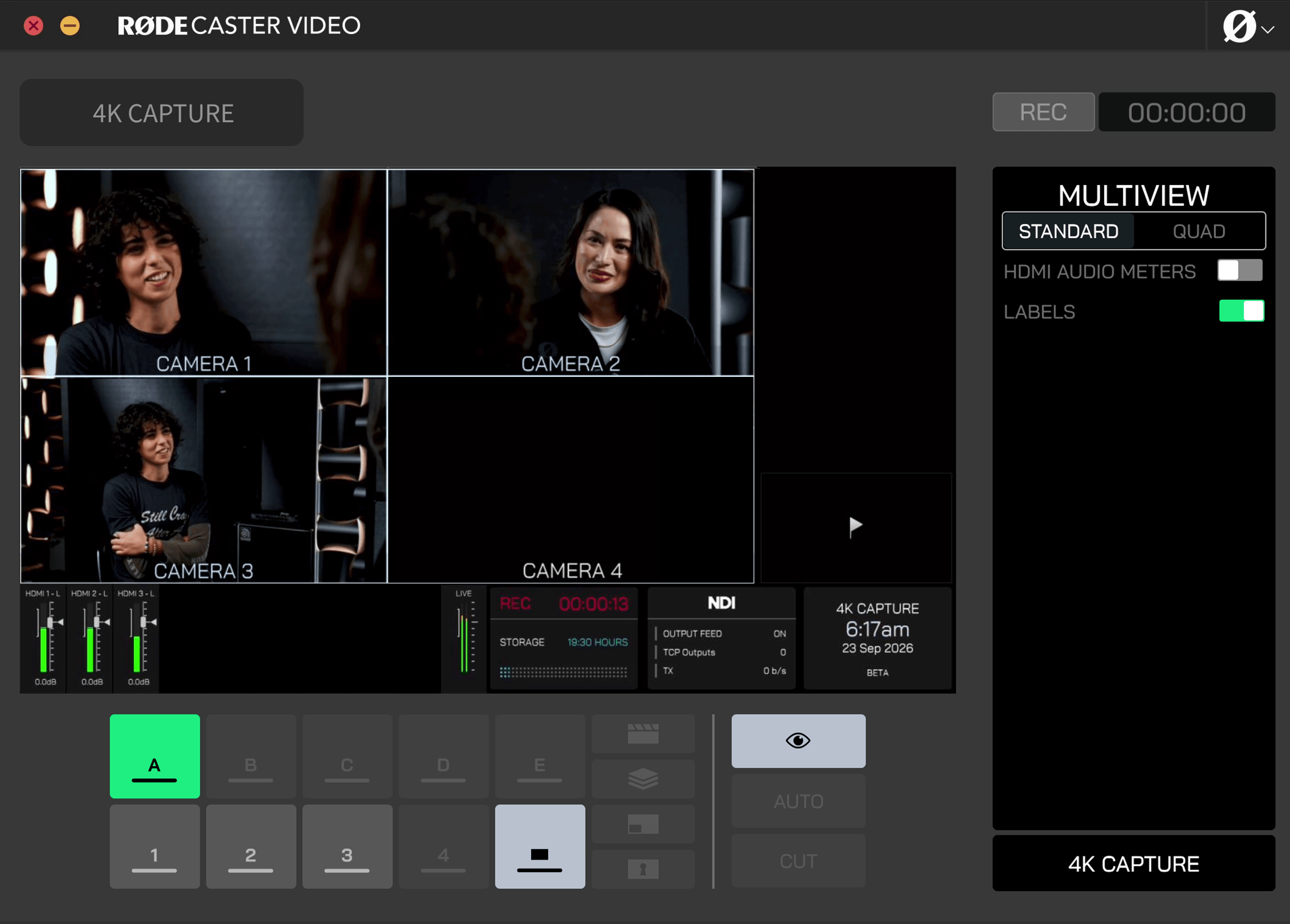
In place of the Scene Builder, the Remote Control screen allows you to view your multiview, perform simple switching between HDMI inputs (buttons 1-3) for the purpose of monitoring, inspect input details, and drop markers (via the fade-to-black button).
Multiview
Here, you can choose between the Standard and Quad displays for the multiview output sent to NDI 4. The standard option contains additional information on-screen such as audio levels of the full mixer, recording and storage details, network and transmission speed, etc. Quad mode purely displays each of the four possible outputs, with the option to also display the audio meters for HDMI 1-3.
Audio Mixer
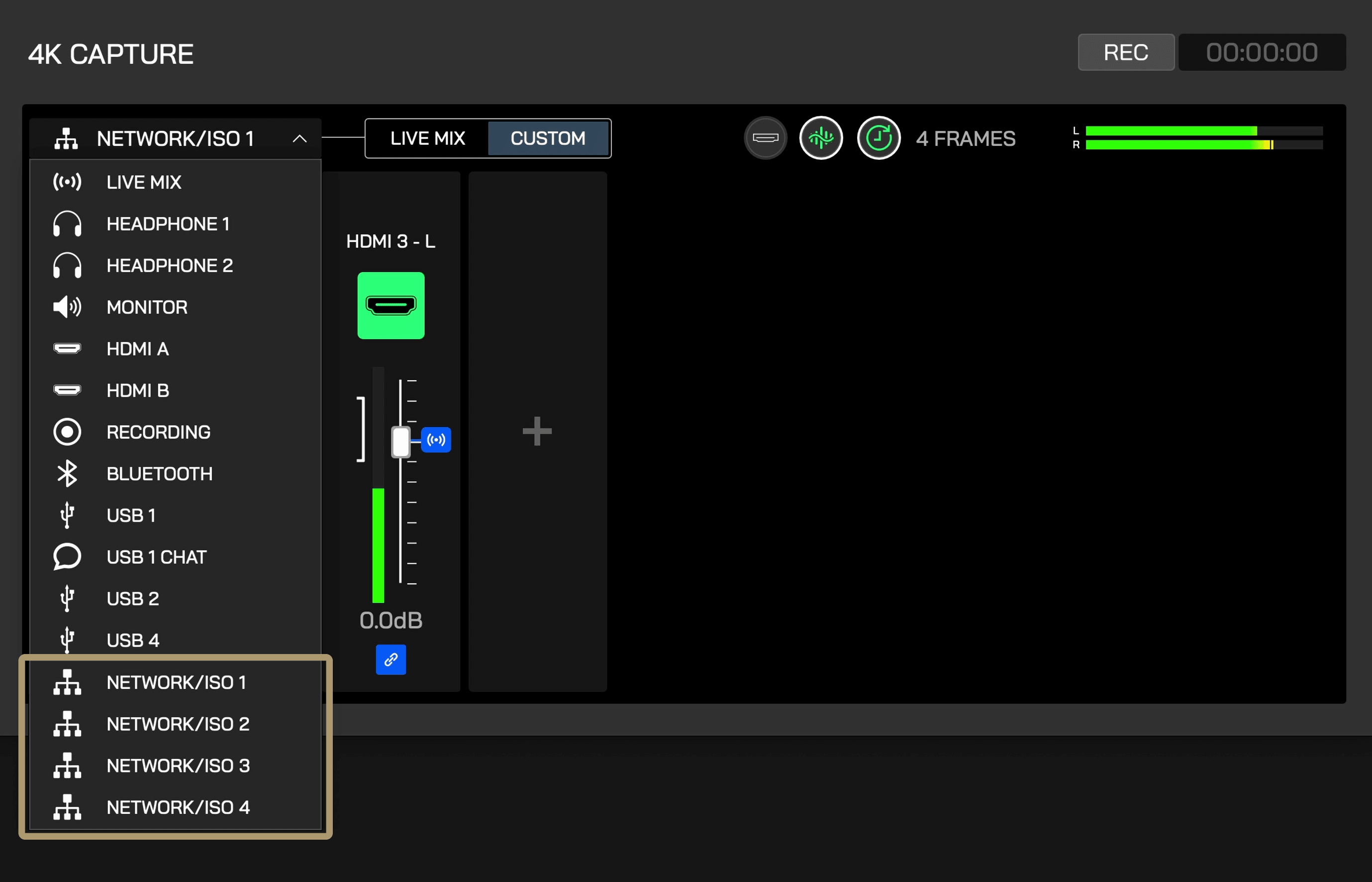
The audio mixer remains entirely functional in Capture mode, with each of the four NDI outputs now appearing as custom routing destinations, meaning you can create completely custom mixes for each output. These NDI outputs are shared with the individual ISO outputs in the recordings saved to an external drive.