接続する
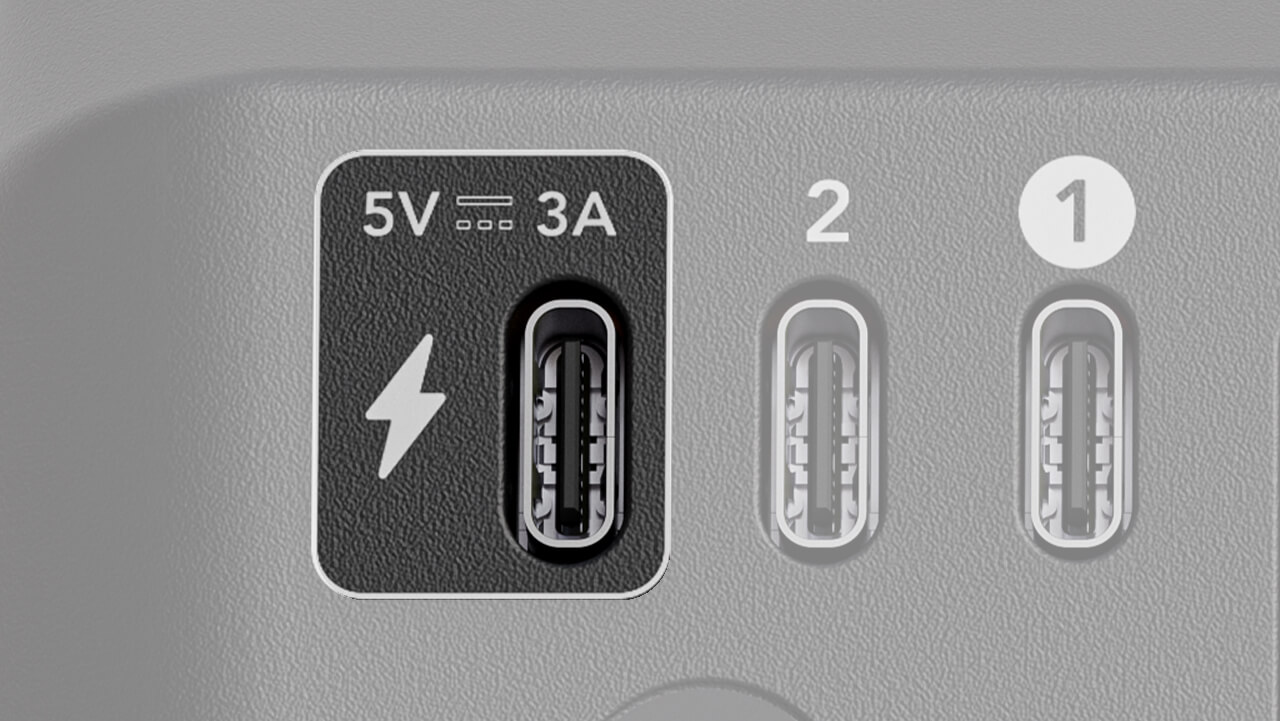
Streamer Xへの電源供給
付属の電源アダプターを壁面コンセントに接続し、稲妻マークの付いたStreamer XのUSB-Cポートに接続します。電源が供給されると自動的に電源が入ります。安定した5V / 3A以上の電力を供給できる場合は、USB 1ポートを介してコンピューターからStreamer X に直接電源を供給することもできます。
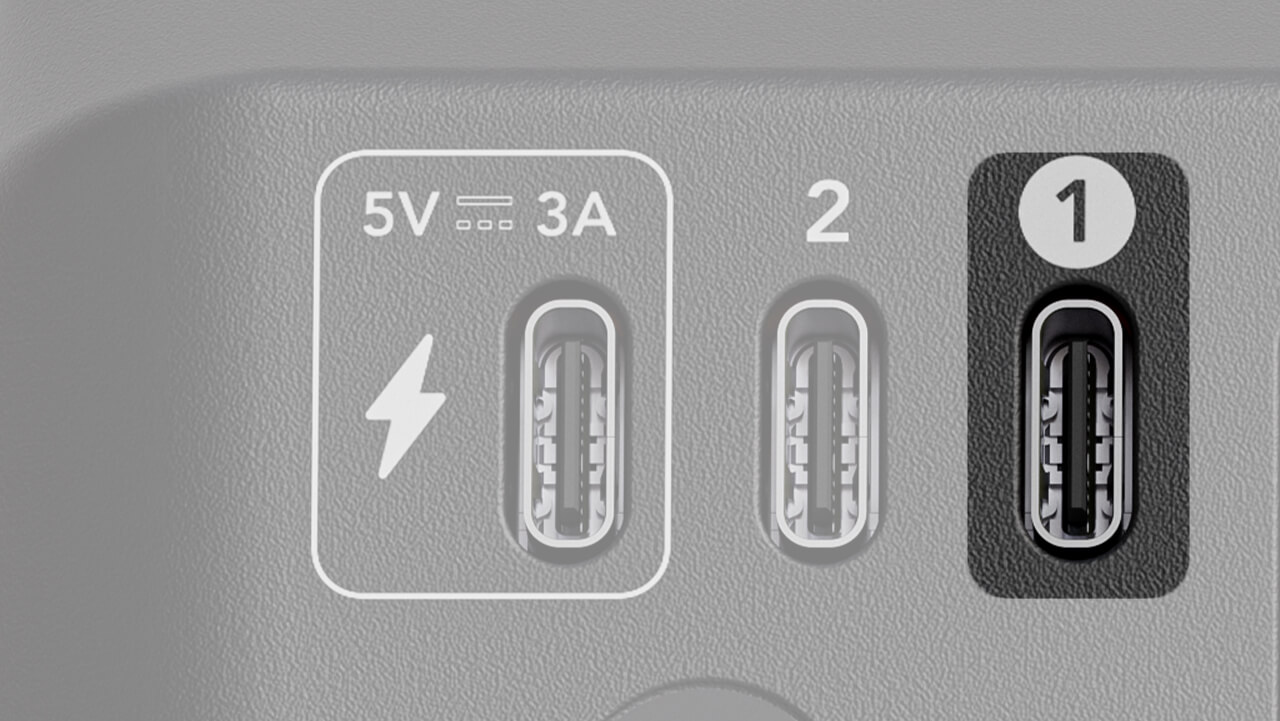
USB 1
これはStreamer XのメインUSB ポートです。接続すると、ノートパソコンまたはデスクトップコンピューターとの間で映像および音声データを送受信するために使用されます。電源が接続されていない場合でも、お使いのデバイスが適切な電力を供給できれば、Streamer X への給電にも使用できます。
このポートには付属のUSB-Cケーブルを使用することが重要です。または、映像フィードの伝送に必要なSuperSpeed データ転送に対応したUSB-Cケーブルを使用してください。
接続すると、以下のデバイスがコンピューター上の入力デバイスとして使用可能になります。
- Streamer X Main:これはStreamer X からのメイン音声ストリームで、Streamer Xに接続されたXLRマイク、楽器、ヘッドセットマイク、またはワイヤレスマイクシステムのいずれかが含まれます。
- Streamer X HDMI (音声):この入力には、HDMI In接続を介してStreamer X に入力された音声が含まれます。たとえば、デジタル一眼レフカメラ、ゲーム機、またはゲーミングコンピューターの音声などです。
- Streamer X HDMI (映像):この入力は、HDMI In経由でStreamer X に送信される映像ストリームを表します。
Streamer X は音声出力デバイスとしても表示されるため、コンピューターからStreamer Xのヘッドホンまたはヘッドセット出力へ音声を送信できます。
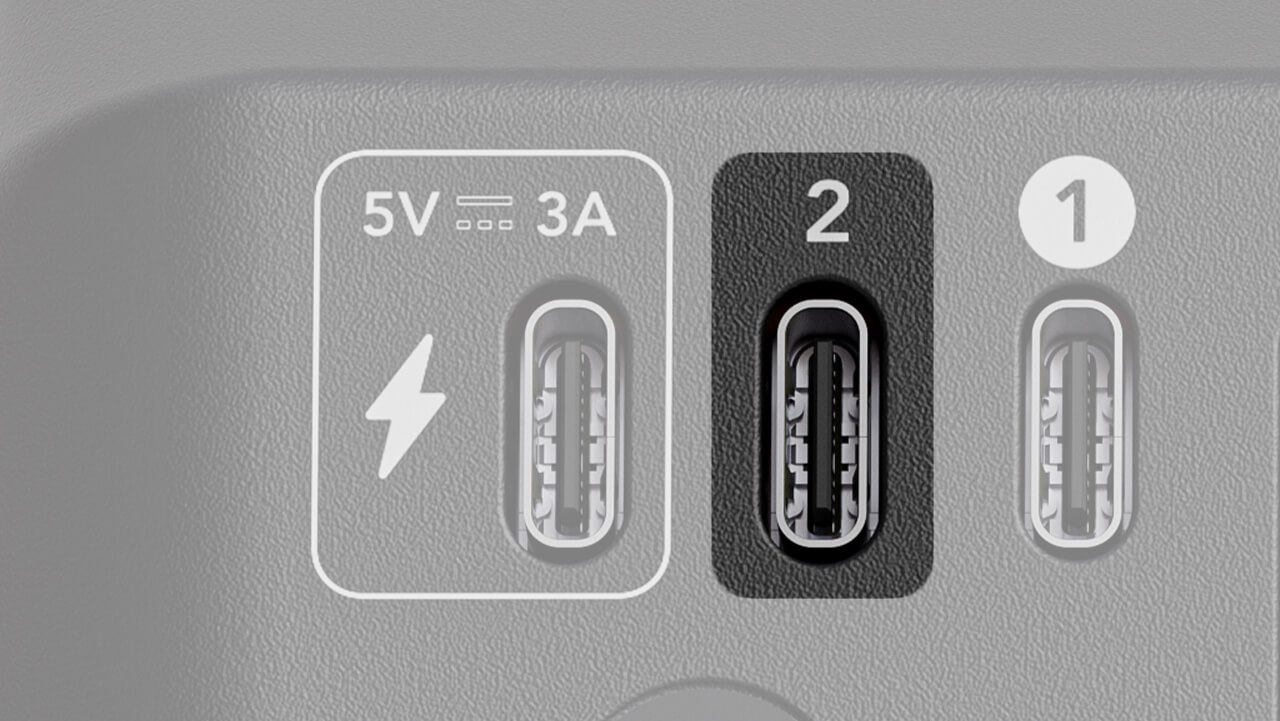
USB 2
USB 2は、コンソール、コンピューター、Androidスマートフォンやタブレットなどの外部オーディオデバイスを接続し、音楽再生、チャットアプリケーションなどに使用するためのものです。接続すると、オーディオデバイスの設定で「Streamer X Secondary」オプションを選択することで、USB 2に接続されたデバイスとの間でオーディオを送受信できます。
注
Androidデバイス、iOS USB-Cデバイス、PC、Mac、PlayStation 5システムに対応しています。Lightningポート搭載のiOSデバイスには対応していません。
RØDE USB-Cマイクの使用
RØDE USB マイクをUSB-C to CケーブルでStreamer XのUSB 2ポートに接続すると、マイク入力を追加できます。
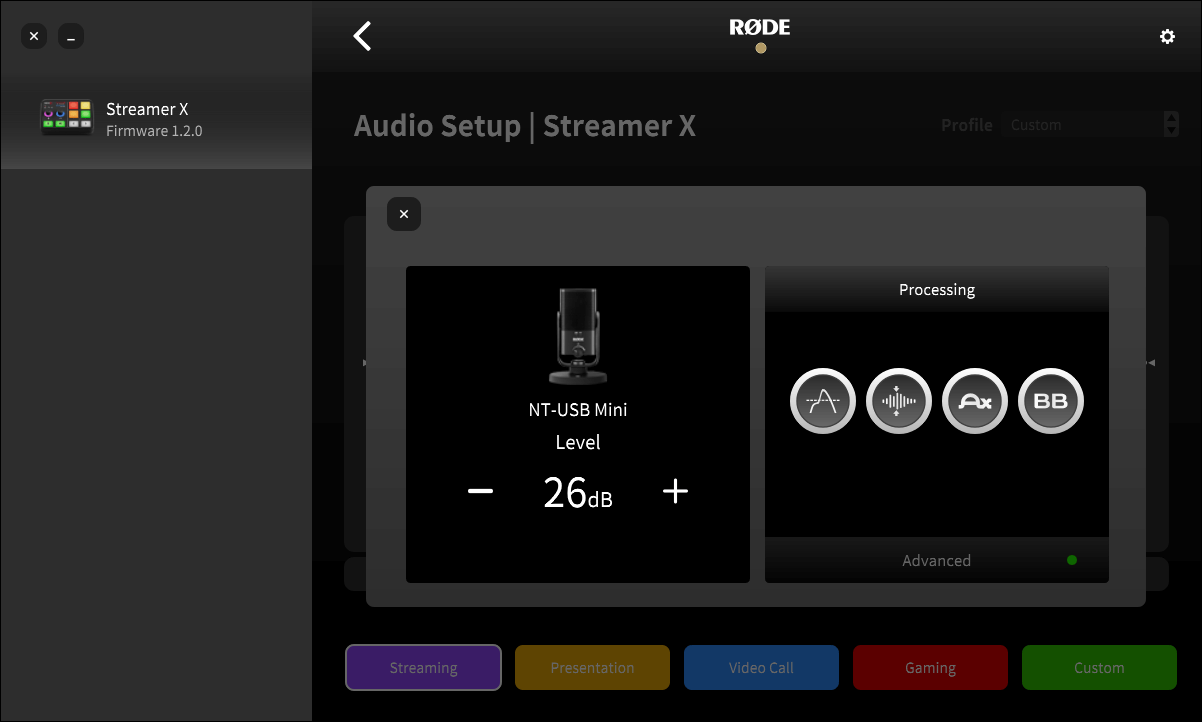
接続後は、他のUSB デバイスと同様に、RØDECaster AppのUSB 2チャンネルで設定を調整できます。チャンネル設定画面では、USB マイクの内蔵プロセッシングをコントロールできます。PodMic USB、NT-USB Mini、XCM-50 およびXDM-100では、マイク本体の物理ボタンを押してUSB 2チャンネルをミュートまたはミュート解除できます。
対応マイク
- PodMic USB
- NT-USB+
- NT-USB Mini
- Video Mic NTG
- VideoMic GO II
- XCM-50
- XDM-100
- Wireless ME
- Wireless GO II
- Wireless GO Gen 3
- Wireless PRO
注記
入力ゲインコントロールでは、USB2接続経由で接続されたマイクの音量は調整できません。Unifyでは、これらはUSB-2として表示されます。
HDMI IN
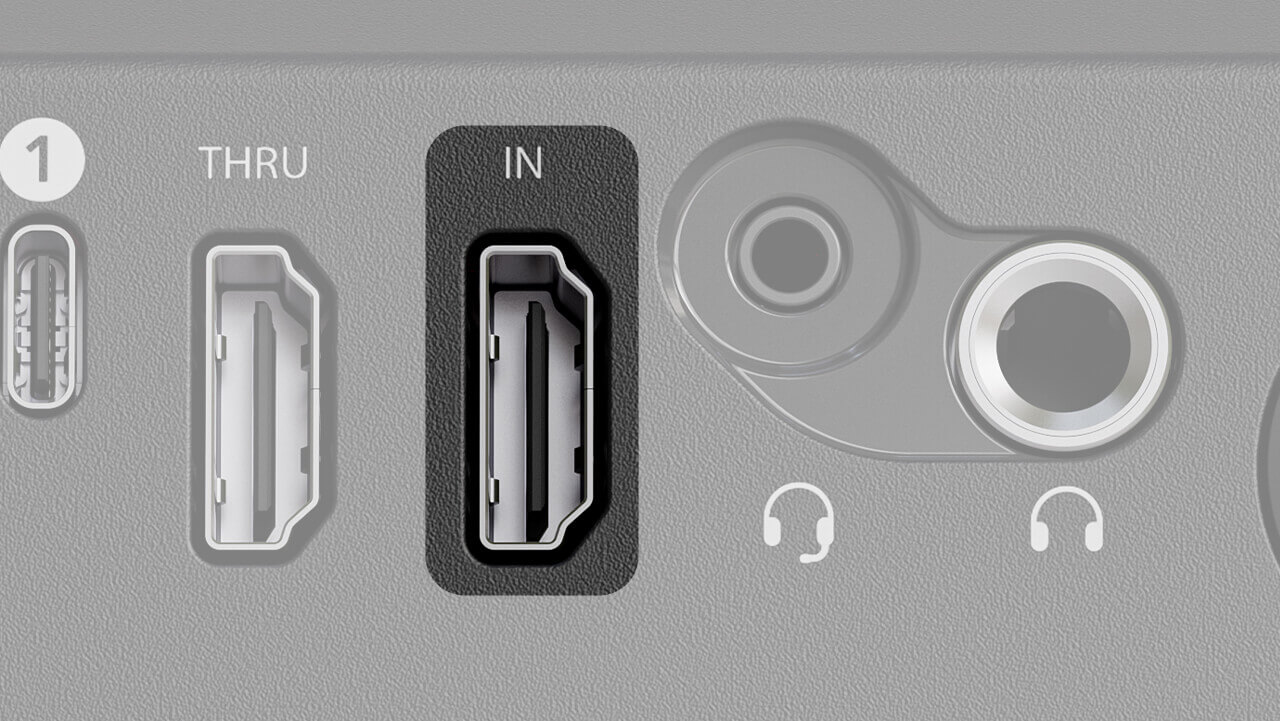
この入力端子は、DSLRカメラ、ビデオゲーム機、コンピューターなど、映像を取り込む機器の接続に使用します。
この入力端子は最大4K30の映像キャプチャーに対応し、最大4K60 HDRのパススルーにも対応します。また、VRR(可変リフレッシュレート)をサポートしています。
HDMI THRU
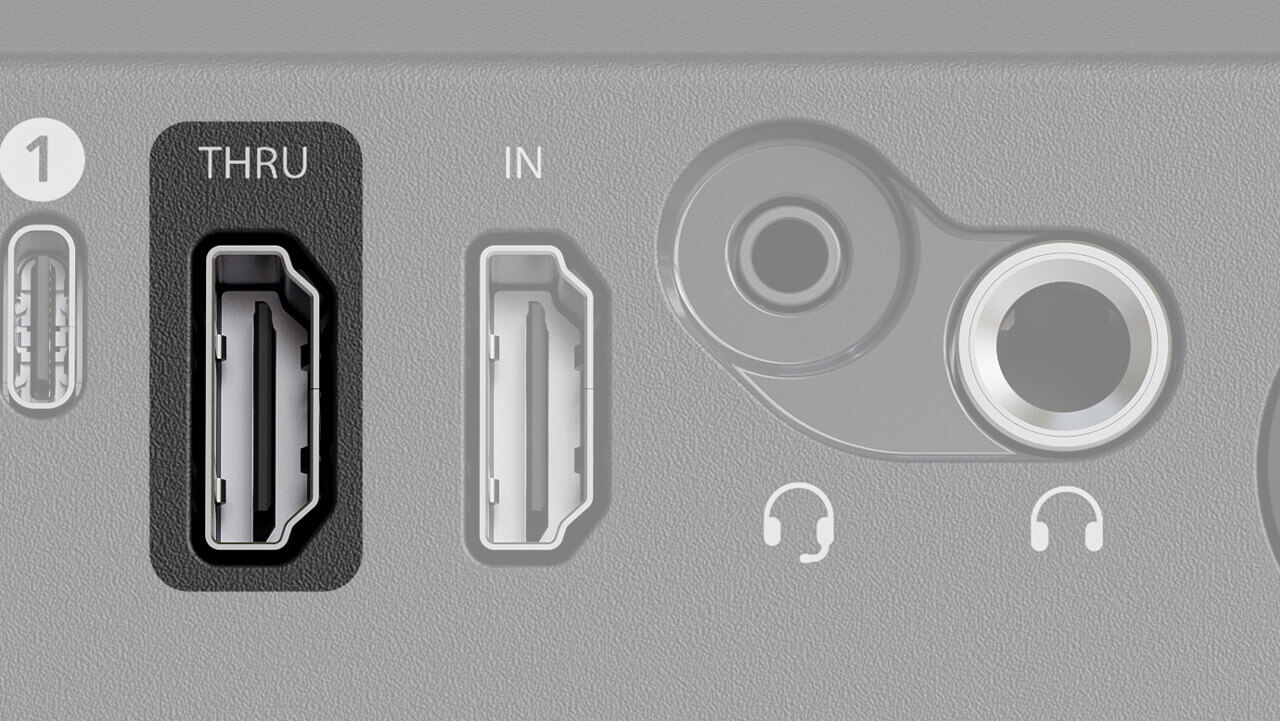
HDMI Thru接続を使用すると、テレビやモニターに接続して、ゲーム機、コンピューター、カメラ映像など、HDMI Inポートに接続された機器の映像をキャプチャー中でも画面上で確認できます。このHDMI Thruポートは、HDMI Inに入力された元の信号を完全に複製して出力します。遅延はゼロで、VRRに対応し、最大4K60 HDRをサポートします。
注
4Kを完全にサポートするには、HDMI 2.0以上のケーブルを必ず使用してください。ケーブルが必要ですか?プレミアムHDMIケーブルは、1 mおよび3 mの長さをご用意しています こちら。
入力フォーマット |
対応キャプチャーフォーマット |
||||
1080p60 |
1080p60 HDR |
1080p120 |
1440p60 |
4k30 |
|
1080p60 |
|||||
1080p60 HDR |
|||||
1080p240 1080p120 |
|||||
1440p60 |
|||||
1440p60 HDR |
|||||
1440p240 1440p120 |
|||||
4k60 |
|||||
4k60 HDR |
|||||
「ソースが検出されません」トラブルシューティング
Streamer XのHDMI INポートに映像ソースを接続した際に「ソースが検出されません」というメッセージが表示された場合は、次の手順をお試しください。
- 付属のUSB-Cケーブル(または別のSuperSpeed USB-C to Cケーブル)を使用して、Streamer XのUSB 1ポートとコンピューターを接続していることを確認してください
- 映像ソース機器がHDMI THRUポートではなくHDMI INポートに接続されていることを確認してください。HDMI 2.0に対応したHDMIケーブルの使用をおすすめします
- すべてのケーブルがコンピューターとStreamer Xの両方にしっかり接続されていることを確認してください
- 映像ソース機器の出力先がHDMIに設定されていることを確認してください(たとえば一部のカメラでは、HDMIの代わりにUSB へ出力するよう選択できます)
- 映像ソース機器が対応フォーマット(上の表を参照)で出力していることを確認してください
トラブルシューティングのヒント
HDCP Capture Not Supported というメッセージが表示される場合、録画しようとしているデバイスでHigh-bandwidth Digital Content Protection(HDCP)が有効になっています。これは、著作権で保護されたコンテンツの海賊版作成を防止するための機能です。HDCPの詳細については、ゲーム機、コンピューター、その他のデバイスの取扱説明書をご確認ください。
コンボジャック
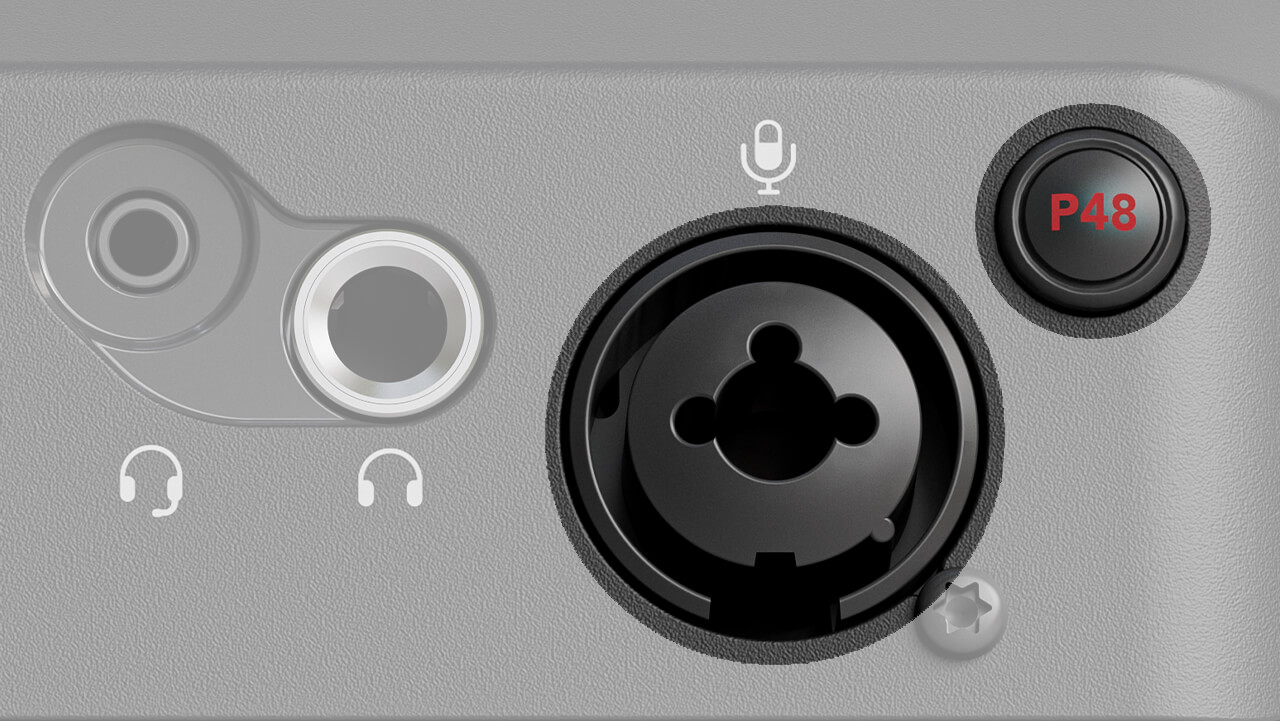
この入力端子には、マイクロフォン用のXLRケーブル、または楽器用の1/4インチケーブルのいずれかを接続できます。初期設定では、マイクロフォンの音量レベルを受け取るように入力が調整されていますが、入力ロータリーエンコーダーをLEDリングの色がピンクから青に変わるまで長押しすると、楽器モード(ハイインピーダンス入力)に切り替えられます。
マイクロフォンにファンタム電源(NT1 5th Generationなど)が必要な場合は、入力端子の横にある赤い「P48」ボタンを押して供給できます。本体前面の「P48」インジケーターLEDが赤く点灯します。
注記
ファンタム電源を有効にすると、クリック音、ポップノイズ、その他の不要な音の発生を防ぐため、コンボジャック入力は3秒間ミュートされます。
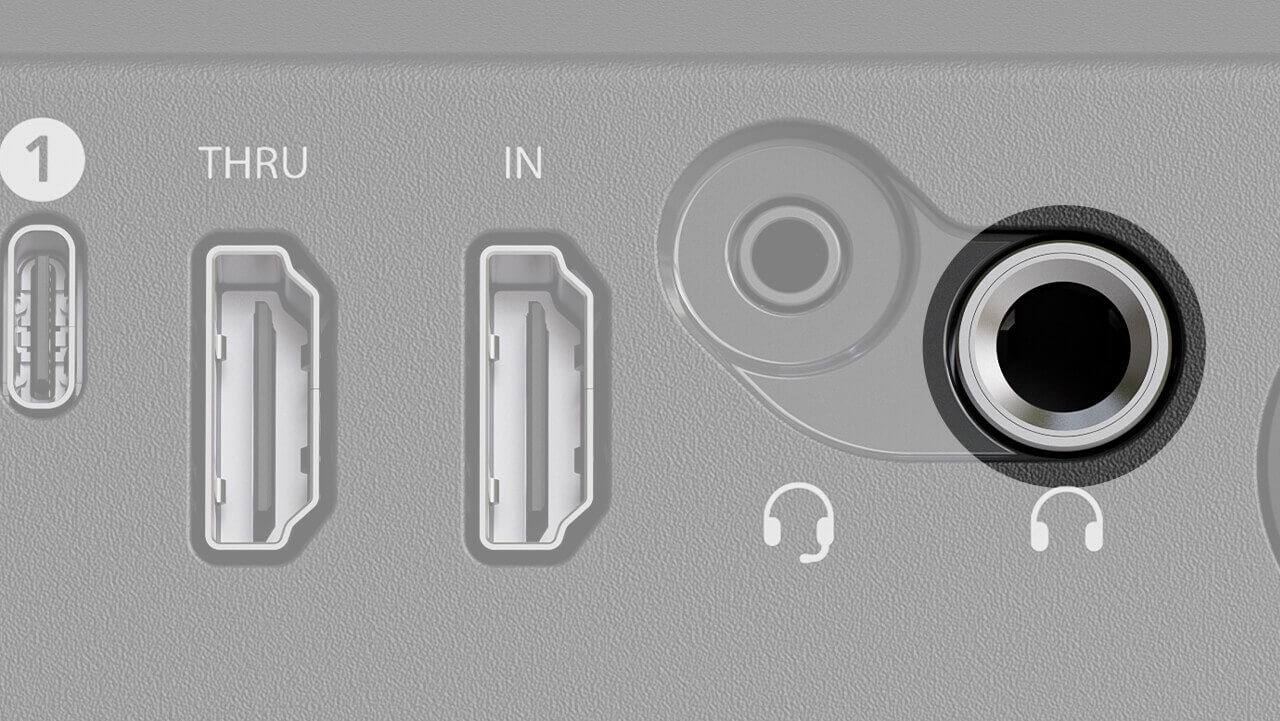
ヘッドホン
この1/4インチ出力には、NTH-100などのヘッドホンを接続して、Streamer Xを通過するすべてのオーディオをモニタリングできます。これにより、マイク、ワイヤレス入力、楽器入力で収音したオーディオをモニタリングできるほか、HDMI Inポート経由で入力されたオーディオ(ゲーム機、カメラ、その他のコンピューターからのオーディオなど)も聴くことができます。また、コンピューターのオーディオ出力デバイスとして「Streamer X Main」を選択すれば、コンピューターからこの出力へオーディオを送ることもできます。
ヘッドホンエンコーダーでヘッドホンの音量レベルを調整でき、エンコーダーをクリックするとヘッドホン出力をミュートできます。
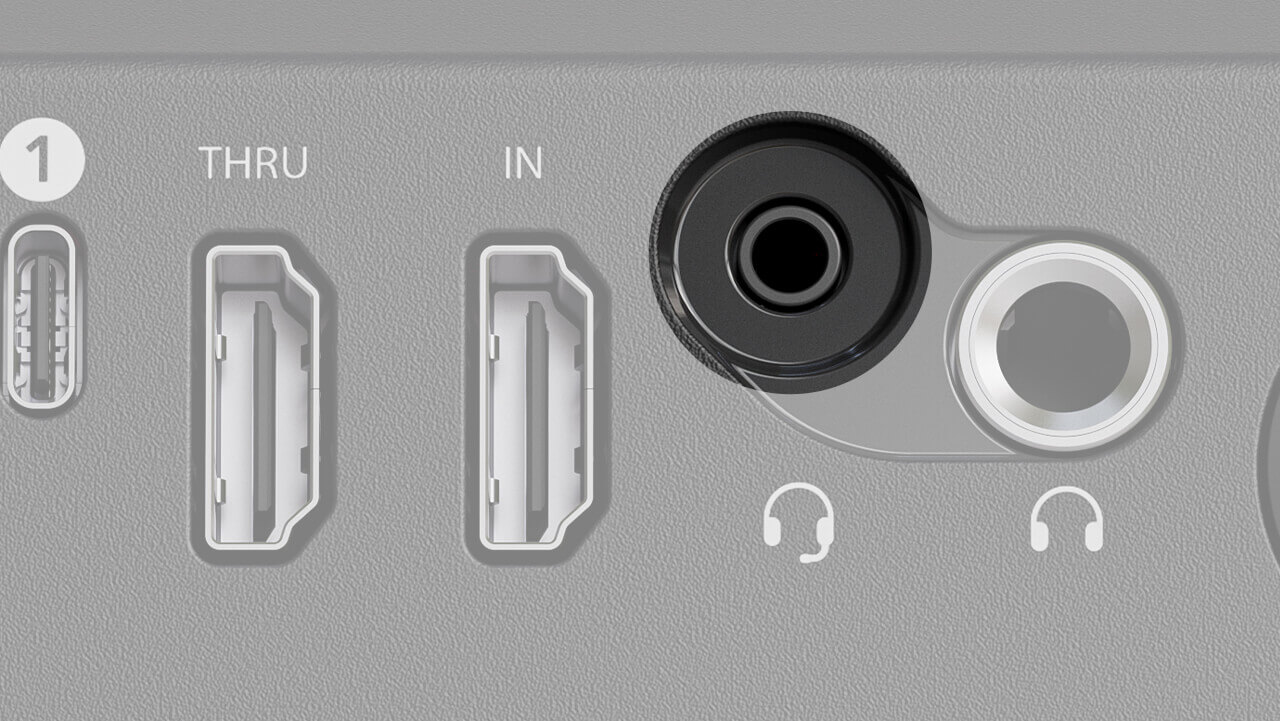
ヘッドセット
この3.5mmコネクターには、NTH-100M などのヘッドセットを接続して、Streamer Xで声を収音しながら音声をモニターできます。ヘッドホン出力と同様に、マイク、ワイヤレス入力、楽器入力で収音した音声をモニターできるほか、HDMI Inポート経由で入力された音声(ゲーム機、カメラ、その他のコンピューターからの音声など)を聴くこともできます。また、コンピューターのオーディオ出力デバイスとして「Streamer X Main」を選択すれば、コンピューターからこの出力へ音声を送ることもできます。
ヘッドホンエンコーダーでこのヘッドセットの音量を調整でき、エンコーダーをクリックするとヘッドセット出力をミュートできます。
インターフェースを使用したStreamer X の制御
入力エンコーダー
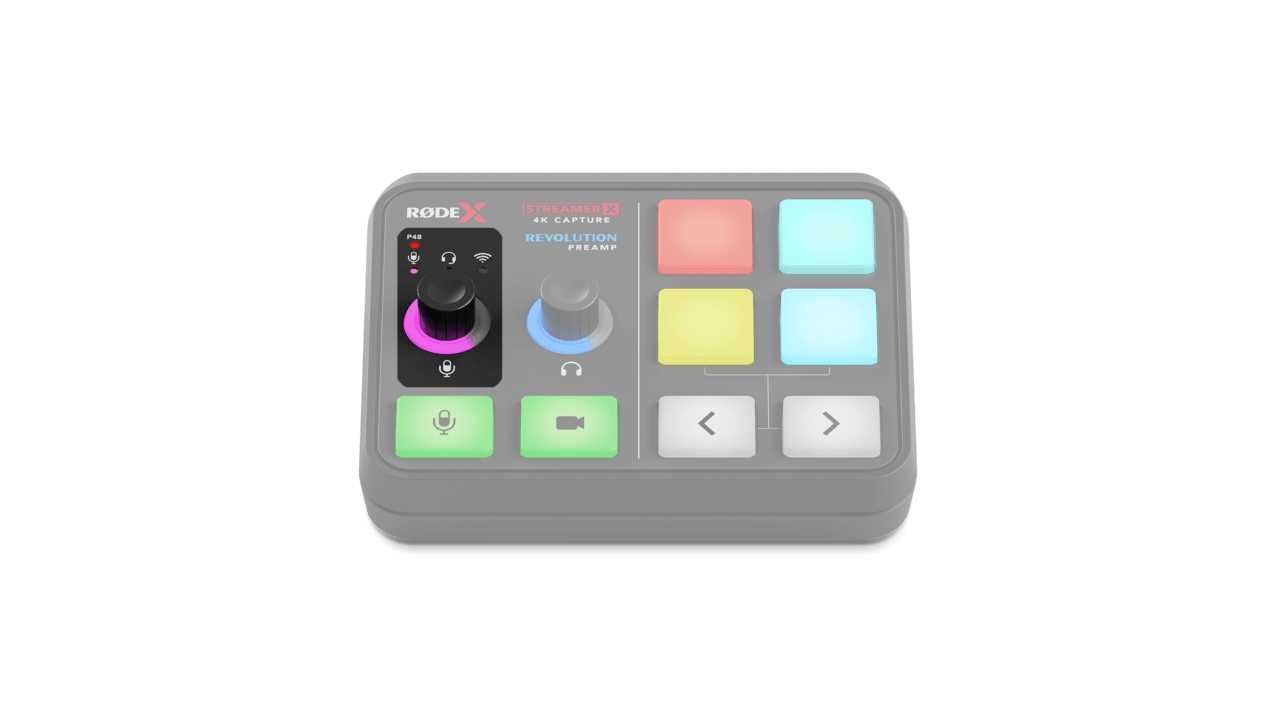
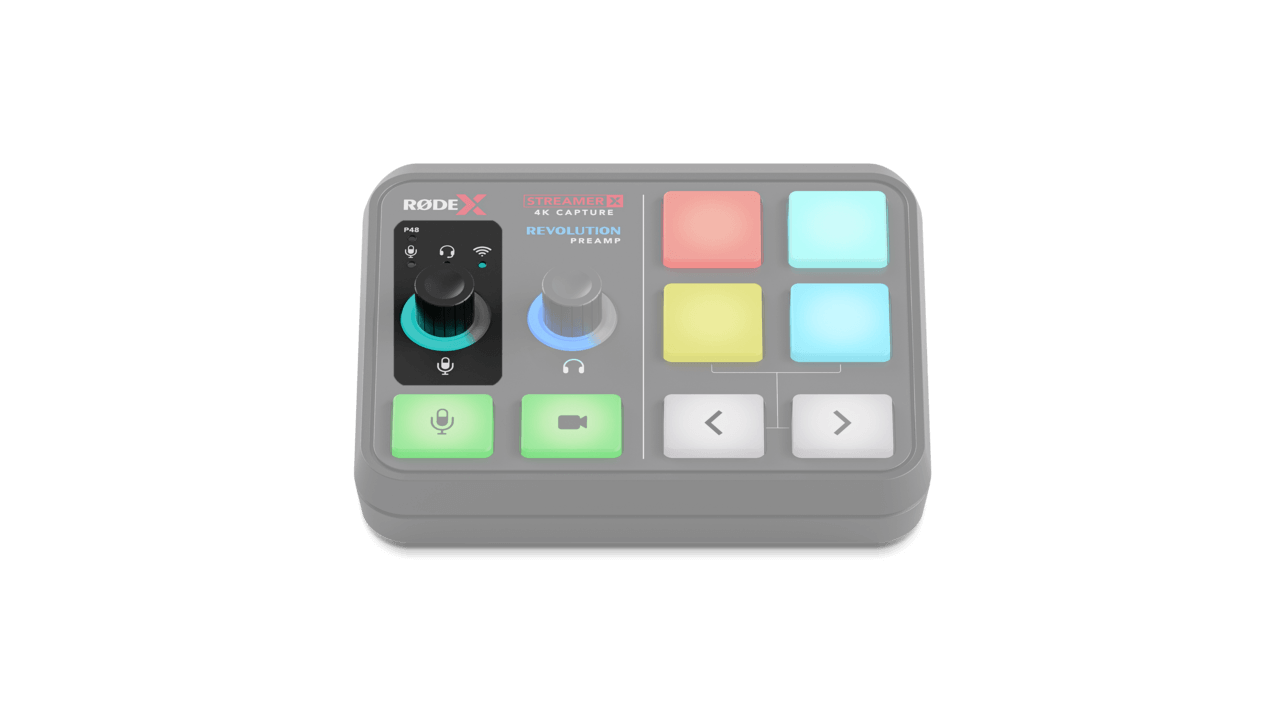
このエンコーダーでは、現在選択されている入力デバイス(マイク/楽器、ヘッドセット、ワイヤレスマイク)の入力レベルを調整します。エンコーダーを時計回りに回すと音量が上がり、それに応じてLEDリングが明るくなります。エンコーダーをクリックすると、これらの入力デバイスを順番に切り替えられ、エンコーダー上部にある各デバイス対応のインジケーターLEDも切り替わります。
マイク/楽器:入力エンコーダーの周囲にあるピンク色のリングで示され、コンボジャック(XLRまたは1/4インチコネクター)に接続されたマイクまたは楽器のレベルを調整します。このモードでエンコーダーを長押しすると、マイク入力レベルと高インピーダンスの楽器レベルを切り替えられ、エンコーダーのLEDがピンクから青に変わります。
ヘッドセット:入力エンコーダーの周囲にある緑色のリングで示され、ヘッドセットコネクター(3.5mm TRRS)に接続されたヘッドセットマイクのレベルを調整します。
ワイヤレス:入力エンコーダーの周囲にあるシアン色のリングで示され、Streamer XとペアリングされたRØDE Series IVワイヤレストランスミッターのレベルを調整します。
入力ゲインの設定
入力ゲインを正しく設定するには、ストリーミングや録音中に話すときと同じくらいの声量で、microphoneまたはヘッドセットに向かって話してください。話している間、左側のエンコーダー上部にある入力インジケーターLEDが、緑、オレンジ、または赤に点灯します。入力ゲインは、LEDがほぼ緑色で、声量を上げたときに時折オレンジ色に点滅するレベルを目安にしてください。LEDが少しでも赤く点灯する場合は、エンコーダーを反時計回りに回して入力ゲインを下げてください。LEDがまったく点灯しない場合は、ゲインを上げる必要があります。
注記
Inputエンコーダーでは、USB-2入力の入力音量は変更できません。入力レベルを設定するには、RØDE UnifyまたはCentralアプリケーションを使用してください。
ワイヤレストランスミッターのペアリング方法
このモードでトランスミッターをStreamer X にペアリングするには、入力エンコーダーをシアン色のLEDが点滅し始めるまで長押しし、トランスミッターの電源を入れてペアリングモードにします。Wireless ME およびWireless GO IIの場合、トランスミッターの電源がすでにオンで、別のレシーバーとペアリングされていない状態で、トランスミッターの電源ボタンを短く押すだけです。
ヘッドホンエンコーダー
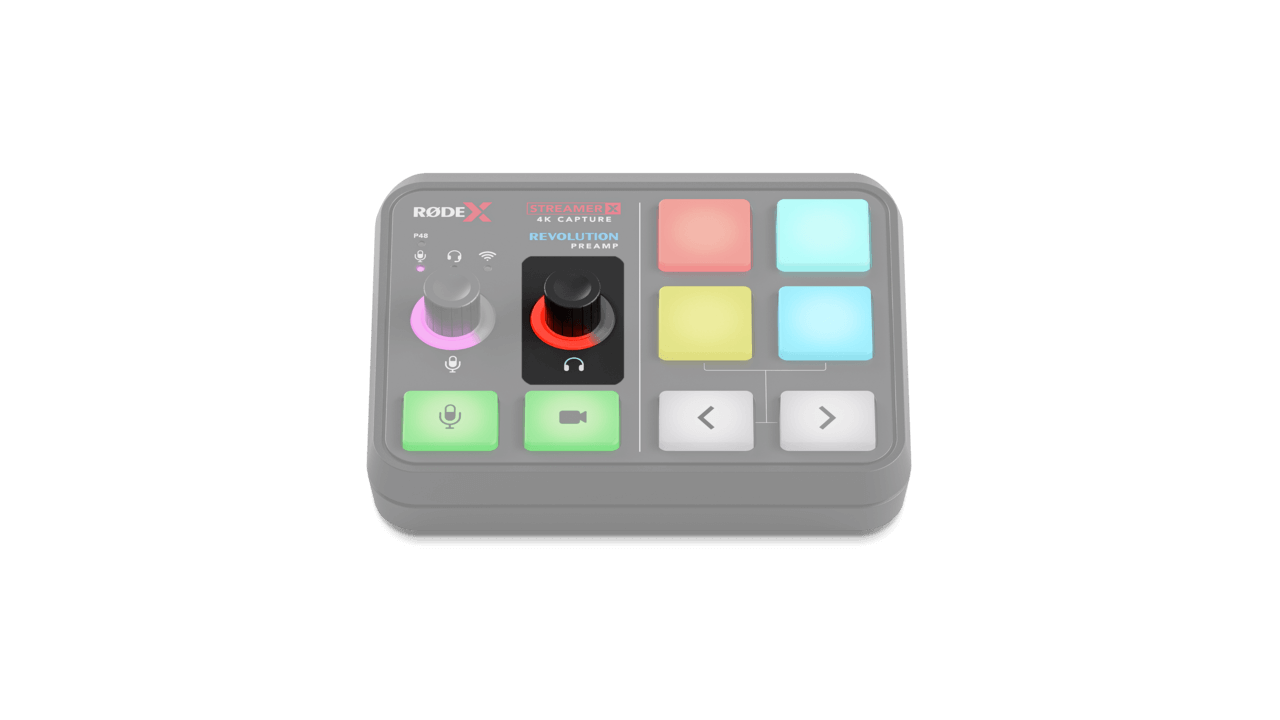
このコントロールで、ヘッドホンまたはヘッドセットの音量を上げ下げできます。エンコーダーを時計回りに回すと音量が上がり、それに合わせてLEDリングの表示も強くなります。エンコーダーを反時計回りに回すと音量が下がります。エンコーダーを押すとヘッドホンまたはヘッドセットをミュートできます。ミュート中はエンコーダーのLEDリングが赤色に点灯します。
注
このエンコーダーは、ヘッドホン出力(1/4インチ)とヘッドセット出力(3.5mm)の両方の出力音量に影響します。
マイクミュートおよびビデオカットスイッチ
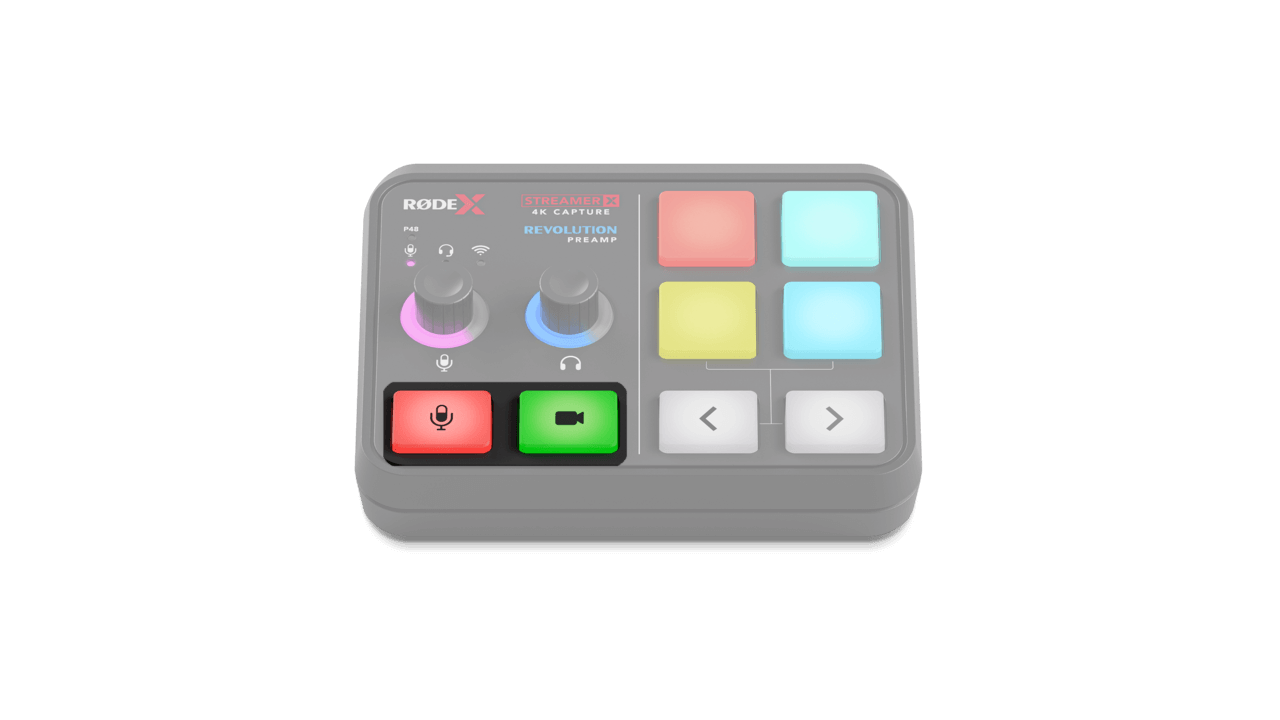
マイクミュート:マイクミュートボタンを押すと、すべてのマイク入力が即座にミュートされ、ボタンの色が緑から赤に変わります。これにより、マイク入力はUSB経由で接続されたデバイス(コンピューターなど)やヘッドホンに送信されなくなります。このボタンはUNIFY Stream Mixコントロールと同期し、リンクされているすべてのミックスに影響します(UNIFY については以下をご覧ください)。
ビデオカット:ビデオカットボタンを押すと、HDMI入力からの映像信号がUSB 1に接続されたデバイスへ送信されなくなり、ボタンの色が緑から赤に変わります。HDMI入力にHDMI経由で入力された音声はミュートされず、映像および音声信号は引き続きHDMIスルー出力へ送信されます。
SMARTパッド
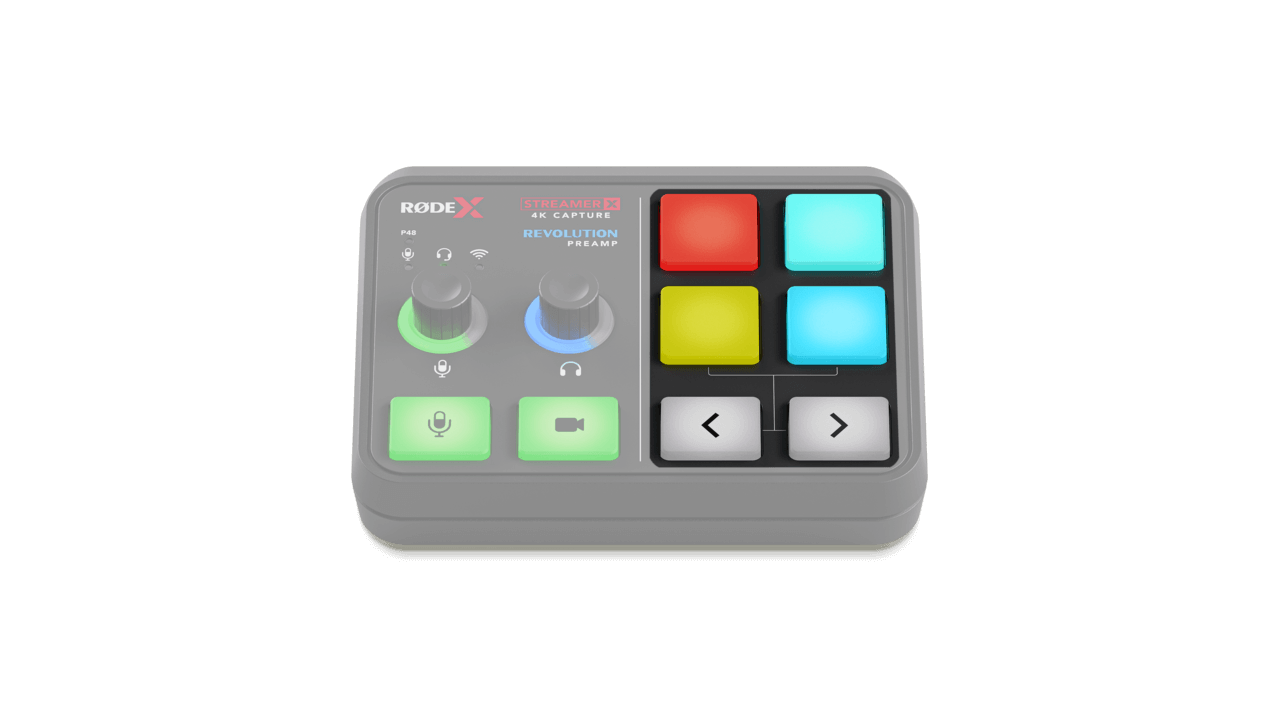
Streamer X のこのセクションは、4つのSMARTパッドと一対のナビゲーション矢印で構成されています。SMARTパッドは、サウンドやボイスエフェクトのトリガーからMIDI コマンドやミキサー操作まで、幅広い用途に対応します。デフォルトでは、ピッチアップ/ピッチダウンエフェクト、検閲ボタン、さまざまなサウンド録音がパッドに割り当てられていますが、RØDECaster AppまたはUNIFYを使用して設定を変更できます。
ナビゲーション矢印
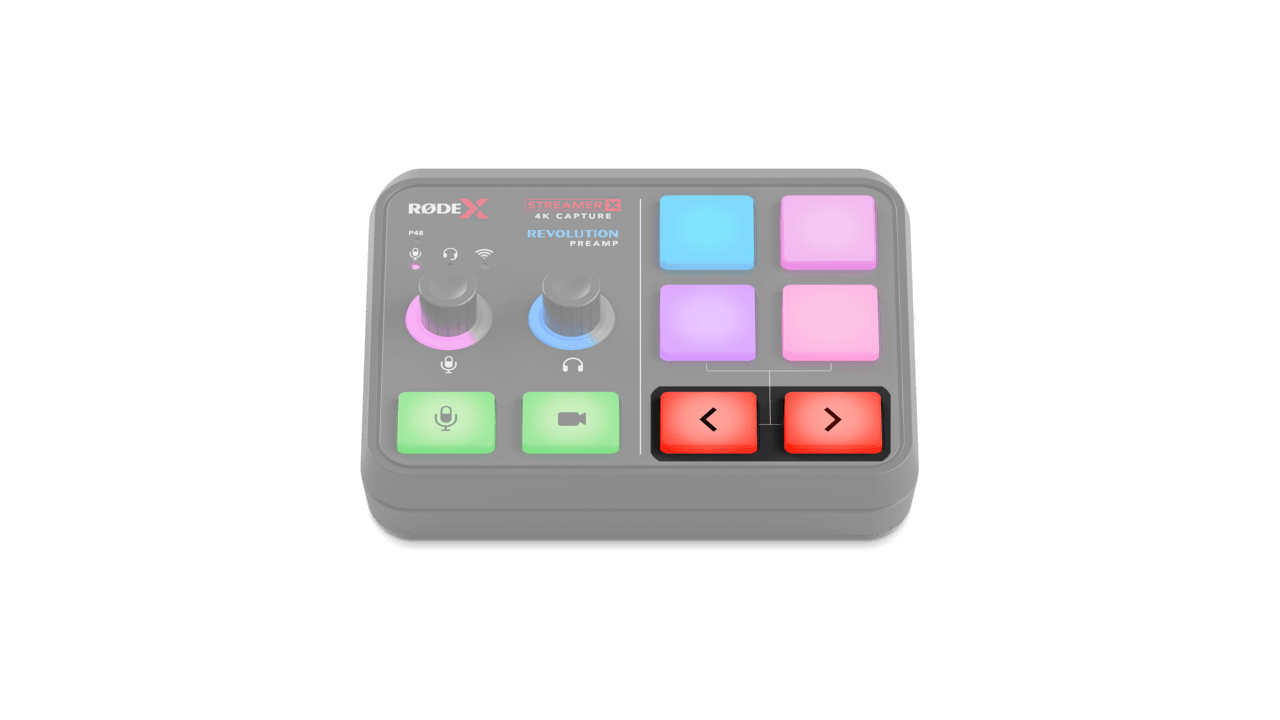
デフォルトでは、これらの矢印を使ってSMARTパッドのバンクを切り替えられます(Streamer X にはデフォルトで2つのバンクがあります)。別のバンクに切り替わると、矢印の色が白から赤に変わります。
また、RØDECaster Appの「Customize SMART Pad」メニュー、またはUNIFYから「Presentation」モードを有効にすると、これらの矢印をキーボードの左キーおよび右キーとして機能させることができます。
SMART Pads をRØDECaster アプリで設定する
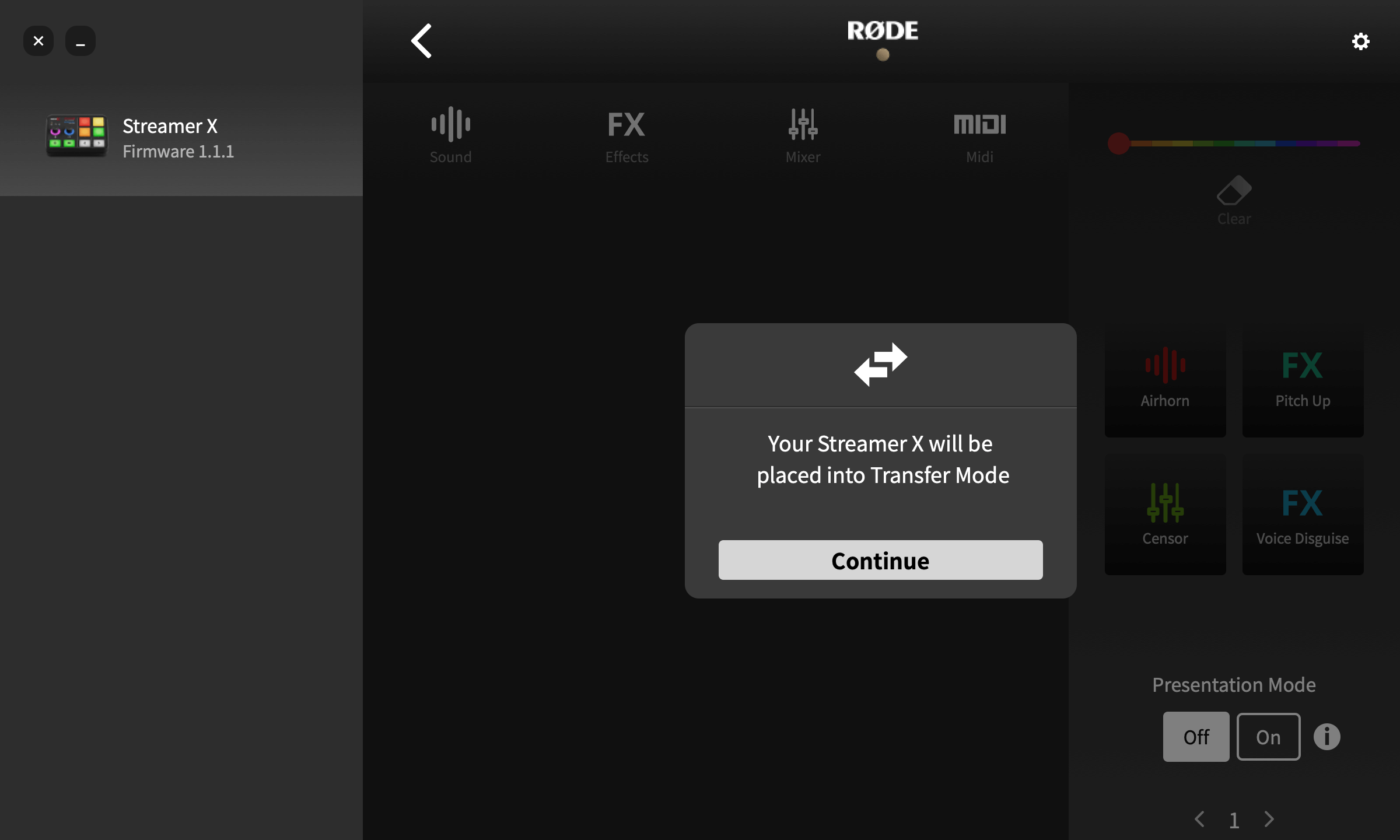
SMARTパッドを設定するには、RØDECaster アプリの「SMARTパッドをカスタマイズ」メニューを開き、「続行」をクリックしてStreamer X を転送モードにします。SMARTパッドには、「サウンド」、「エフェクト」、「ミキサー」、「MIDI」の4つのカテゴリーがあります。各カテゴリーにはパッドで実行できるさまざまな機能が用意されており、SMART Pads の使用セクションで詳しく説明しています。
Streamer X をRØDECaster アプリで設定する
RØDECaster Appへの接続
Streamer Xのほとんどの設定には便利なフロントパネルのコントロールからアクセスできますが、RØDECaster コンパニオンソフトウェアと併用すると、入力オーディオに強力なエフェクトやプロセッシングを設定したり、ヘッドフォンとストリームのミックスレベルを細かく調整したり、SMARTパッドをカスタマイズしたりでき、さらに高度なコントロールが可能になります。
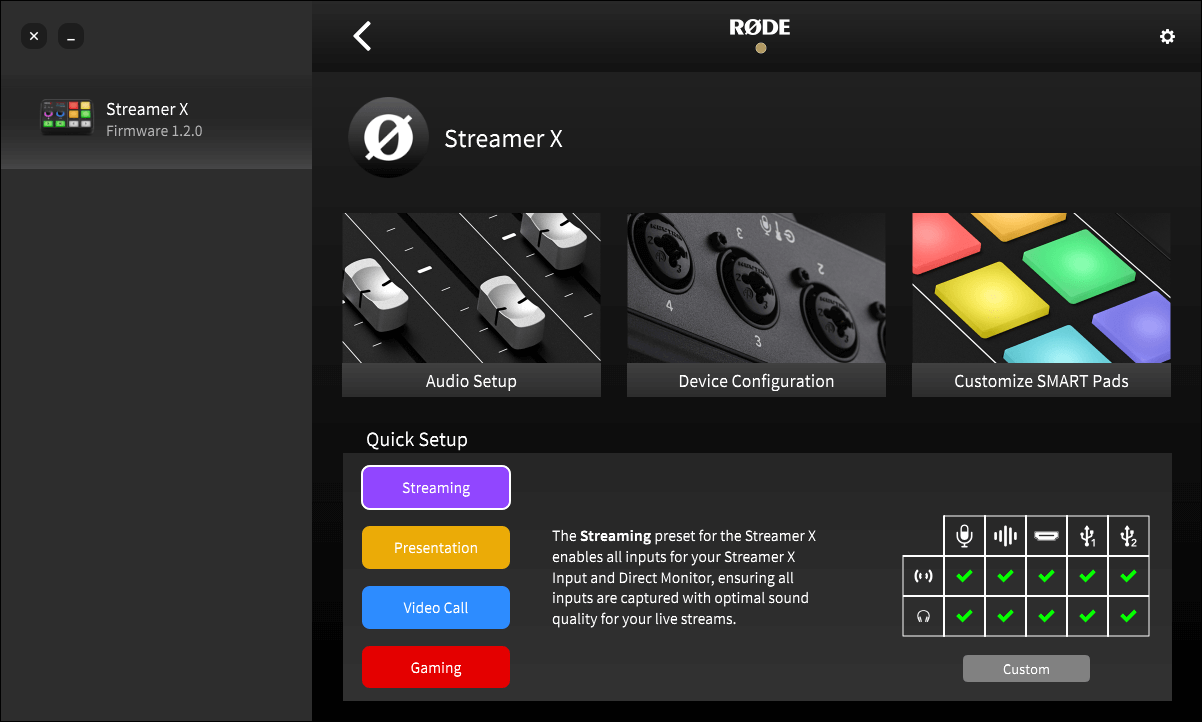
これらの設定にアクセスするには、Streamer X をUSB 経由でコンピューターに接続し、RØDECaster Appを起動します。左側にあるStreamer X のアイコンをクリックし、3つのオプションから1つを選択します。
この画面の下部にはクイックセットアップセクションもあり、オーディオ設定プロファイルをすばやく選択できます(プロファイルについて詳しくはこちらのセクションをご覧ください)。各プロファイルの簡単な説明と、各プロファイルでミュートされるヘッドフォン出力およびストリーム出力を示す表も表示されます。
MacでRØDECaster アプリを使用する際のStreamer X
Streamer X をMacコンピューターに接続して初めてRØDECaster アプリを開くと、キーストローク入力の権限を許可するよう求めるポップアップメッセージが表示されます。Streamer X をRØDECaster アプリで正しく動作させるには、これらの権限を必ず許可してください。
注
アクセス許可を承認しない場合は、「システム設定」>「プライバシーとセキュリティ」>「入力監視」に移動し、RØDECaster Appに許可を与えることで手動で許可できます。
ボタンの明るさ
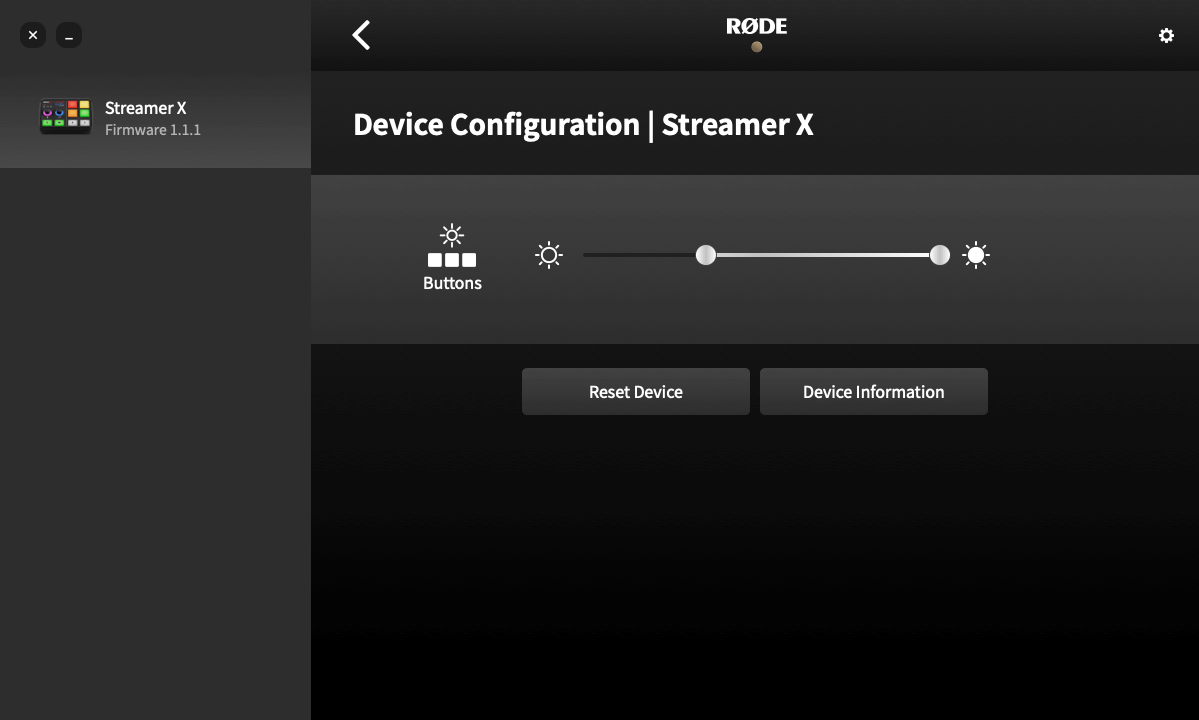
「デバイス設定」メニューでは、Streamer X SMARTパッドおよびミュート/カットスイッチのLEDライトの最大輝度と最小輝度を調整できます。最小設定ではパッドが非アクティブ時の明るさを、最大設定ではパッドがアクティブ時の明るさを調整します。
Streamer X ファームウェアの更新
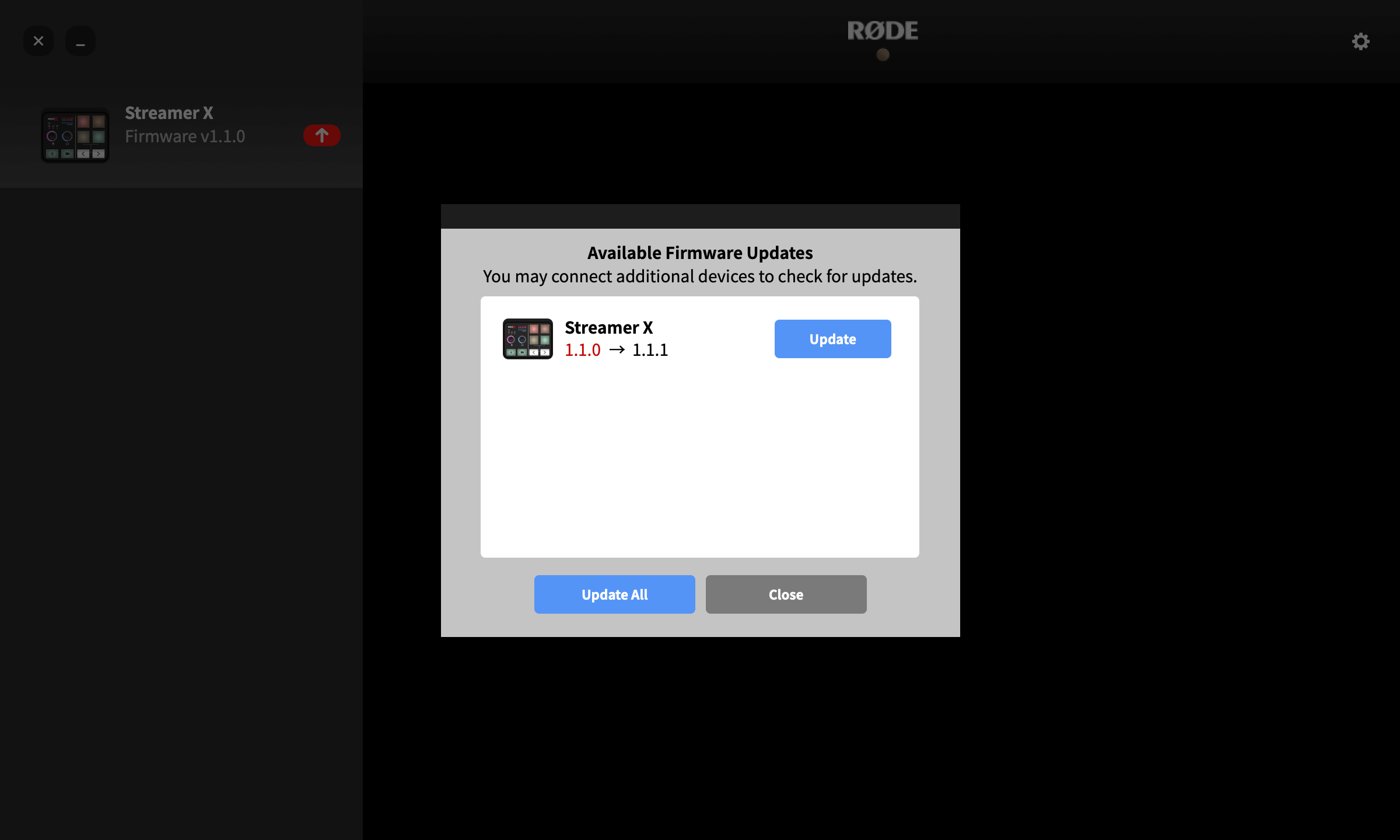
Streamer X をコンピューターに接続し、RØDECaster アプリを起動します。ファームウェアの更新が利用可能な場合は、「Streamer X」アイコンの下に赤い矢印が表示されます。矢印をクリックし、画面の指示に従って最新のファームウェアに更新してください。
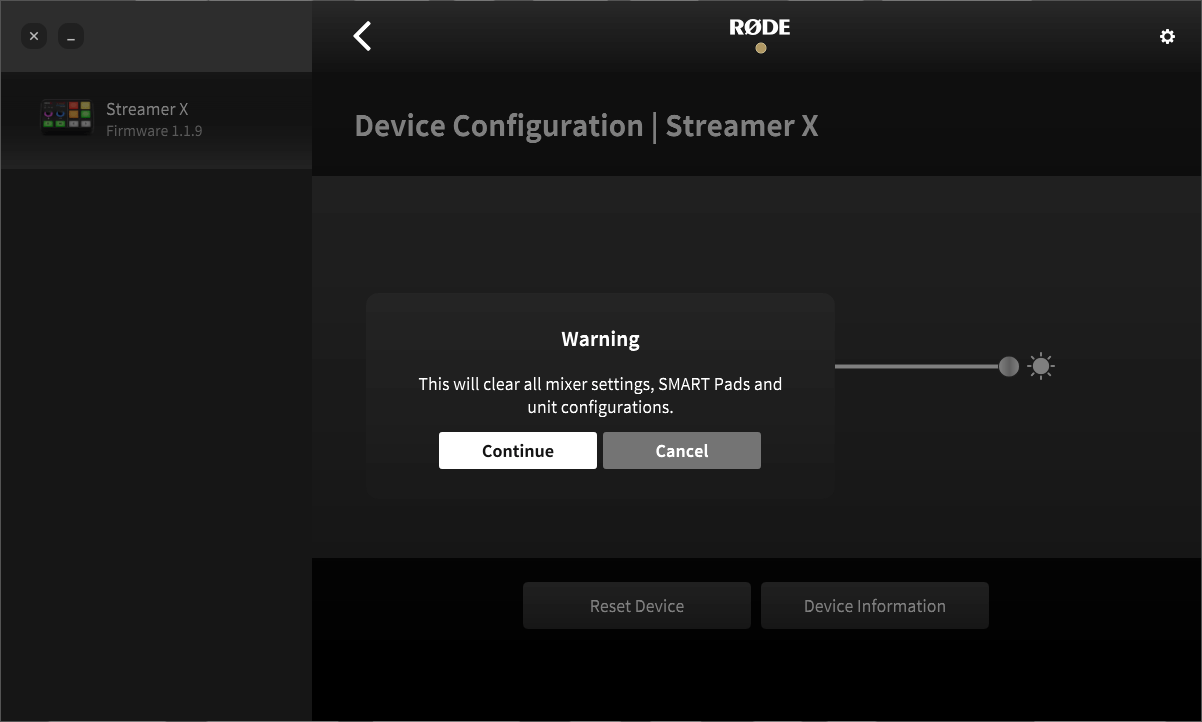
デバイスをリセット
Streamer X を以前のファームウェアバージョンに戻して工場出荷時設定にリセットすることなく、デフォルトの状態に戻したい場合は、この「デバイスをリセット」オプションを使用できます。実行前に警告が表示されますが、実行すると、すべてのミキサー設定、SMART Pads 、およびユニット構成が消去されます。