UNIFY

UNIFY is a powerful virtual mixing solution for streaming and gaming that allows you to control all your audio in one intuitive software interface, with flexible routing options, sub-mixing, professional audio processing, multitrack recording, and more.

How it Works

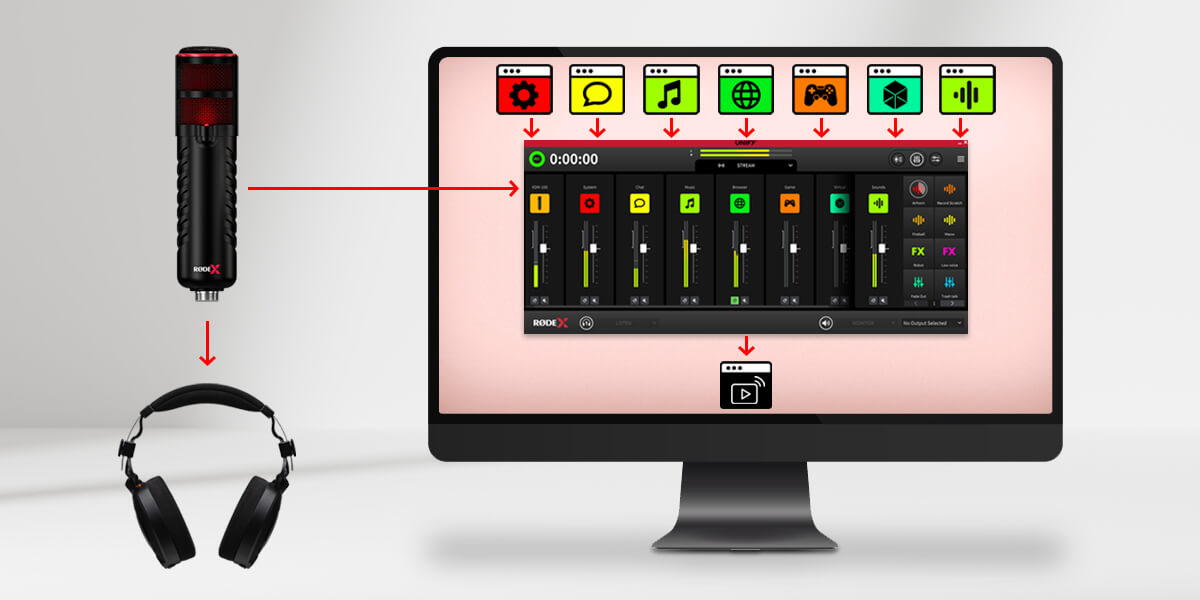
Before getting into specifics, let’s look at some of the basic principles of UNIFY, and how to use them. UNIFY is software that brings together multiple audio sources. It’s the same as an audio mixer you might have on your desk, but instead it is software on your computer. Each audio source appears on a slider in UNIFY, so you can adjust the level of each. You might want your music to be lower, and you voice to be louder, for example. Then the output of UNIFY is fed into your streaming software.

This is important! UNIFY sits between your audio sources and your stream, so audio from your microphone and your game and so on goes into UNIFY, and the output of UNIFY goes into your stream. There is no need to select those audio devices again in your streaming software, as UNIFY is already managing them all for you.

UNIFY diagram

Features

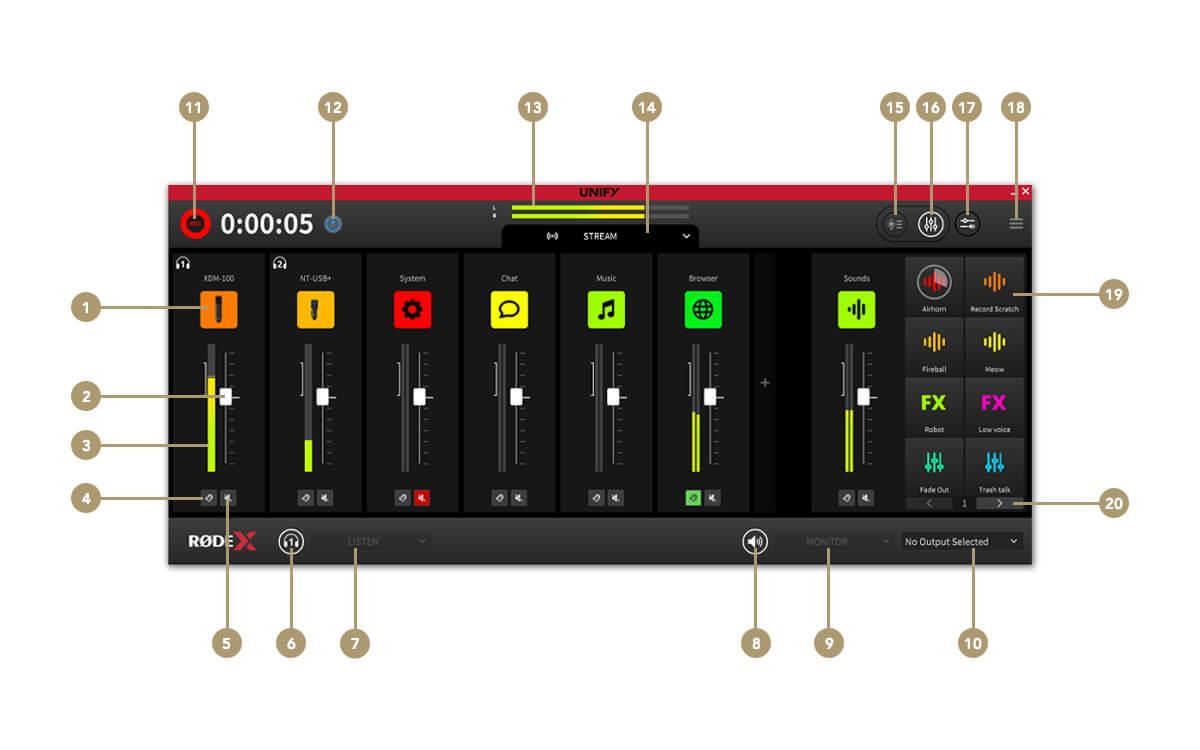
UNIFY mixer window feature points

1Channel source settings

2Channel fader (level)

3Channel level meter

4Listen (cue)

5Channel mute

6Headphone mute

7Headphone monitor selector

8External monitor mute

9Monitor source selector

10Monitor device selector

11Start / stop recording

12Drop record marker

13Stream output level

14Submix selector

15Switch to recording window

16Switch to mixer window

17App audio routing (Windows only)

18Settings menu

19SMART pads

20Switch and banks

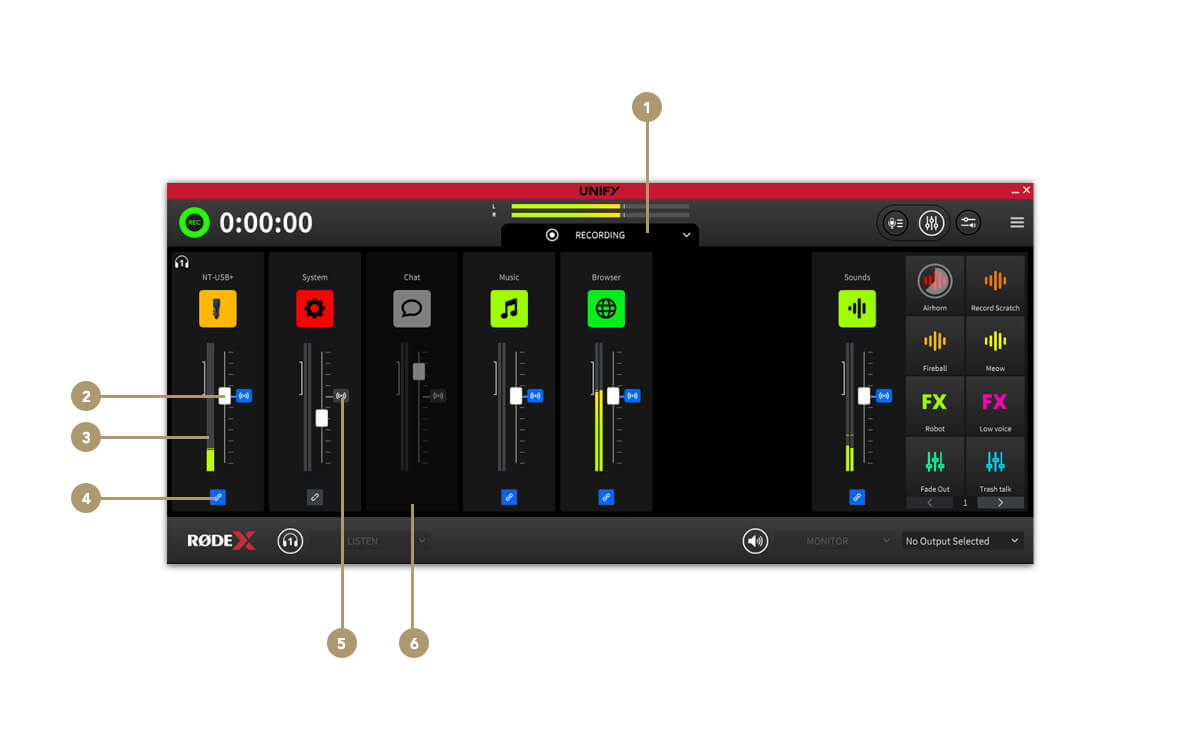
The Submix Controls

UNIFY submix controls feature points

1Submix selector

2Submix level fader

3Submix level meter

4Link / unlink channel from Stream mix

5Stream mix audio level indicator

6Channel removed from submix

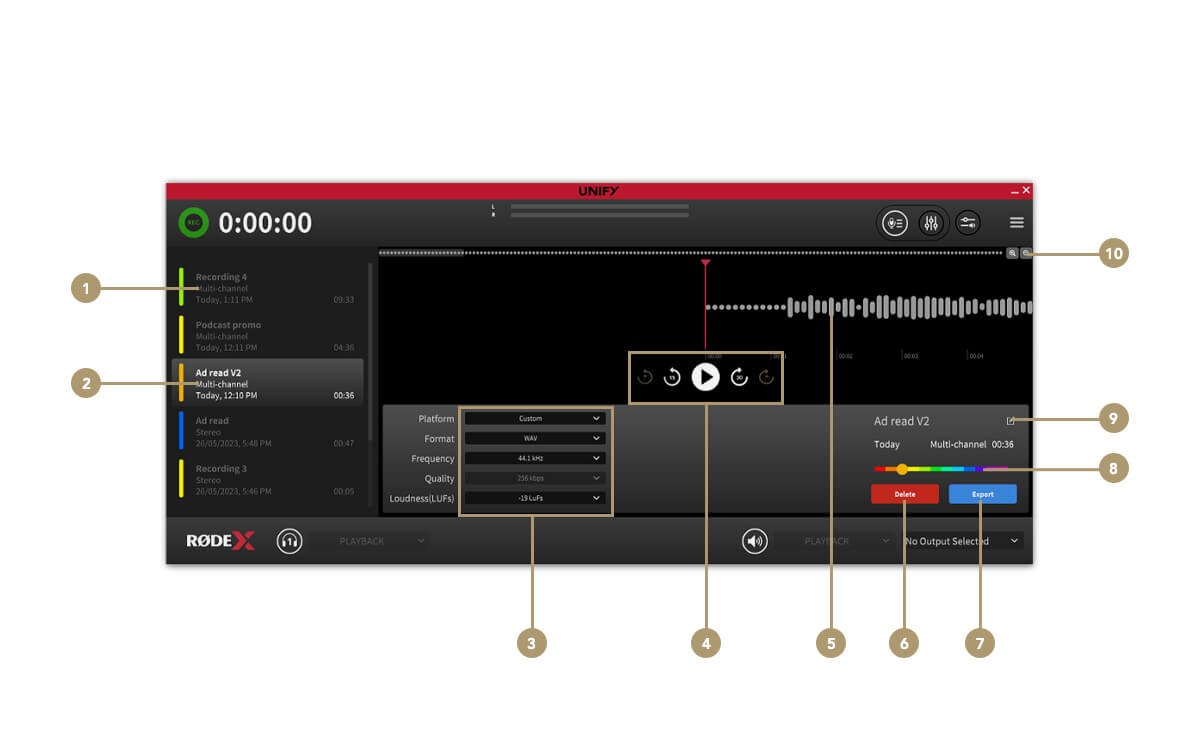
The Recording Window

UNIFY recording window feature points

1Recordings list

2Selected recording

3File export settings

4Transport controls

5Audio waveform/playback

6Delete recording

7Export recording

8Colour selector

9Rename recording

10Zoom controls