在 RØDE Central 中配置路由模式

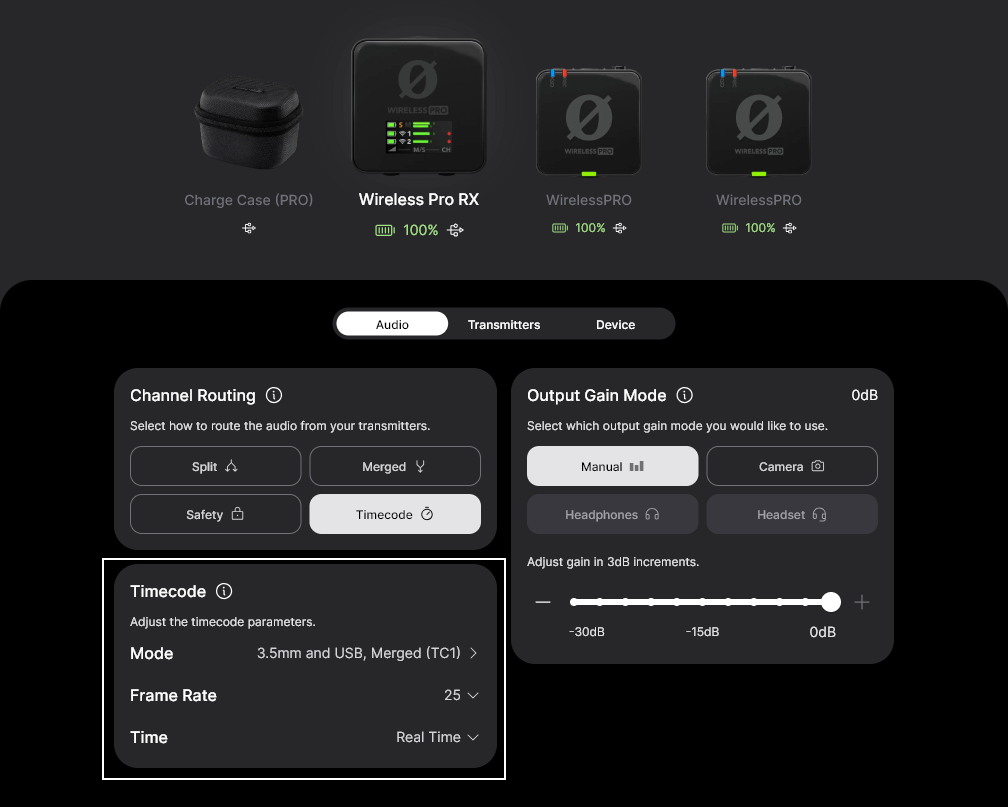
将 Wireless PRO 接收器连接到电脑或手机后,可以点击“路由”菜单,在所有可用的路由模式(以及时间码模式(如果已启用))之间进行选择。请参阅“路由模式”一节了解更多信息。

Wireless PRO routing modes in RØDE Central

Configuring Camera Presets in RØDE Central

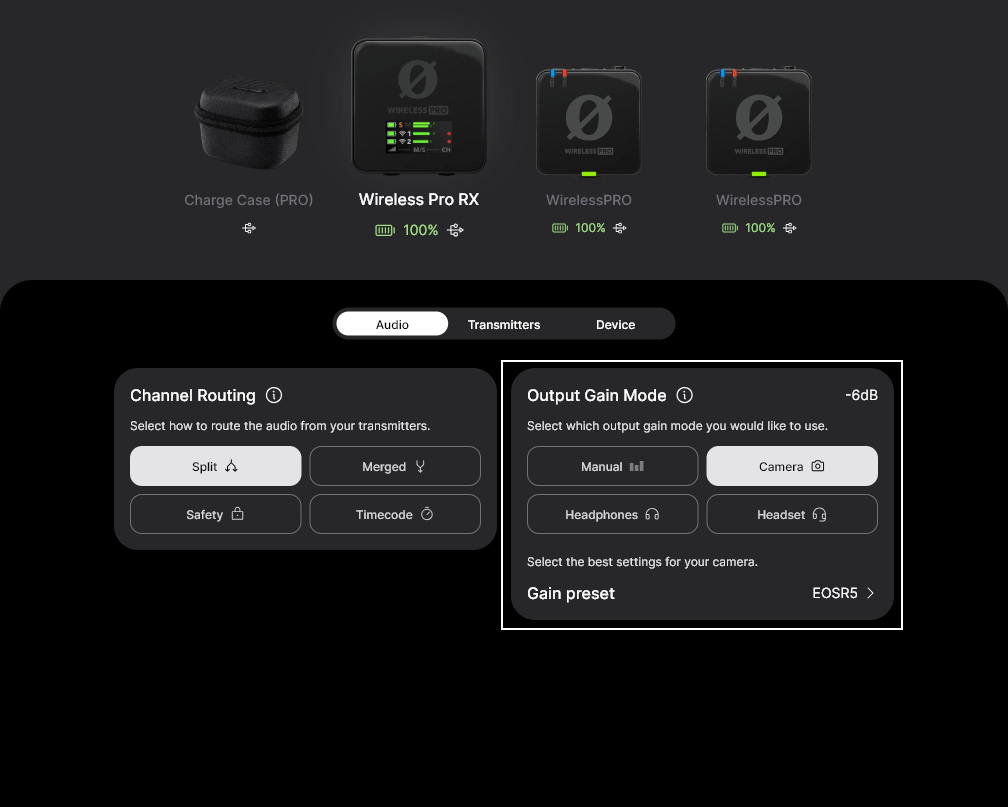
In RØDE Central, you can select from a list of presets for a wide range a popular camera models. These presets automatically set the gain levels of your Wireless PRO's output to best match the camera you’re using it with.

To access these presets, connect your Wireless PRO receiver to your computer and open RØDE Central (desktop). Click ‘Gain Mode’ and select 'Preset’ with the camera icon. Now you can click the next button labelled ‘Preset’, click the ‘+’ button, and select the manufacturer and model of camera you are using.

On the next screen, you’ll find a link to a guide on setting up your camera’s audio settings for optimal use with the Wireless PRO. Once you’ve followed these instructions, click ‘Add’ to load the preset onto your Wireless PRO. Repeat the process to add other presets (up to 10) for any other cameras you’ll be using with your Wireless PRO.

Camera presets in RØDE Central for Wireless PRO

在接收器上选择相机/摄像机预设

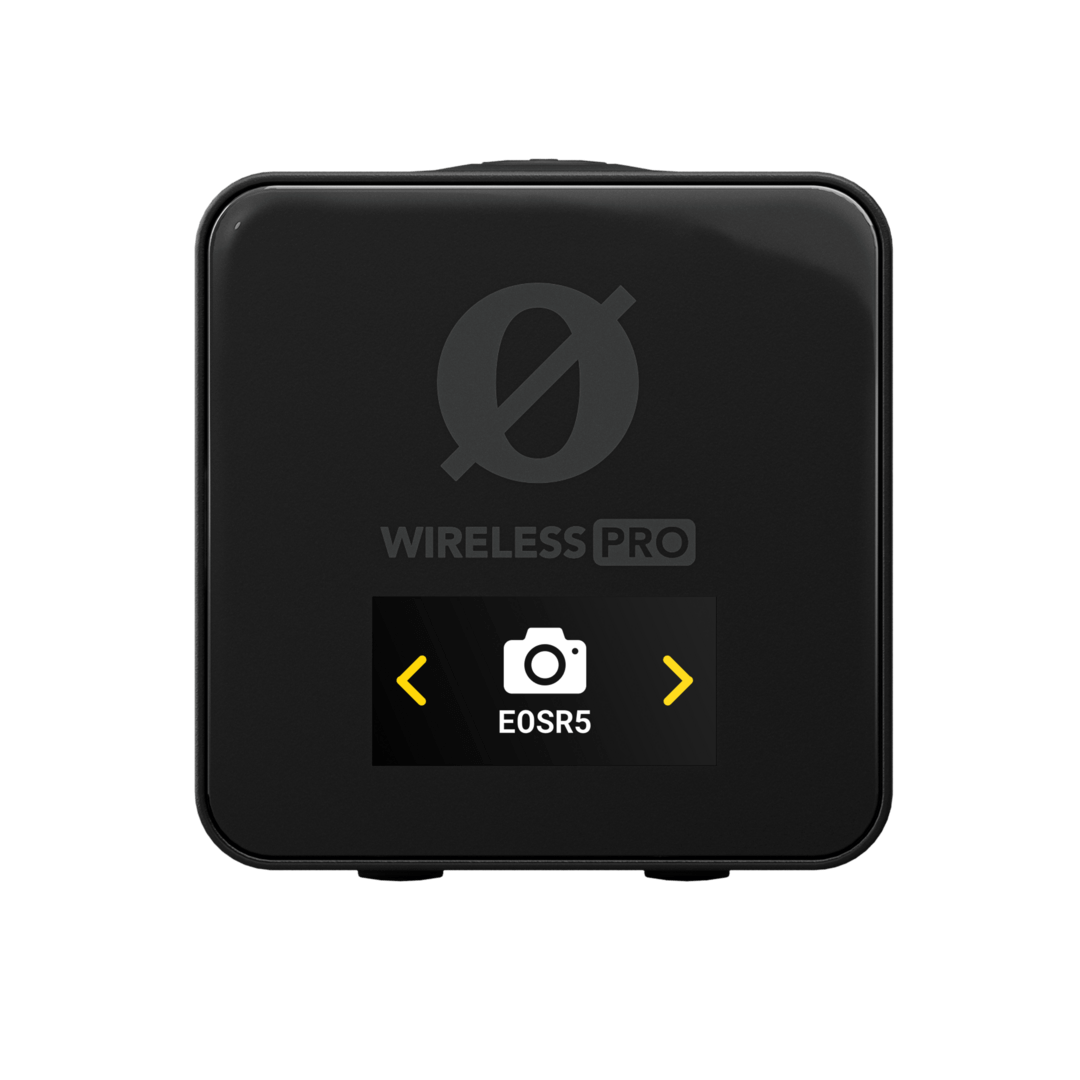
当相机/摄像机预设已加载且 Wireless PRO 处于相机/摄像机预设增益模式时,可以在处于主屏幕页面时按下接收器上的左导航按钮,然后使用左导航和右导航按钮循环切换已保存的预设。

除了您保存的任何相机/摄像机预设和自定义预设外,还有一个“RØDE”选项作为默认预设。在 RØDE Central 桌面应用中,点击预设列表中 RØDE 旁边的三个点,即可调整预设的增益电平。

Wireless PRO in the Camera Preset gain mode

专业提示

您还可以从制造商列表中选择“自定义”,创建自己的预设。您可以在此处为预设添加标签(标签将显示在 Wireless PRO 接收器的显示屏上)、设置其增益电平并为其添加说明,以便在 RØDE Central 中轻松选择

Configuring Backlight and LED Dimming

The Wireless PRO receiver’s screen features a backlight that you can set to automatically dim after 10 seconds of inactivity. To enable this, connect your receiver to a computer or phone, open RØDE Central, then toggle the ‘Dim (Backlight)’ setting to ‘Auto’. Toggle it to ‘Off’ to disable automatic dimming.

You can also adjust the transmitter’s LED brightness if you want a more discreet aesthetic. With your transmitter(s) connected to a phone or computer running RØDE Central, click the ‘LEDs’ toggle to switch between ‘Bright’ and ‘Dim’.

Wireless PRO backlight option in RØDE Central

Configuring the Ø Button

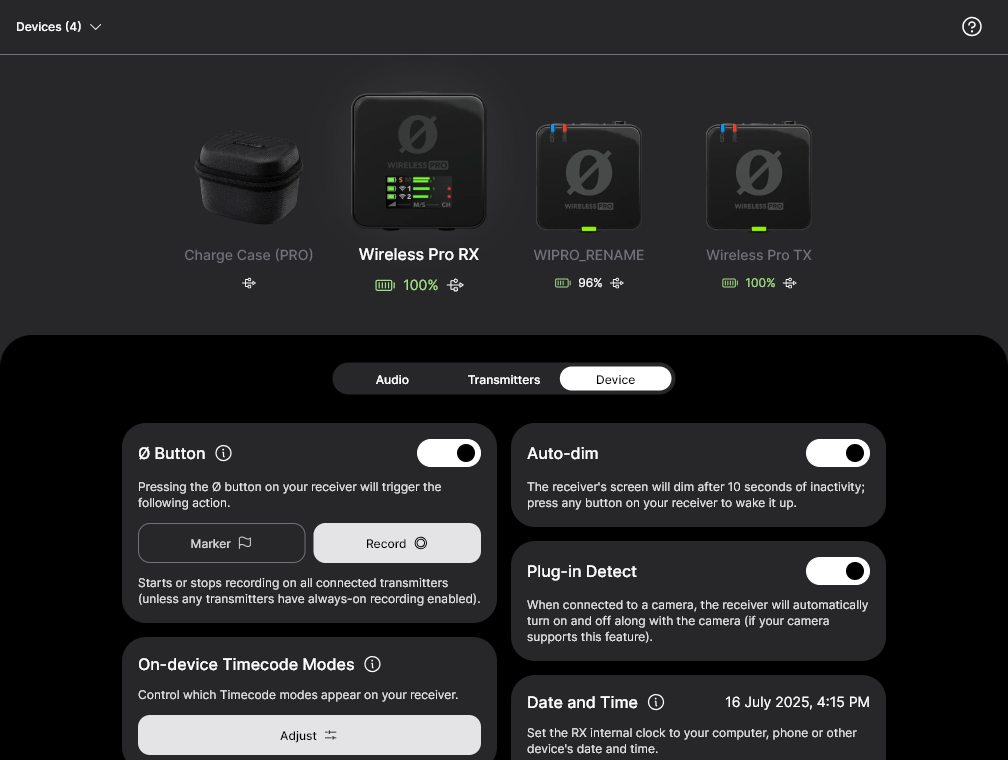
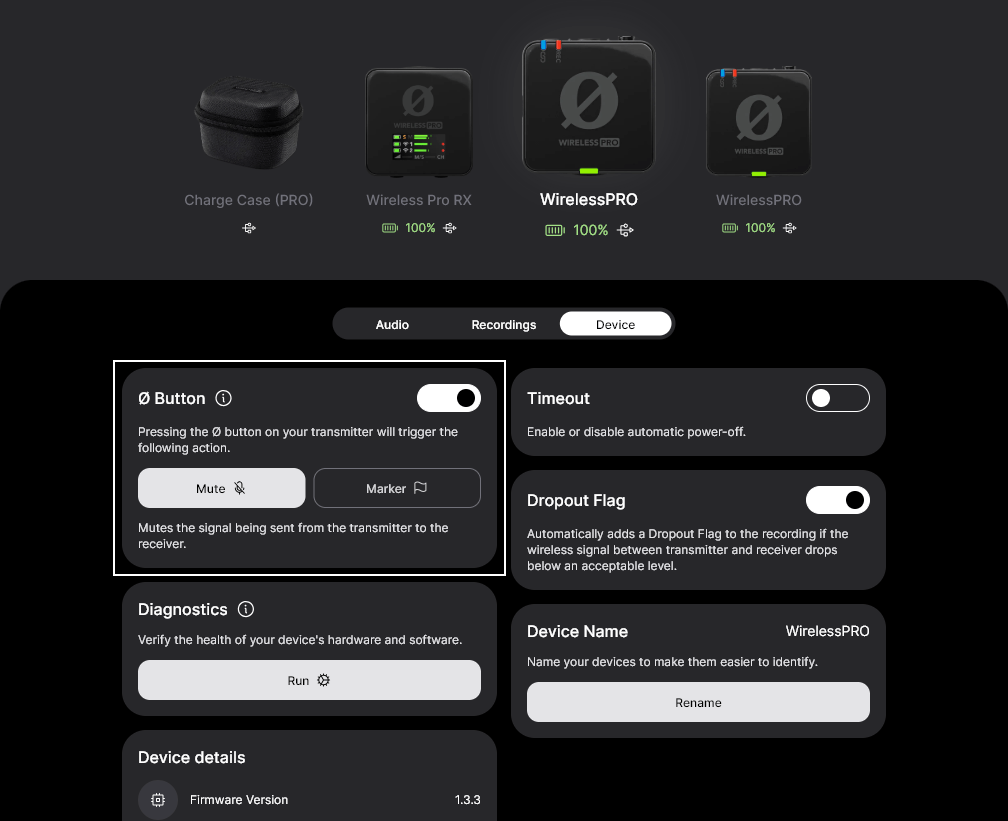
Both the transmitters and receiver feature a Ø button, which when long-pressed functions as a power on and off for that unit, but you can also configure each button to perform a variety of short-press functions.

Receiver (RX)
  • Marker – places a marker in the on-board recordings of both transmitters.
  • Record – starts or stops on-board recording for both transmitters simultaneously.
Transmitter (TX)
  • Marker – places a marker in the on-board recording of just the transmitter on which you press the button.
  • Mute – mutes the signal being sent from the transmitter to the receiver (but doesn’t affect on-board recording).
Wireless PRO Ø button configuration in RØDE Central

Note

If a transmitter is unpaired, short-pressing the Ø button will enter pairing mode.

High-Pass Filters

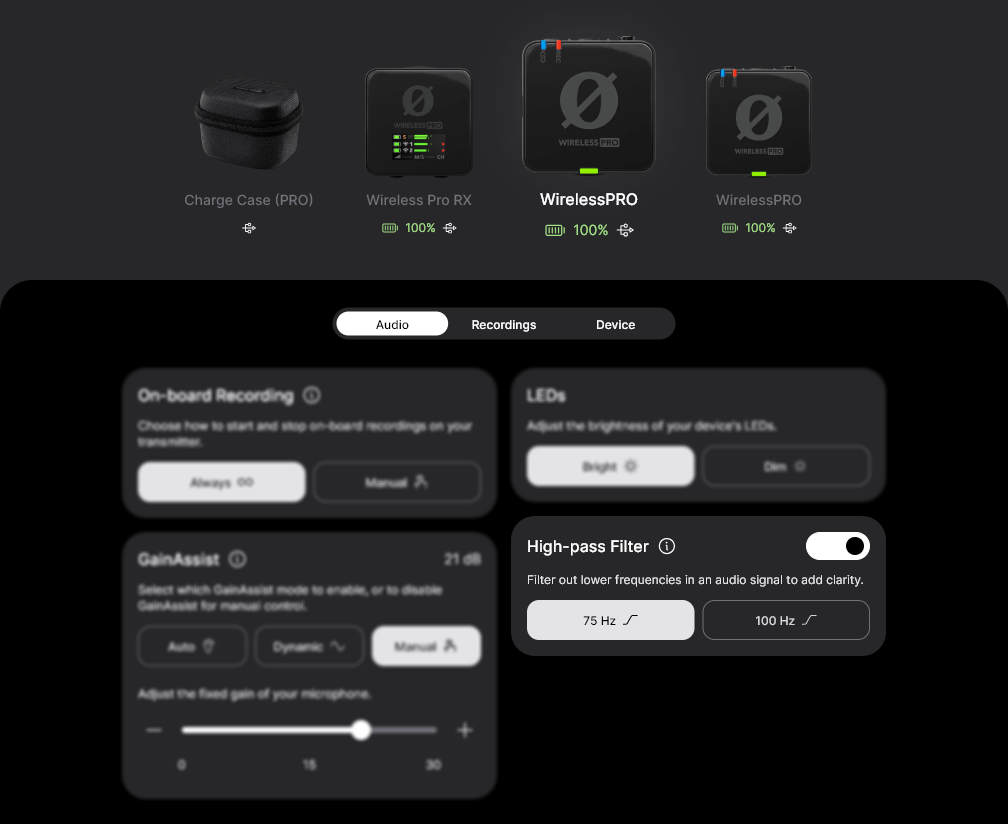
The Wireless PRO features a two-stage high-pass filter for each of its transmitters. A high-pass filter, also known as a ‘low-cut’, removes lower frequencies in an audio signal, which can be useful for adding clarity to your audio and helping to tame any rumble caused by wind noise.

With your transmitter connected to RØDE Central, you can toggle the filter between 75Hz, 100Hz and off for each transmitter. These filters apply to both the transmitter’s in-built microphone and any connected external microphone, such as the included Lavalier II.

Wireless PRO High Pass Filter feature in RØDE Central

使用 RØDE Central 更新 Wireless PRO 固件

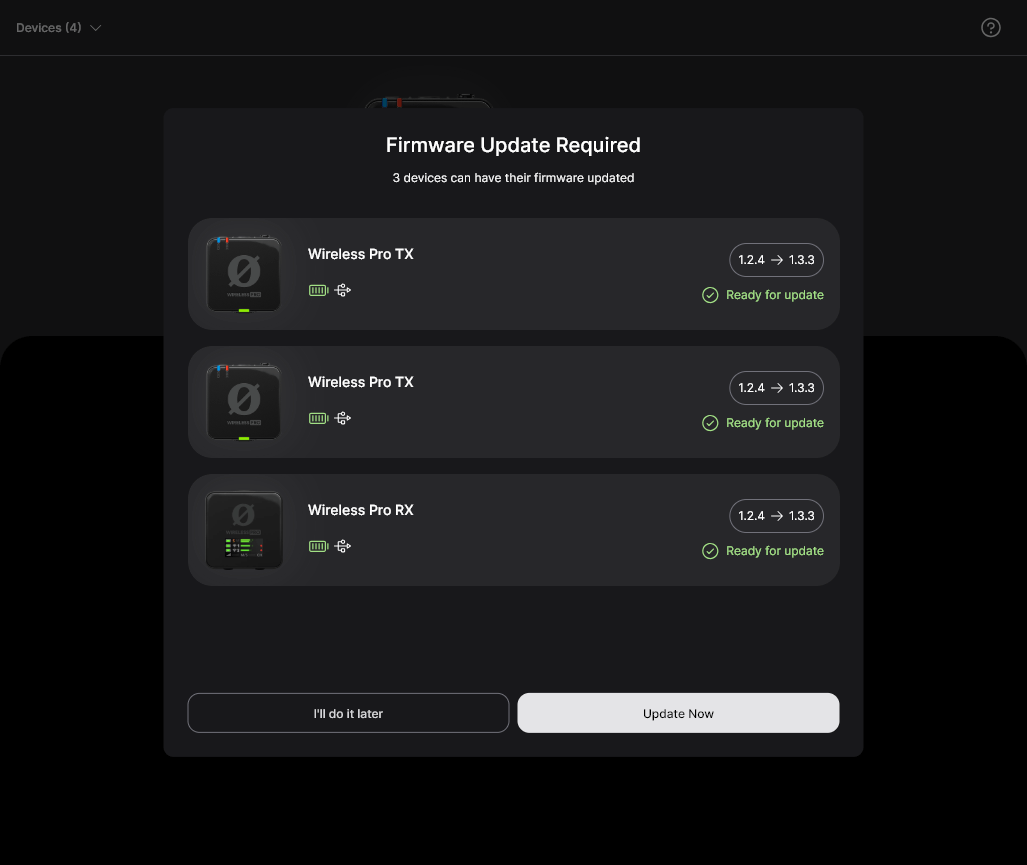
要更新 Wireless PRO 固件,请将接收器和两个发射器放入充电盒,将其连接到电脑或手机,然后打开 RØDE Central。如果 Wireless PRO 或充电盒有新的固件版本可用,系统会提示您更新。只需点击“全部更新”开始该过程,并按照提示操作即可。

注意: Wireless PRO 发射器和接收器至少需要 15% 的电量才能启动更新过程。使用移动版 Central 无法更新充电盒固件。

Wireless PRO firmware updating via RØDE Central

Note

The Wireless PRO transmitters and receiver will need to have at least 15% battery to initiate the update process. The charge case firmware can’t be updated using the mobile version of Central, but it can update your transmitters and receivers one-by-one.