RØDE Hub
Der RØDE Hub ist ein leistungsstarkes USB Erweiterungstool, das den kreativen Workflow optimiert. Mit Unterstützung für bis zu sechs USB-C-Geräte und ein USB-A-Gerät sowie UHS-II-SD-/microSD Kartenleser und einer Stromversorgung mit bis zu 60 W ist er das perfekte Herzstück für dein Desktop-Setup – ganz gleich, ob du Videos bearbeitest, Audio aufnimmst oder große Dateien mit atemberaubender Geschwindigkeit überträgst.Features
.png)
1USB-A-Anschluss
2USB-C-Anschlüsse
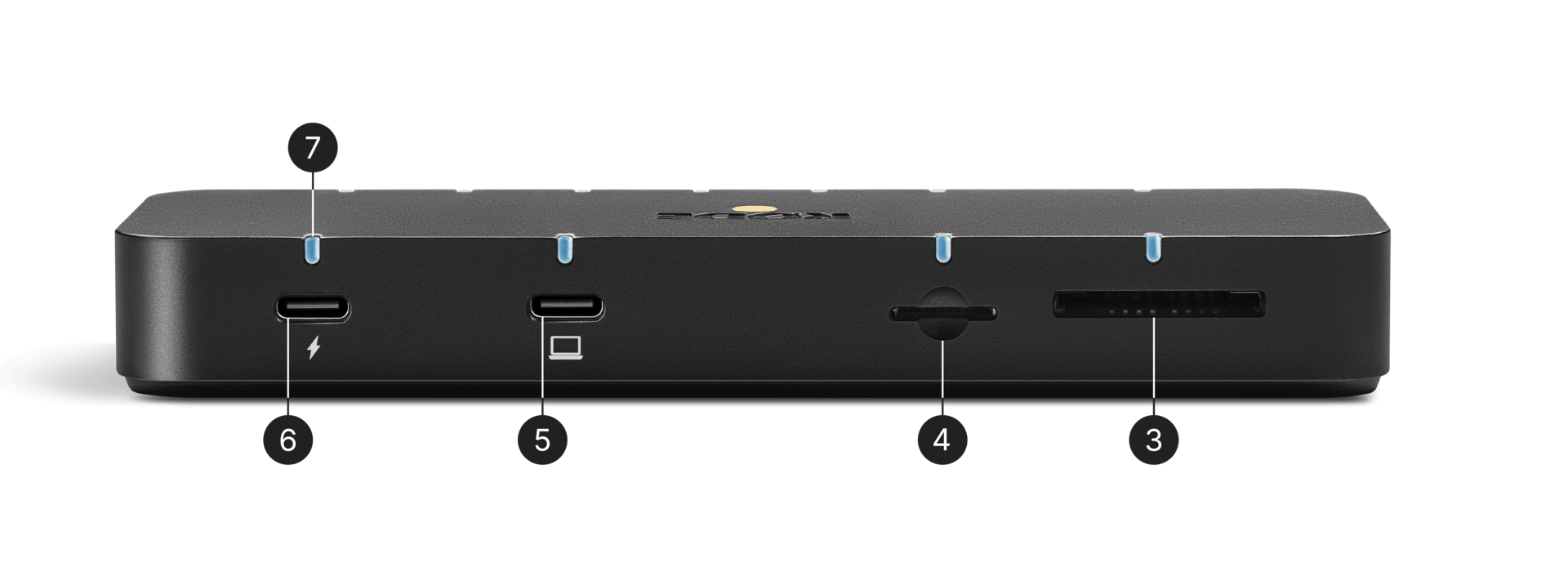
3SD-Kartensteckplatz (UHS-II)
4MicroSD-Kartensteckplatz (UHS-II)
5USB-C-Host-Anschluss
6Stromeingang (100 W)
7LED-Betriebsanzeige
Schnellstart
Der Einstieg in den RØDE Hub zur Erweiterung Ihres kreativen Arbeitsplatzes ist ganz einfach.
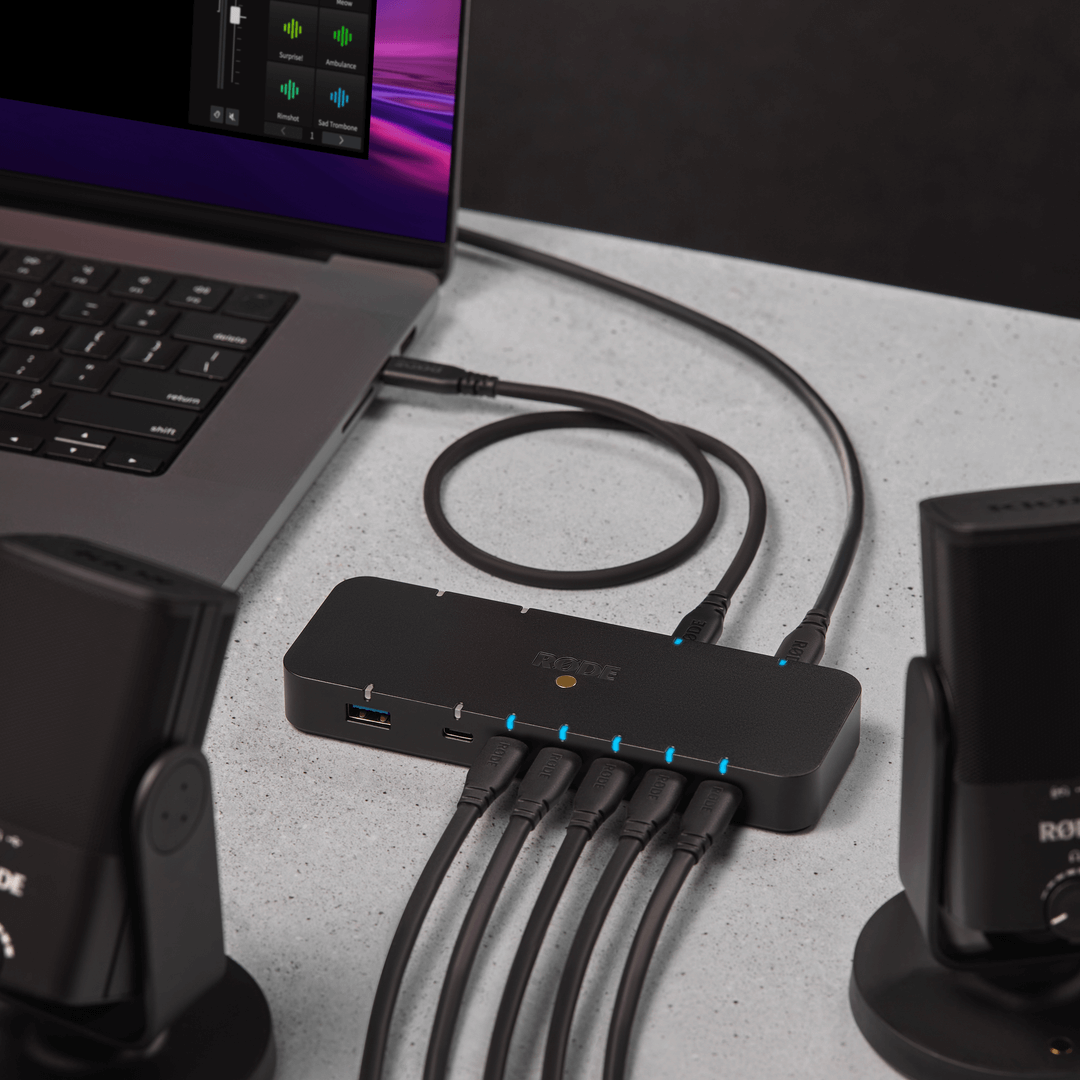
- Verbinden Sie das mitgelieferte USB-C-auf-USB-C-Datenkabel vom USB-C-Host-Anschluss des RØDE Hub mit Ihrem Computer.
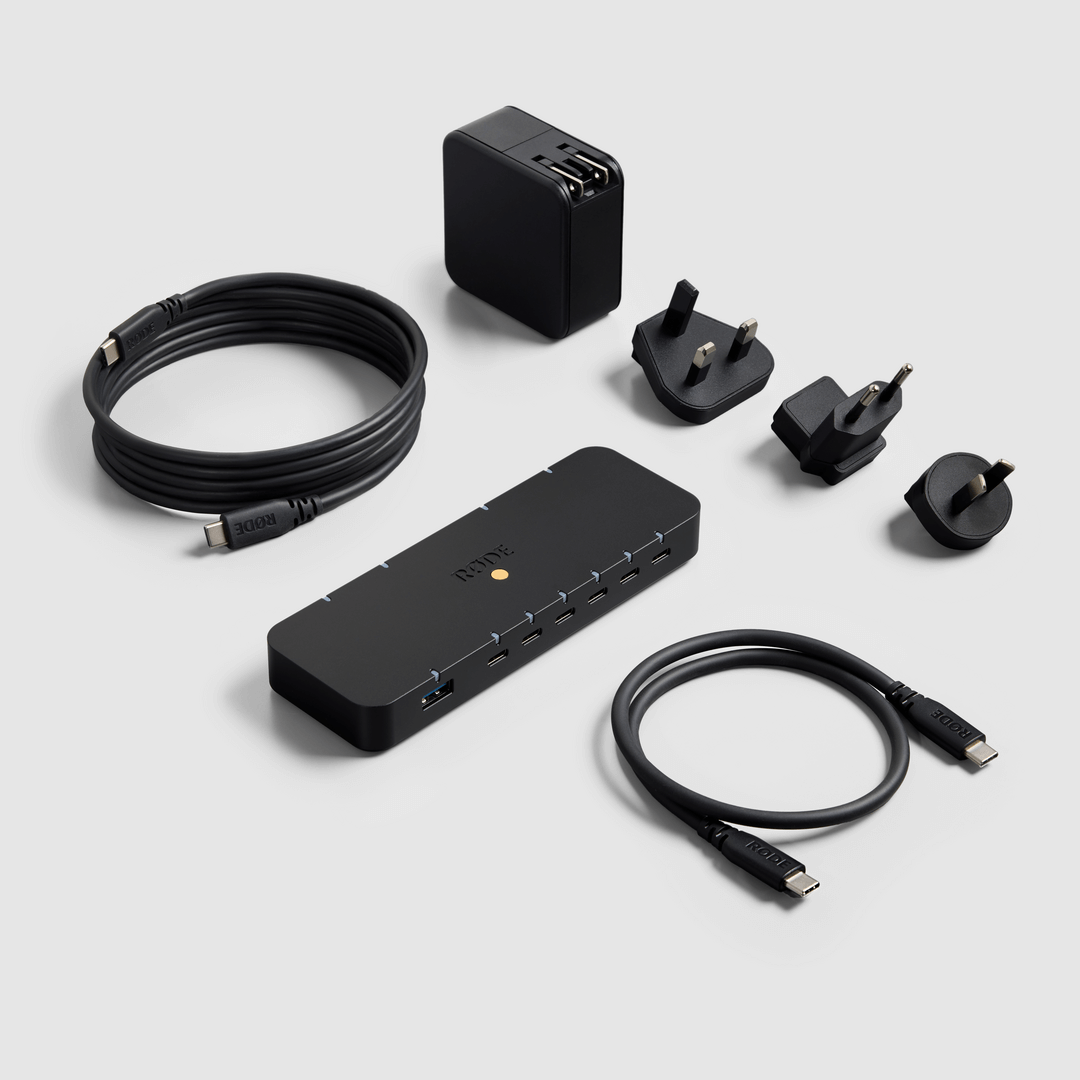
- Für die vollständige Stromversorgung schließen Sie das mitgelieferte 100-W-Netzteil an den DC-Stromeingang an.
- Schließen Sie USB-C- oder USB-A-Geräte an den Hub an.
- Setzen Sie eine SD- oder microSD Karte ein, um mit der Dateiübertragung zu beginnen.
- Die LED-Betriebsanzeige leuchtet auf, sobald die Verbindung hergestellt ist.
Stromversorgung des RØDE Hub
Der RØDE Hub unterstützt zwei Stromversorgungskonfigurationen:
Externer Stromversorgungsmodus
Für den vollen Funktionsumfang schließen Sie das mitgelieferte 100-W-Netzteil an. Der RØDE Hub verteilt die Leistung automatisch auf alle angeschlossenen Geräte, einschließlich 60 W Pass-Through-Laden für Ihren Laptop und 40 W für angeschlossene Geräte.
Busgespeister Modus
Wenn Sie keine hohe Ladeleistung benötigen, kann der RØDE Hub über die USB-C-Hostverbindung Strom vom Computer beziehen und so betrieben werden.
Hinweis: Dadurch wird die Leistungsabgabe der USB Anschlüsse an angeschlossene Geräte auf maximal 15 W begrenzt.
Profi-Tipp
Verwenden Sie die mitgelieferten austauschbaren Stecker, um das Netzteil für internationale Reisen anzupassen.
Stromversorgung & Laden
Der RØDE Hub ist zusätzlich zu seinen Anschlussmöglichkeiten ein leistungsstarkes Ladegerät:
- Laptop-Laden: Liefert bis zu 60 W an einen angeschlossenen Computer.
- Laden von Peripheriegeräten: Liefert bis zu 40 W über USB-C an Geräte wie Smartphones oder Tablets.
- Die Leistung wird automatisch entsprechend dem Bedarf der angeschlossenen Geräte verteilt.
Stellen Sie sicher, dass das mitgelieferte 100-W-Netzteil angeschlossen ist, um die volle Ladeleistung nutzen zu können.
Tipps zur Fehlerbehebung – USB-C-Host wird nicht geladen
Überprüfen Sie zunächst, ob das Netzteil angeschlossen ist, und stellen Sie anschließend sicher, dass der richtige USB-C-Anschluss zum Durchschleifen des Ladestroms verwendet wird.
Geräte anschließen
Der RØDE Hub bietet
verschiedene Anschlussmöglichkeiten, die Ihren Anforderungen gerecht werden:
Anschlusstyp |
Anzahl |
Verwendungszweck |
Maximale Übertragungsgeschwindigkeit |
|---|---|---|---|
USB-C |
6 |
Laufwerke, Kameras, Mikrofone, Tablets usw. |
Bis zu 10 Gbit/s |
USB-A |
1 |
Maus, Tastatur, ältere Peripheriegeräte |
Bis zu 5 Gbit/s |
SD-Karte (UHS-II)* |
1 |
Schnelle Übertragung von Mediendateien |
Bis zu 300 MB/s |
MicroSD-Karte (UHS-II)* |
1 |
Mobile Übertragung von Mediendateien |
Bis zu 300 MB/s |
*Die SD- und microSD -Steckplätze sind UHS-II-kompatibel und können gleichzeitig verwendet werden.
Tipps zur Fehlerbehebung – langsame Übertragungsgeschwindigkeit
Stellen Sie zunächst sicher, dass Sie Hochgeschwindigkeits-USB -Kabel verwenden, und überprüfen Sie anschließend, ob das Netzteil an eine Wandsteckdose angeschlossen ist.
LED-Statusanzeige
LED-Farbe |
Status des Gleichstromanschlusses |
Status des USB-C-Hostanschlusses |
USB Anschlussstatus |
SD-Kartenstatus |
|---|---|---|---|---|
Grün |
Verbunden |
Verbunden |
||
Blau |
Sowohl der USB-C-Host- als auch der Gleichstromanschluss sind verbunden |
Sowohl der USB-C-Host- als auch der Gleichstromanschluss sind verbunden |
Externes Gerät ist verbunden |
SD-Karte ist verbunden |
Weiß |
Sowohl der USB-C-Host- als auch der Gleichstromanschluss sind verbunden |
|||
Rot |
Nicht mit Strom versorgt oder getrennt |
Nicht mit Strom versorgt oder getrennt |
||
Aus |
Nicht mit Strom versorgt oder getrennt |
Nicht mit Strom versorgt oder getrennt |
Nicht verbunden |
Nicht verbunden |
Kompatibilität
Der RØDE Hub ist mit MacOS und Windows Plug-and-play-fähig. Es sind keine Treiber oder zusätzliche Software erforderlich.
Der RØDE Hub funktioniert außerdem nahtlos mit gängiger Software für Videobearbeitung, Audioproduktion und Dateiverwaltung.
Tipps zur Fehlerbehebung – Hub wird nicht erkannt
Vergewissern Sie sich zunächst, dass das USB-C-Hostkabel vollständig eingesteckt ist. Versuchen Sie dann einen anderen USB Anschluss an Ihrem Computer und starten Sie anschließend Ihren Computer neu.
Aktualisierung des RØDE Hub
Der Einstieg mit dem RØDE Hub ist ganz einfach. Er fügt sich nahtlos in Ihr Setup ein, ohne dass Treiber installiert werden müssen. Für zukünftige Firmware-Updates verbinden Sie den Hub einfach über den USB-C-Host-Anschluss mit einem Computer und starten Sie die RØDE Central-Anwendung.