Configuration with RØDE Capture
In addition to RØDE Central, the Wireless GO (Gen 3) can also be used with RØDE Capture (iOS mobile) for recording and basic control.
RØDE Capture is an easy-to-use video app for iPhone that offers complete in-app control of compatible RØDE microphones, allowing you to capture professional audio while recording video.
Note
Firmware updates required for Direct Connect compatibility must be completed using RØDE Central desktop app for Mac and PC.
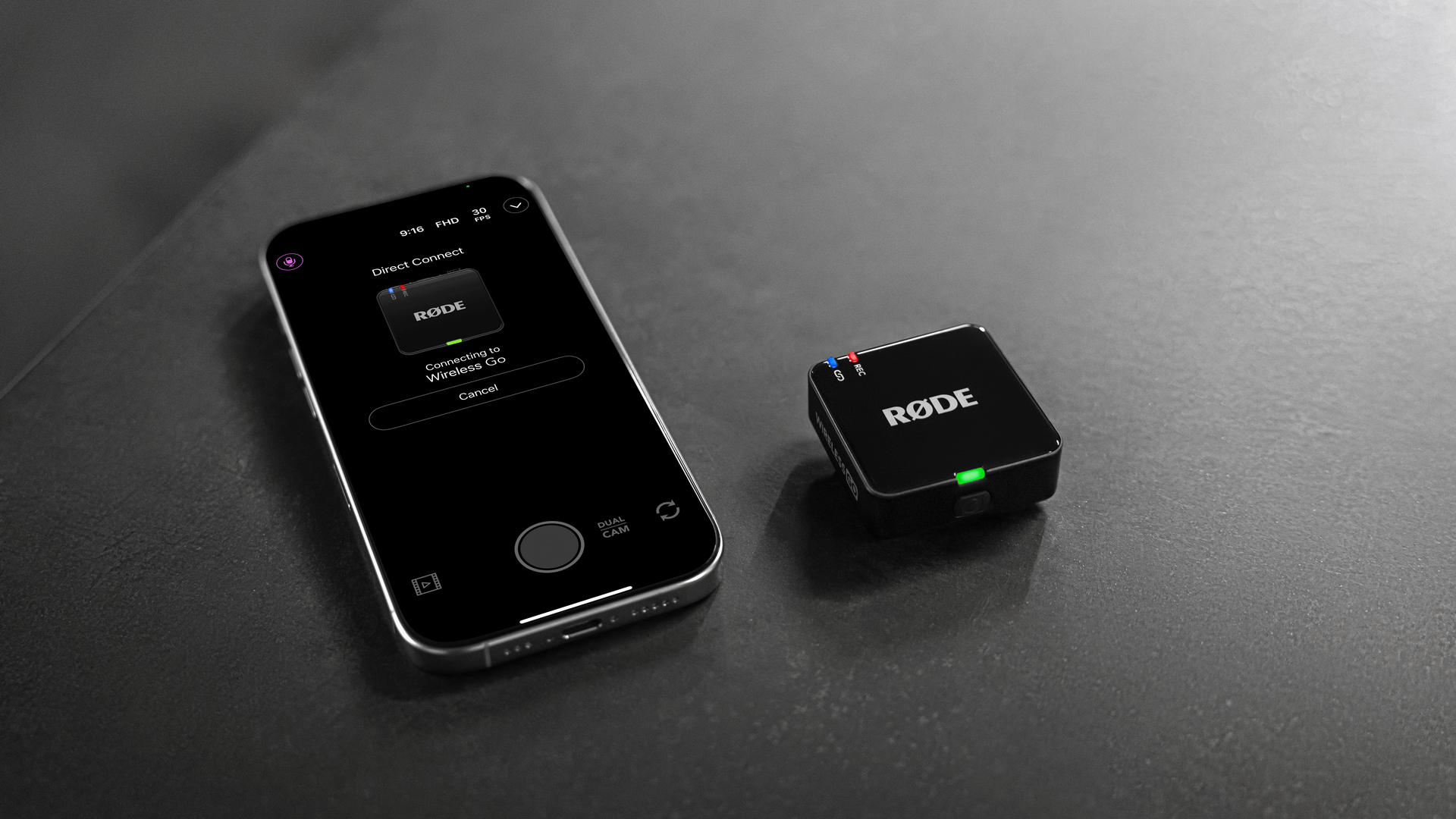
Record and Adjust Settings Using RØDE Capture
There are two ways to connect and adjust settings:
Using the Receiver (RX)
Connect your Wireless GO (Gen 3) receiver to your phone. With your transmitters powered on and paired, you can use RØDE Capture to access and adjust Wireless GO (Gen 3) settings, pair and unpair transmitters, and update firmware.
Direct Connect
Direct Connect is a feature in RØDE Capture that allows you to pair up to two Wireless GO (Gen 3) transmitters directly to your iPhone via Bluetooth®, without using the receiver. To use Direct Connect, first make sure you are using the latest firmware by updating your system via the RØDE Central desktop app. Then, open RØDE Capture and follow the on-screen prompts to pair your transmitters. Once connected, you can record directly into the app and adjust key settings such as GainAssist for each transmitter.
Key Settings:
Output Gain: Adjusts the volume level of the Wireless Wireless GO (Gen 3) audio being recorded in RØDE Capture.
Split and Merged Modes:
- Merged (default) records audio from both transmitters to both the left and right channels. This is ideal for creating polished, ready-to-publish videos.
- Split records one transmitter to the left channel and the other to the right. Use this if you plan on editing later, as it allows you to adjust each microphone independently.
LED Brightness: Adjusts whether the transmitter LEDs are bright or dim for a more discreet appearance.