RØDE Hub
The RØDE Hub is a powerful USB expansion tool designed to streamline creative workflow. With support for up to six USB-C devices and one USB-A device, plus UHS-II SD/microSD card readers and up to 60W power delivery, it’s the perfect centrepiece for your desktop setup—whether editing video, recording audio, or transferring large files at blazing speeds.Features
.png)
1USB-A Port
2USB-C Ports
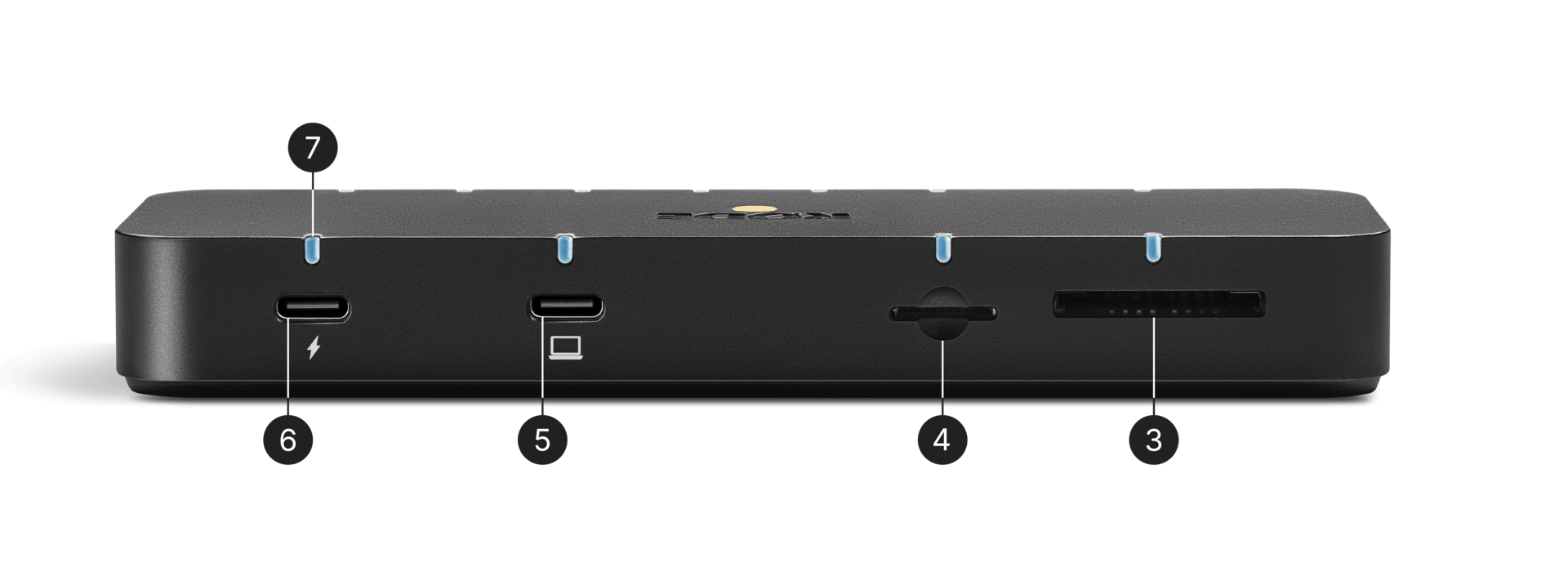
3SD Card Slot (UHS-II)
4MicroSD Card Slot (UHS-II)
5USB-C Host Port
6Power Input (100W)
7LED Power Indicator
Quick Start
Getting started with the RØDE Hub to expand your creative workspace is simple.
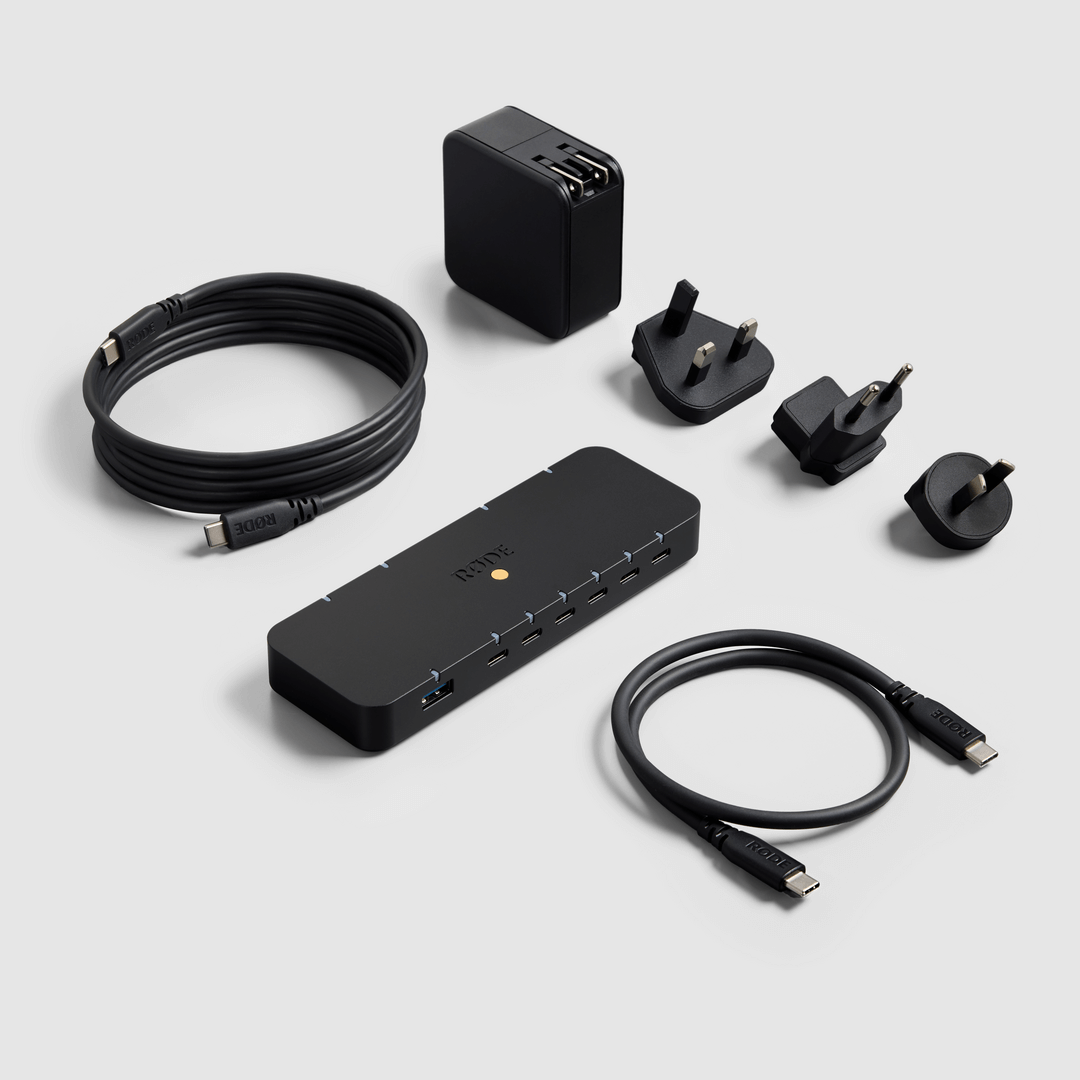
- Connect the included USB-C to USB-C Data cable from the RØDE Hub’s USB-C Host Port to your computer.
- For full power delivery, plug the included 100W power adapter into the DC Power Input.
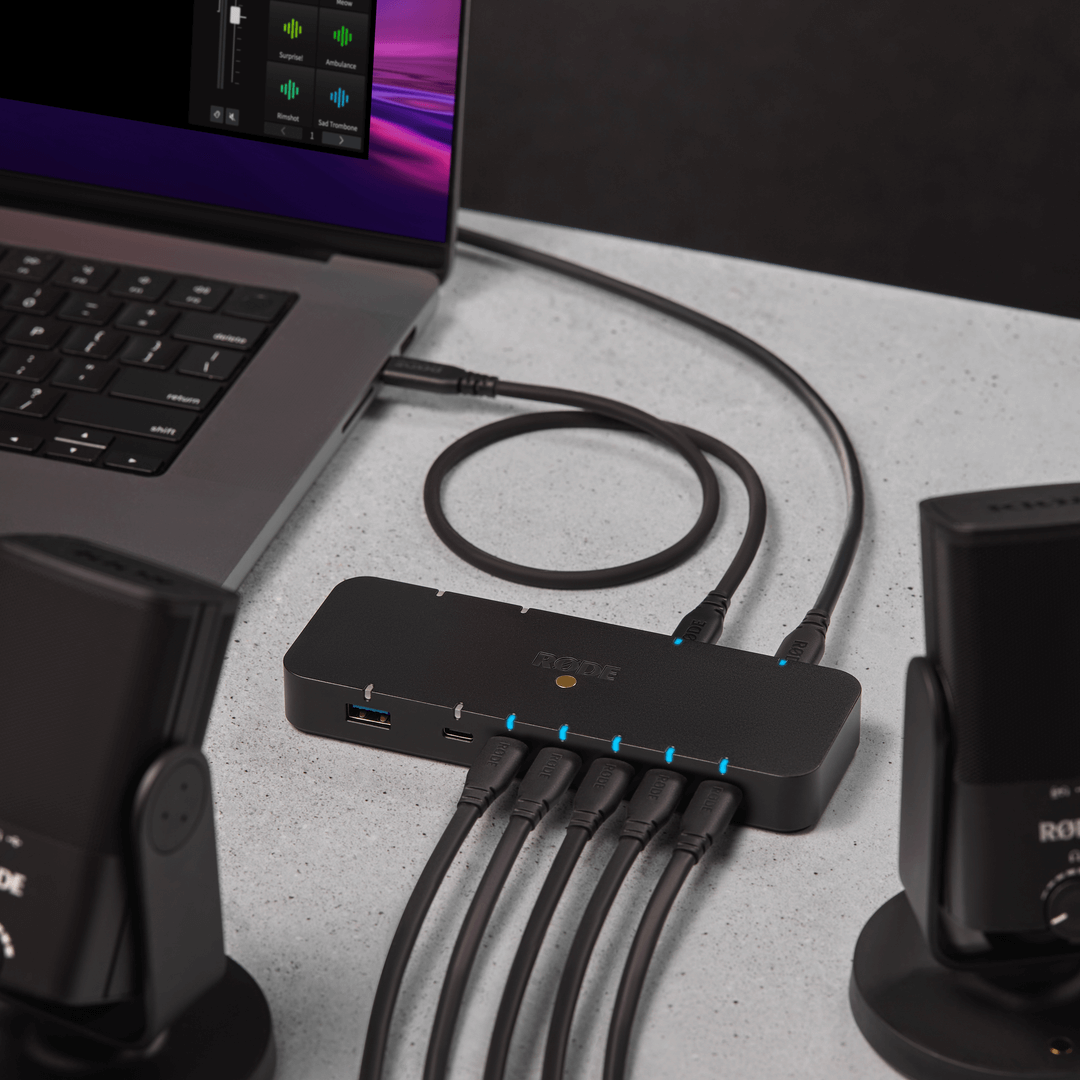
- Connect USB-C or USB-A devices to the hub.
- Insert an SD or microSD card to begin transferring files.
- The LED Power Indicator will illuminate once connected.
Powering the RØDE Hub
The RØDE Hub supports two power configurations:
External Power Mode
For full functionality, plug in the supplied 100W power adapter. The RØDE hub automatically balances power across all connected devices, including 60W pass-through charging to your laptop and 40W to connected devices.
Bus-Powered Mode
If you don’t need high charging output, the RØDE Hub can operate by drawing power from the computer via the host USB-C connection.
Note: This limits power delivery of the USB ports to connected devices to a maximum 15W.
Pro Tip
Use the supplied interchangeable plugs to adapt the power supply for international travel.
Power Delivery & Charging
The RØDE Hub is a powerful charging tool in addition to its connectivity:
- Laptop Charging: Delivers up to 60W to a connected computer.
- Peripheral Charging: Delivers up to 40W to devices like phones or tablets via USB-C.
- Power is automatically distributed based on connected devices' requirements.
Ensure that the supplied 100W power adapter is plugged in for full charging capability.
Troubleshooting Tips - USB-C Host Not Charging
First, verify that the power adapter is connected, then ensure that the correct USB-C port is used for pass-through charging.
Connecting Devices
The RØDE Hub features
a variety of connectivity options to suit your needs:
Port Type |
Quantity |
Use Case |
Max Transfer Speed |
|---|---|---|---|
USB-C |
6 |
Drives, cameras, microphones, tablets, etc. |
Up to 10Gbps |
USB-A |
1 |
Mouse, keyboard, legacy peripherals |
Up to 5Gbps |
SD Card (UHS-II)* |
1 |
High-speed media offloading |
Up to 300MB/s |
MicroSD Card (UHS-II)* |
1 |
Mobile media offloading |
Up to 300MB/s |
*The SD and microSD slots are UHS-II compatible and may be used simultaneously.
Troubleshooting Tips - Slow Transfer Speed
First, ensure that you're using high-speed USB cables, then ensure the power supply is connected to a wall socket.
LED Status Indicator
LED Colour |
DC Power Port Status |
USB-C Host Port Status |
USB port status |
SD Card Status |
|---|---|---|---|---|
Green |
Connected |
Connected |
||
Blue |
Both the USB-C Host and DC Port port are connected |
Both the USB-C Host and DC Port port are connected |
External device is connected |
SD card is connected |
White |
Both the USB-C Host and DC Port port are connected |
|||
Red |
Not powered or disconnected |
Not powered or disconnected |
||
Off |
Not powered or disconnected |
Not powered or disconnected |
Not Connected |
Not Connected |
Compatibility
The RØDE Hub is plug-and-play with both MacOS and Windows. No drivers or additional software are required.
The RØDE Hub also works seamlessly with major video editing, audio production, and file management software.
Troubleshooting Tips - Hub Not Detected
First, confirm that the USB-C host cable is fully inserted, then try another USB port on your the computer, and then restart your computer.
Updating the RØDE Hub
Getting started with the RØDE Hub is simple. It integrates seamlessly with your setup without any need for driver installations. For future firmware updates, just connect the Hub to a computer using the USB-C Host port and launch the RØDE Central application.