Registrazione ed esportazione dell’audio
Dove registrare l’audio
Quando registri con RØDECaster Pro II, hai due opzioni. Puoi registrare su un dispositivo di archiviazione collegato direttamente all’unità, ad esempio una microSD card o un USB hard drive, oppure su un computer tramite USB. Utilizzare un dispositivo di archiviazione è molto semplice, perché puoi registrare direttamente sull’unità e sono necessarie poche operazioni di configurazione. Per registrare su un computer, dovrai installare un software di registrazione, come una DAW, e configurarlo; tuttavia, questo metodo elimina la necessità di trasferire i file se prevedi di apportare ulteriori modifiche in post-produzione.
Collegamento di una scheda MicroSD
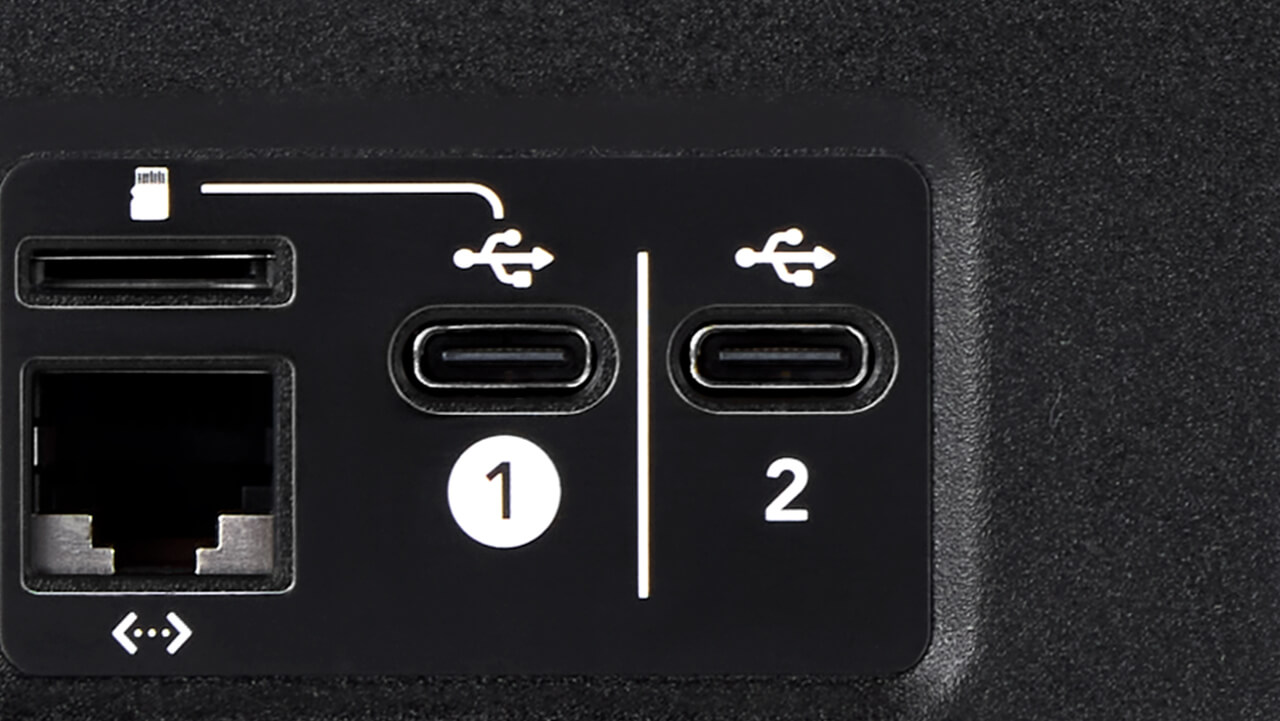
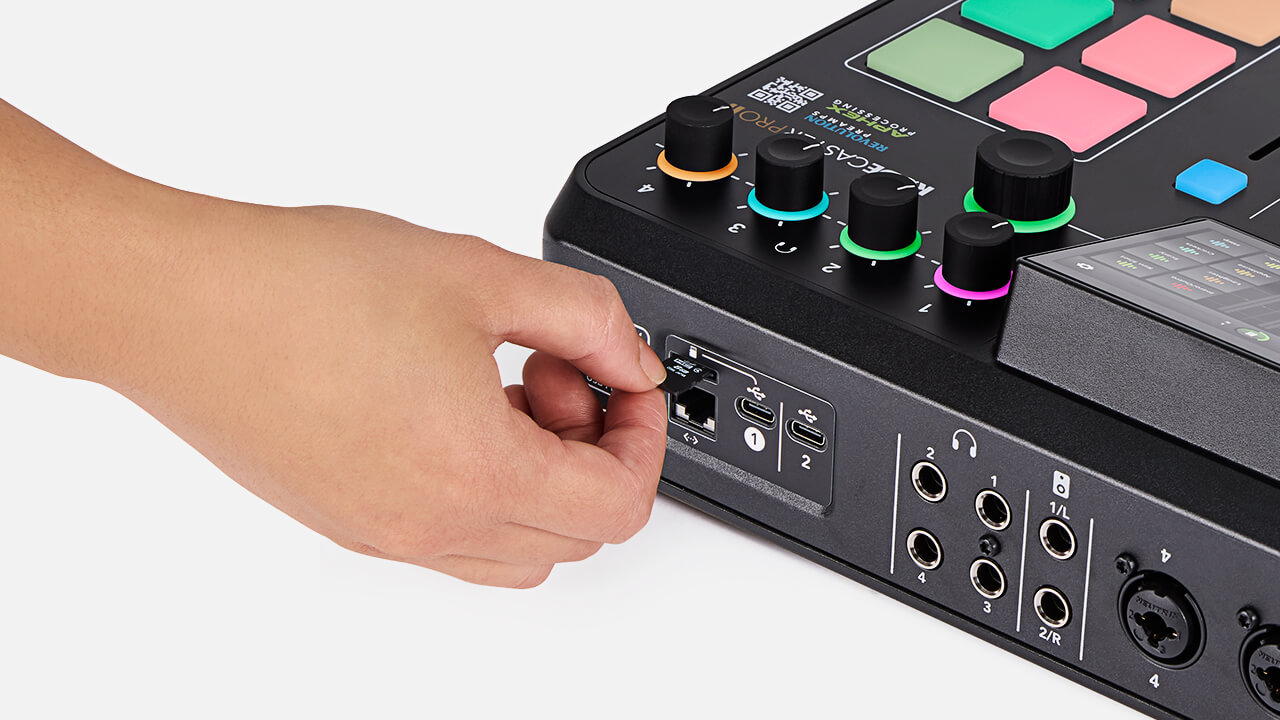
Puoi registrare l’audio direttamente su una scheda microSD . Devi utilizzare una scheda microSD di alta qualità che supporti velocità di trasferimento dati di almeno 100 MB/s. La maggior parte delle schede microSD di qualità contrassegnate con «microSDHC» e tutte le schede contrassegnate con «microSDXC» funzioneranno correttamente. Le schede prive di questi standard o le schede senza marca di bassa qualità sono sconsigliate e possono causare anomalie o altri problemi di registrazione. Inserisci la microSD nell’apposito slot sul retro di RØDECaster Pro II e premila finché non scatta in posizione.
Formattazione della scheda MicroSD
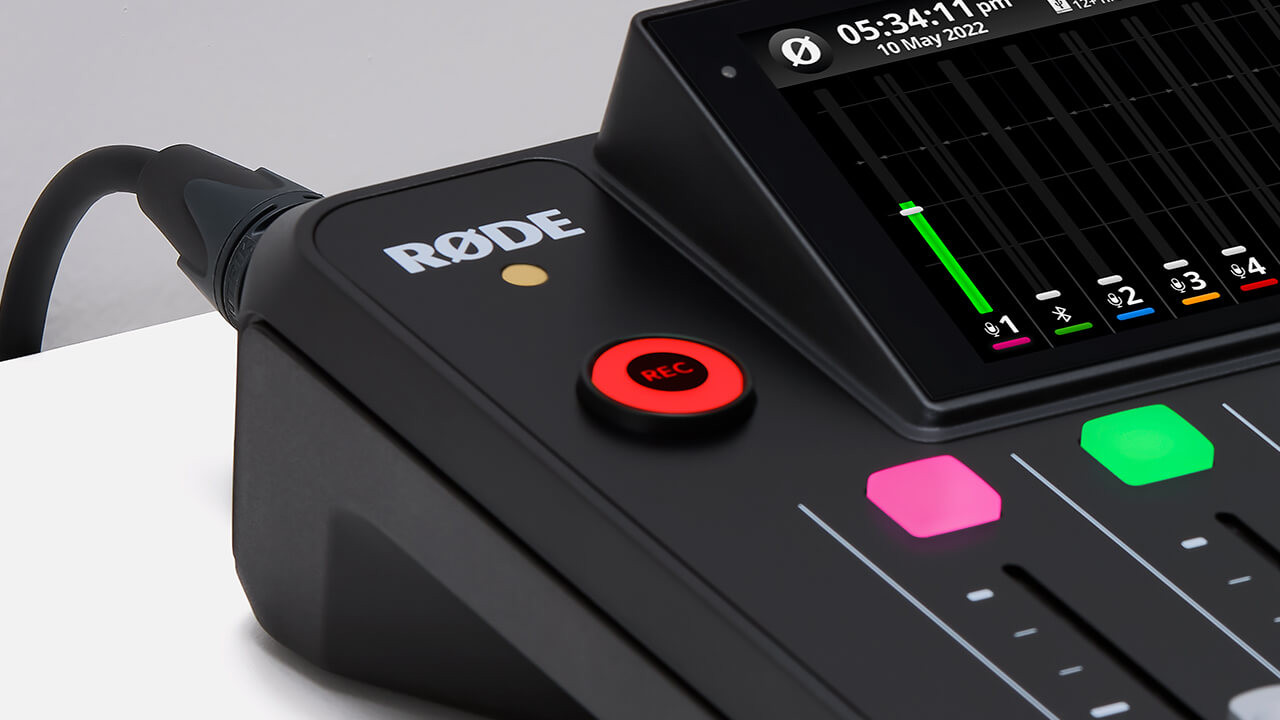
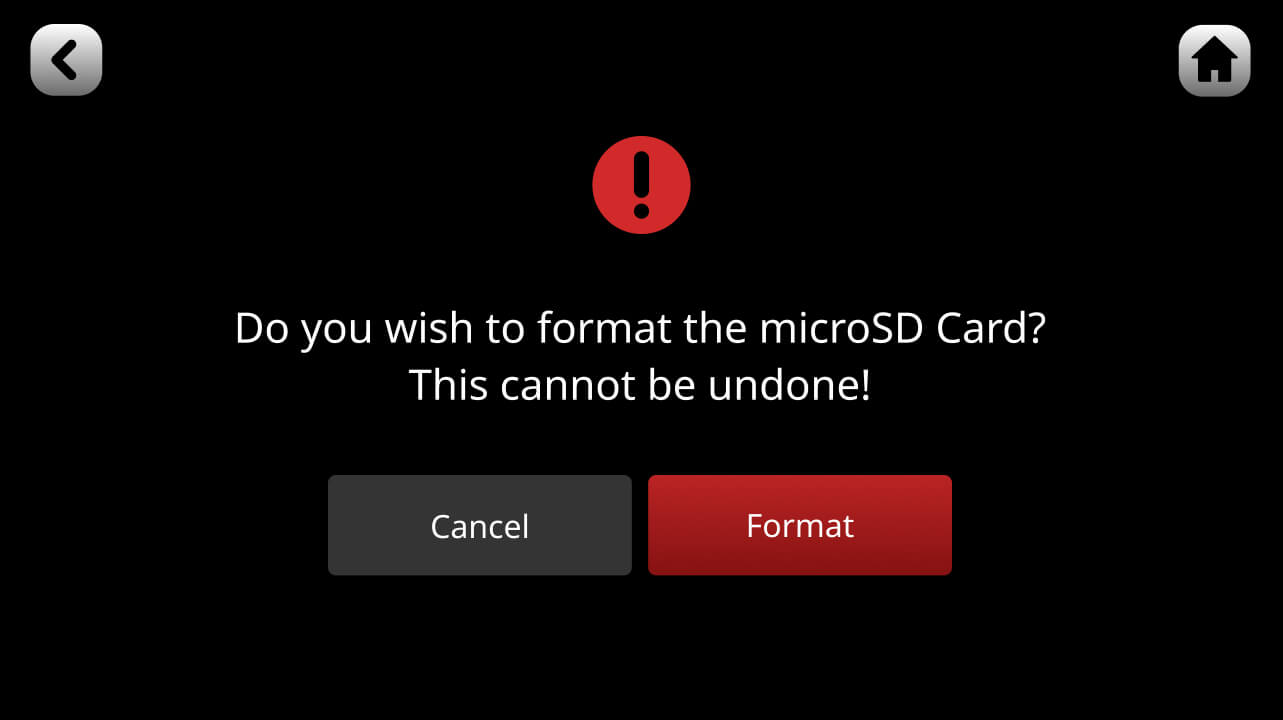
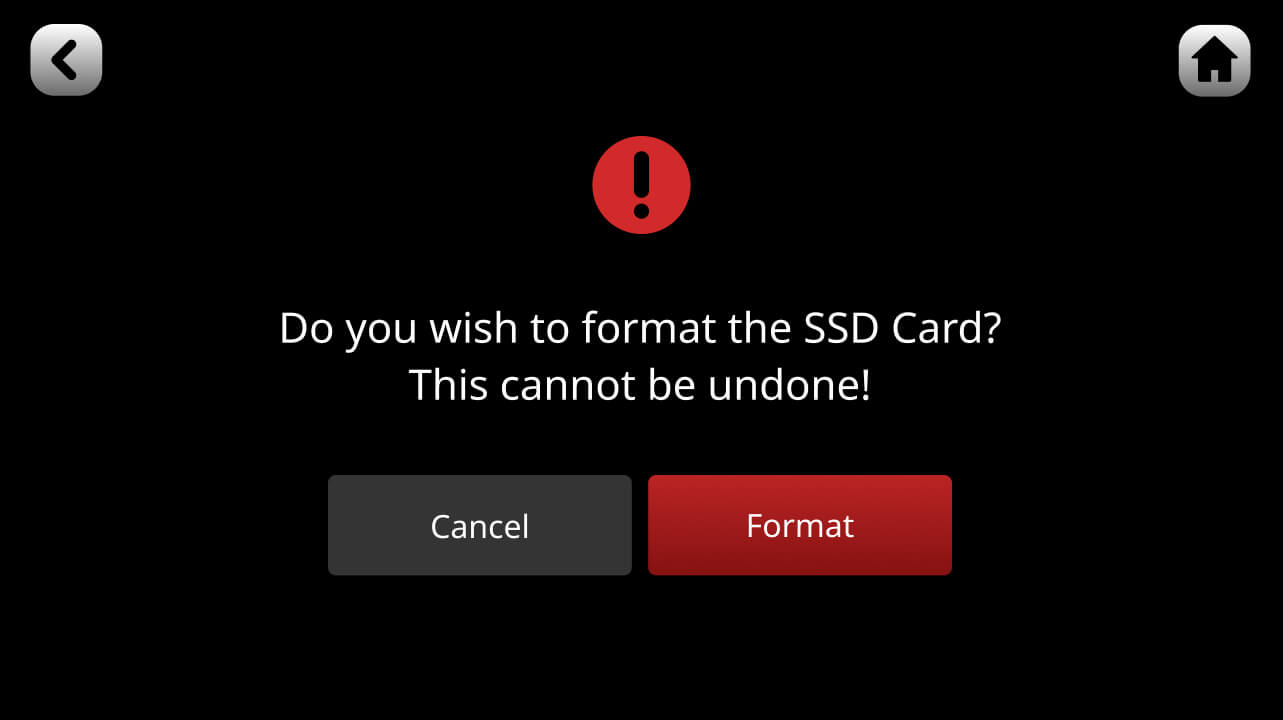
Se la scheda è già formattata, dopo l’inserimento nella schermata iniziale dell’unità apparirà un’icona che mostra il tempo di registrazione disponibile e il pulsante ‘REC’ diventerà verde. Se la scheda non è formattata (oppure non è formattata con un file system riconosciuto da RØDECaster Pro II), apparirà una finestra di dialogo che chiederà di formattare la scheda.
Nota
La formattazione eliminerà tutti i file presenti sulla scheda. È inoltre possibile formattare manualmente la scheda facendo clic sull’icona della scheda nella schermata principale e selezionando quindi «Cancella».
Collegamento di un dispositivo di archiviazione USB
Puoi registrare l’audio direttamente su un dispositivo di archiviazione USB (ad esempio un disco rigido o un SSD) tramite le interfacce audio USB del RØDECaster Pro II. Dovrai utilizzare un dispositivo di alta qualità che supporti velocità di trasferimento dati di almeno 100 MB/s e disponga di una connessione USB-C. I dispositivi di bassa qualità o senza marca non sono consigliati, poiché potrebbero compromettere le prestazioni o causare anomalie e altri problemi durante la registrazione. Puoi collegare un dispositivo di archiviazione USB a uno dei due ingressi USB , in base alla tua configurazione.
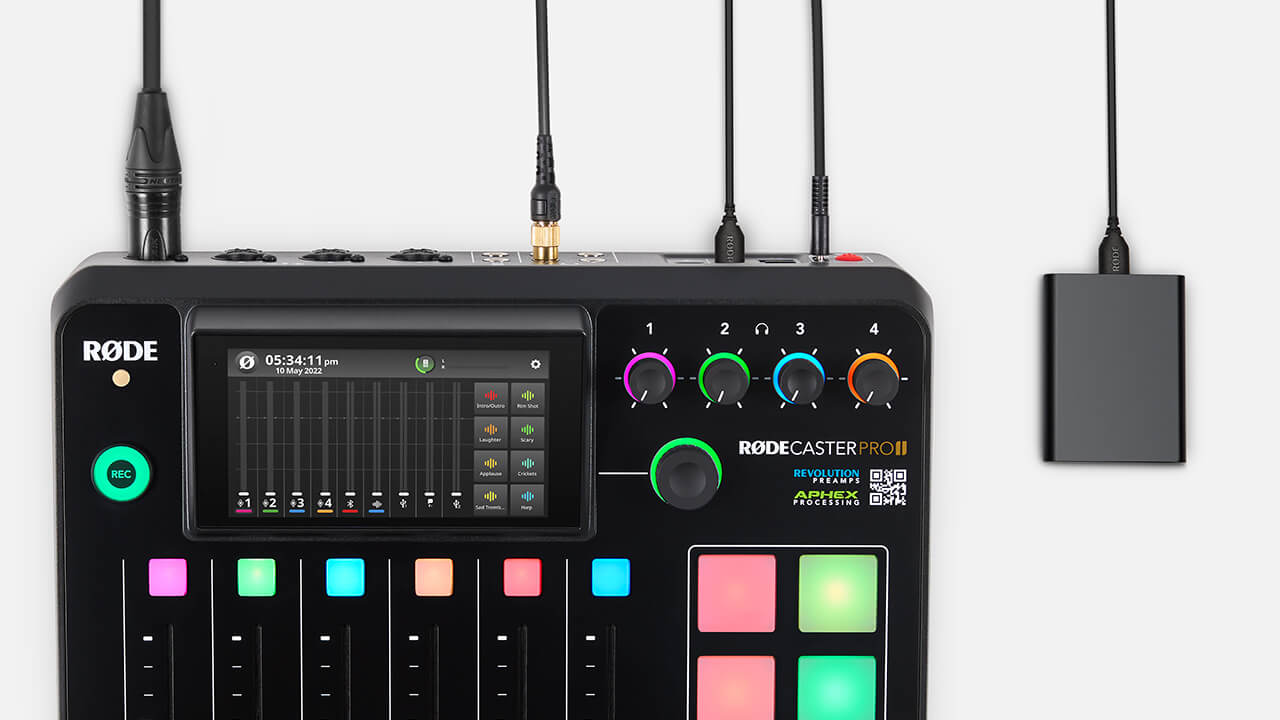
Formattazione del dispositivo di archiviazione USB
Se il dispositivo è già formattato, dopo l’inserimento nella schermata iniziale dell’unità apparirà un’icona che mostra il tempo di registrazione disponibile. Se il dispositivo non è formattato (o non è formattato utilizzando un file system riconosciuto da RØDECaster Pro II), apparirà una finestra di dialogo che chiederà di formattare il dispositivo. La formattazione eliminerà tutti i file presenti sul dispositivo. È inoltre possibile formattare manualmente la scheda facendo clic sull’icona di archiviazione nella schermata principale e selezionando quindi «Cancella».
Consiglio da professionista
Puoi registrare contemporaneamente su una scheda microSD e su un disco rigido.
Avvio e arresto della registrazione
Per avviare una registrazione, premi il pulsante ‘REC’ a sinistra dello schermo. Il pulsante ‘REC’ diventerà rosso e un timer indicherà la durata della registrazione trascorsa. Per interrompere la registrazione, tieni premuto il pulsante ‘REC’.
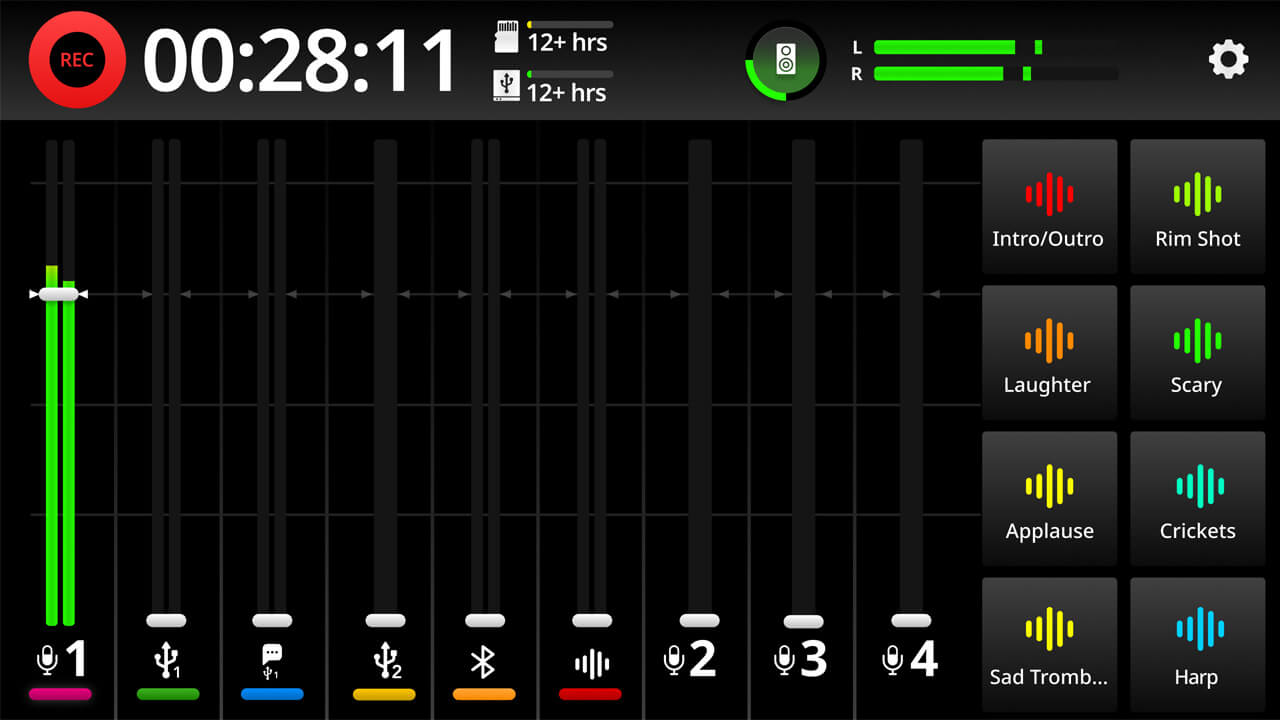
Nota
Il metodo sopra descritto è denominato «Modalità di registrazione: premere per mettere in pausa», attivata per impostazione predefinita. In questa modalità, una pressione breve mette in pausa la registrazione. È possibile passare alla «Modalità di registrazione: premere per interrompere» accedendo alle impostazioni, quindi selezionando «Display» > «REC Button». In questa modalità, una pressione breve interrompe la registrazione, mentre una pressione prolungata la mette in pausa (per ulteriori informazioni, vedere sotto).
Consiglio da professionisti
La durata minima della registrazione è di tre secondi. Una volta avviata la registrazione, non sarà possibile interromperla prima che siano trascorsi almeno tre secondi.
Messa in pausa della registrazione
Per mettere in pausa una registrazione, premi brevemente il pulsante ‘REC’. Il pulsante diventerà arancione e la registrazione verrà messa in pausa. Per riprendere la registrazione, premi nuovamente ‘REC’. Per interrompere la registrazione mentre è in pausa, tieni nuovamente premuto ‘REC’. Puoi anche mettere in pausa la registrazione tenendo premuta a lungo l’icona ‘REC’ in alto a sinistra nella schermata iniziale.
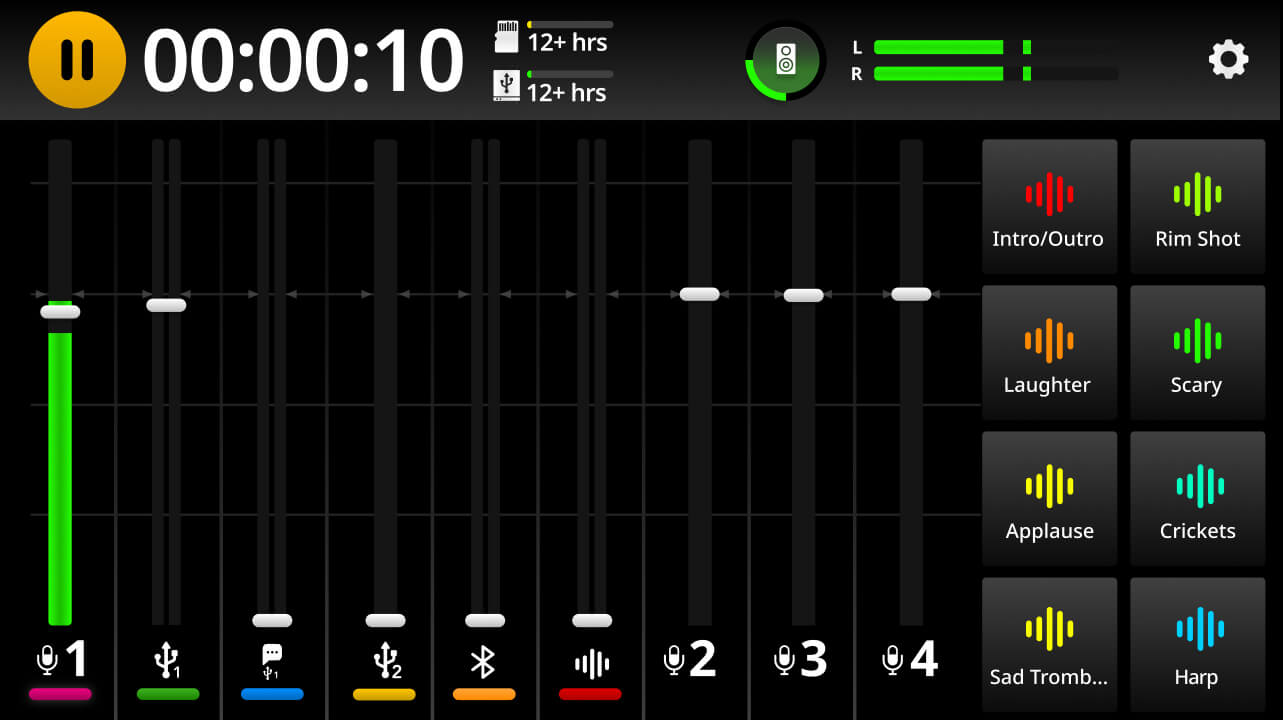
Nota
Il metodo descritto sopra è denominato «Modalità di registrazione con pressione per mettere in pausa», attivata per impostazione predefinita. È possibile passare alla «Modalità di registrazione con pressione per interrompere» accedendo alle impostazioni, quindi selezionando «Display» > «REC Button». In questa modalità, una pressione breve interrompe la registrazione, mentre una pressione prolungata mette in pausa la registrazione.
Inserimento dei marker
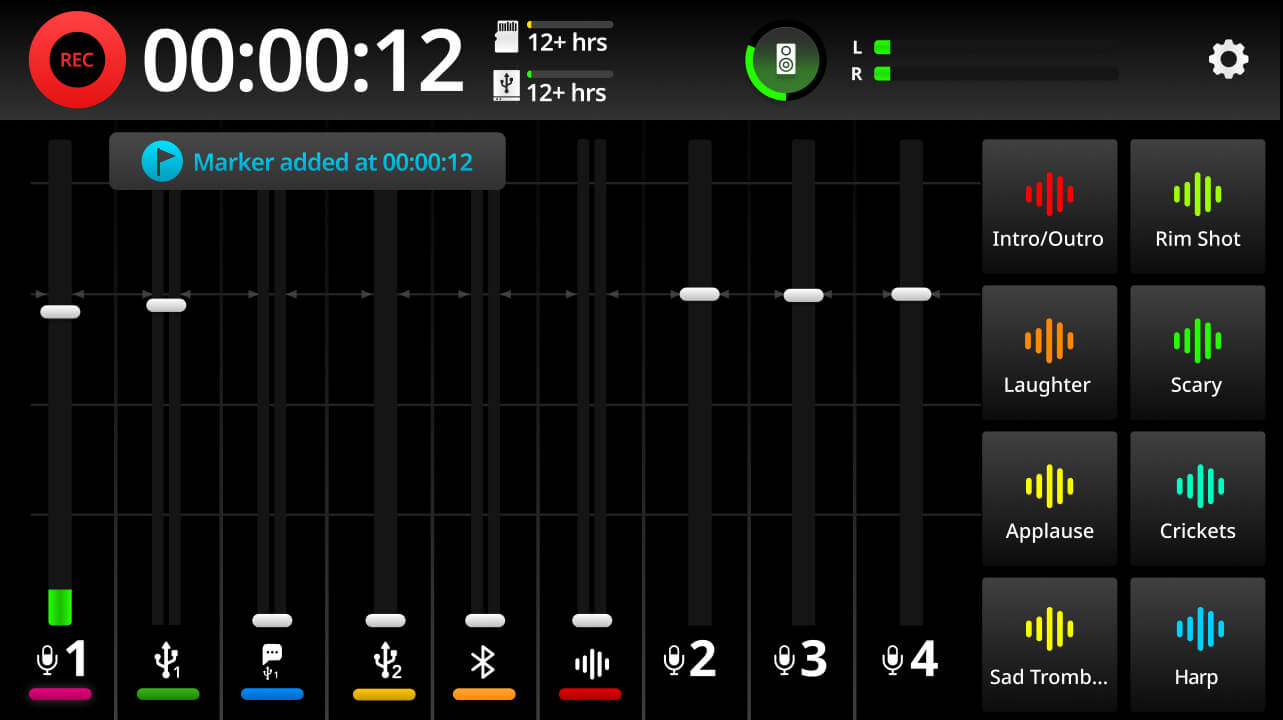
Puoi inserire un marker in qualsiasi momento durante la registrazione. I marker possono essere utilizzati per individuare sezioni della registrazione durante la riproduzione o dopo l’importazione in una DAW. Per inserire un marker, è sufficiente toccare il timer della registrazione mentre registri.
Nota
Non tutte le DAW sono in grado di leggere le informazioni sui marker nei file audio; per ulteriori informazioni, consulta la documentazione della tua DAW.
Attivazione della registrazione multitraccia
Quando registri sul RØDECaster Pro II, puoi scegliere di registrare il mix stereo completo oppure ogni traccia singolarmente (oltre al mix stereo completo). Quest’ultima modalità è chiamata registrazione multitraccia e, se necessario, ti consente di modificare singolarmente le tracce in post-produzione.
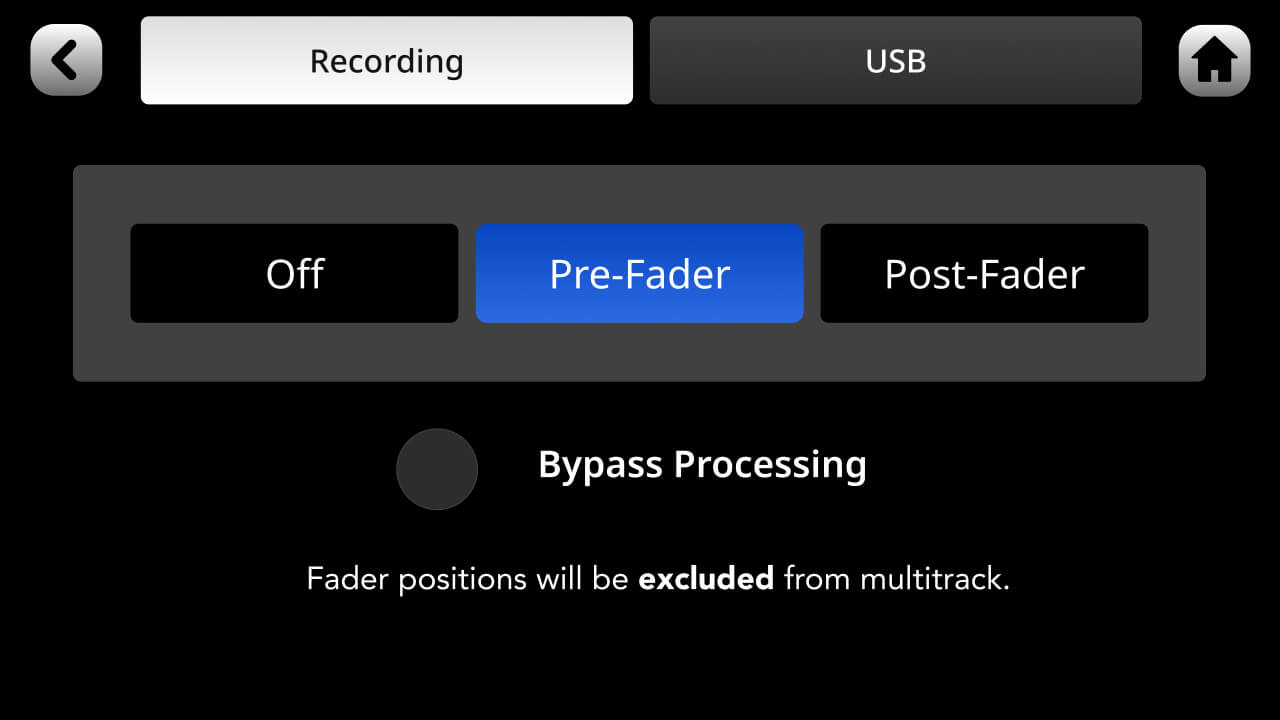
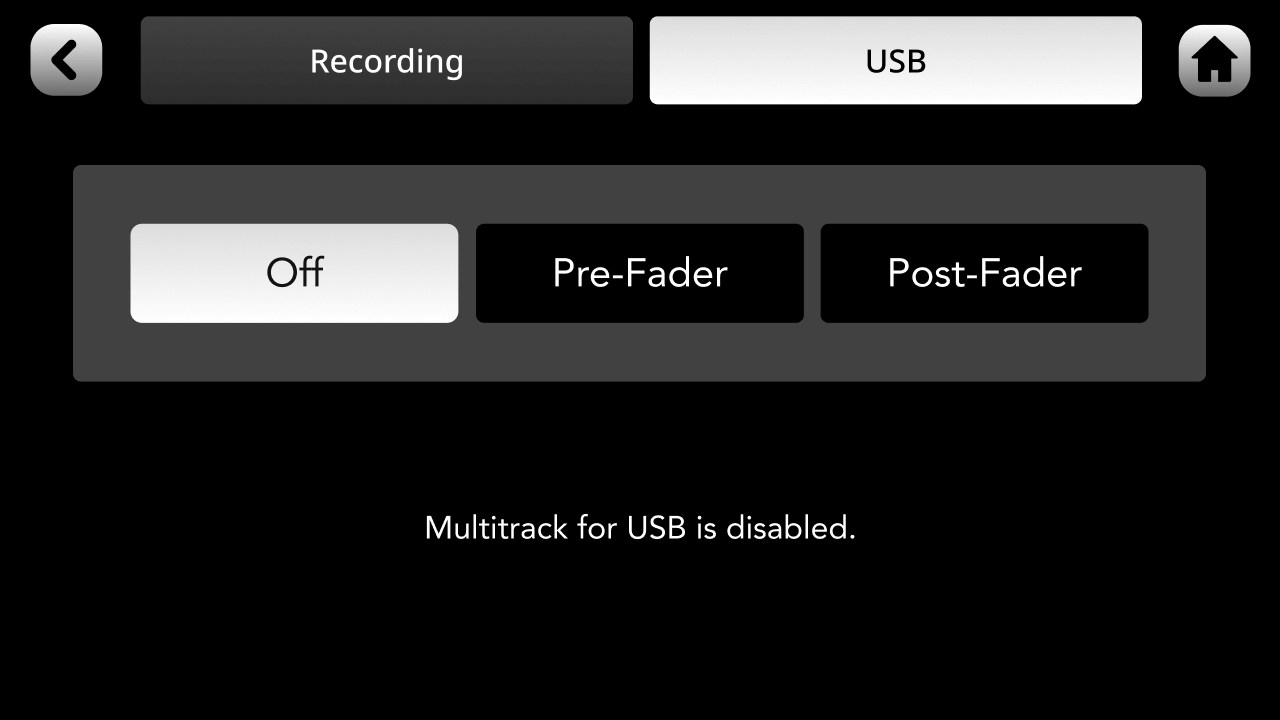
Per attivare la registrazione multitraccia, tocca l’icona a forma di ingranaggio delle impostazioni, quindi ‘Uscite’ > ‘Multitraccia’ (per impostazione predefinita, la registrazione multitraccia è impostata su ‘off’). Da questa pagina puoi impostarla su ‘Pre-fader’ oppure ‘Post-fader’. La registrazione pre-fader significa che la posizione del fader non avrà alcun effetto sull’audio registrato: anche se la sorgente viene abbassata, verrà comunque registrata a guadagno unitario. Post-fader significa che l’audio verrà registrato al livello impostato dal fader: se una sorgente viene completamente abbassata, non verrà registrato nulla.
Nota
L’uscita «mix» non sarà influenzata da questa impostazione e rifletterà sempre l’uscita del mix finale, comprese le posizioni dei fader.
Bypass dell’elaborazione (solo registrazione multitraccia)
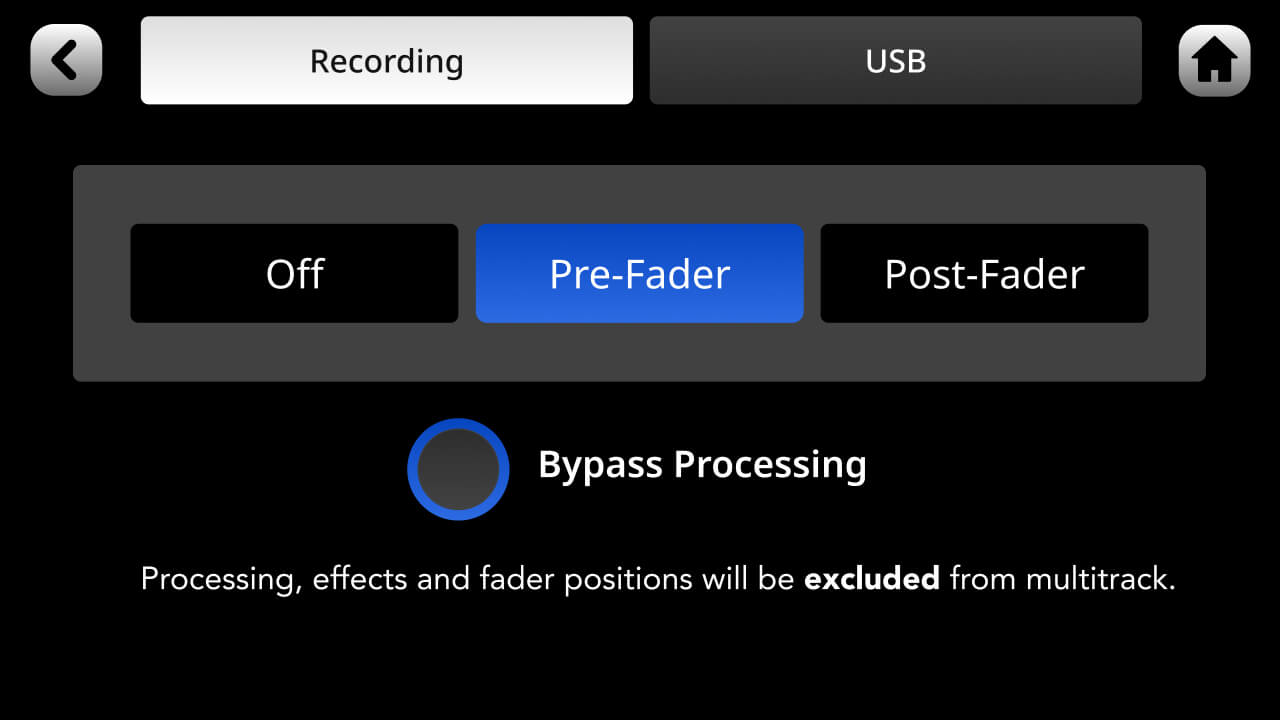
Durante la registrazione multitraccia, è possibile scegliere di escludere l’elaborazione dalle registrazioni. Ciò significa che l’audio non elaborato verrà registrato senza alcuna elaborazione applicata al canale (ovvero l’elaborazione APHEX o gli effetti). Questa impostazione non influisce sull’uscita «mix», che rifletterà sempre l’uscita del mix finale, inclusa tutta l’elaborazione.
Ascolto delle registrazioni
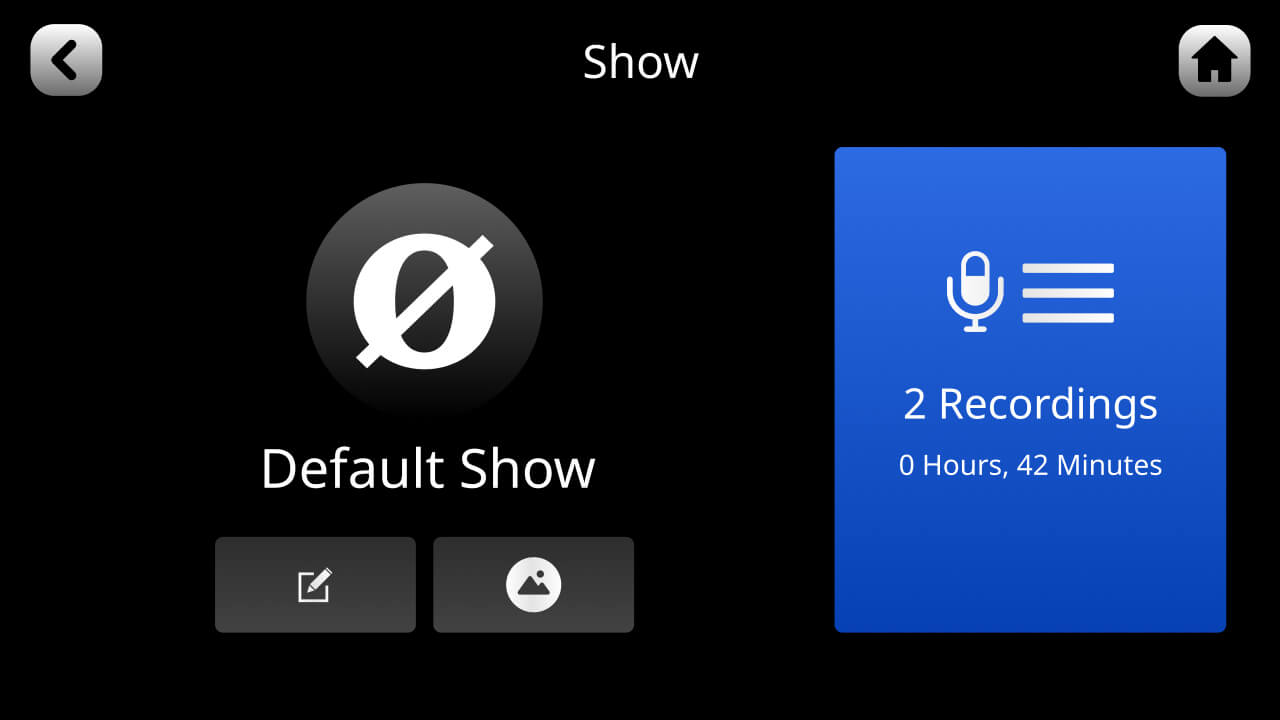
Puoi riprodurre le tue registrazioni direttamente dal RØDECaster Pro II. Per accedere alle registrazioni, premi l’icona «Mostra» in alto a sinistra nella schermata iniziale, quindi fai clic sull’icona «Registrazioni». Verrà visualizzato un elenco delle tue registrazioni. Per accedere a una registrazione, toccala. Per riprodurre la registrazione, tocca l’icona «Riproduci».
Nota
Tutte le altre funzioni audio di RØDECaster Pro II saranno disattivate quando la schermata di riproduzione è aperta.
Consiglio da professionista
Esistono due modi per navigare nell’elenco delle registrazioni: scorrere utilizzando il touchscreen oppure usare l’encoder rotativo per scorrere verso l’alto e verso il basso.
Navigare all’interno di una registrazione
Durante la riproduzione dell’audio, è possibile navigare nel file in diversi modi. È possibile utilizzare il cursore nella parte inferiore dello schermo, le icone «salta» per spostarsi avanti e indietro nell’audio con incrementi di 15 o 30 secondi, oppure passare da un contrassegno all’altro eventualmente inserito nella registrazione.
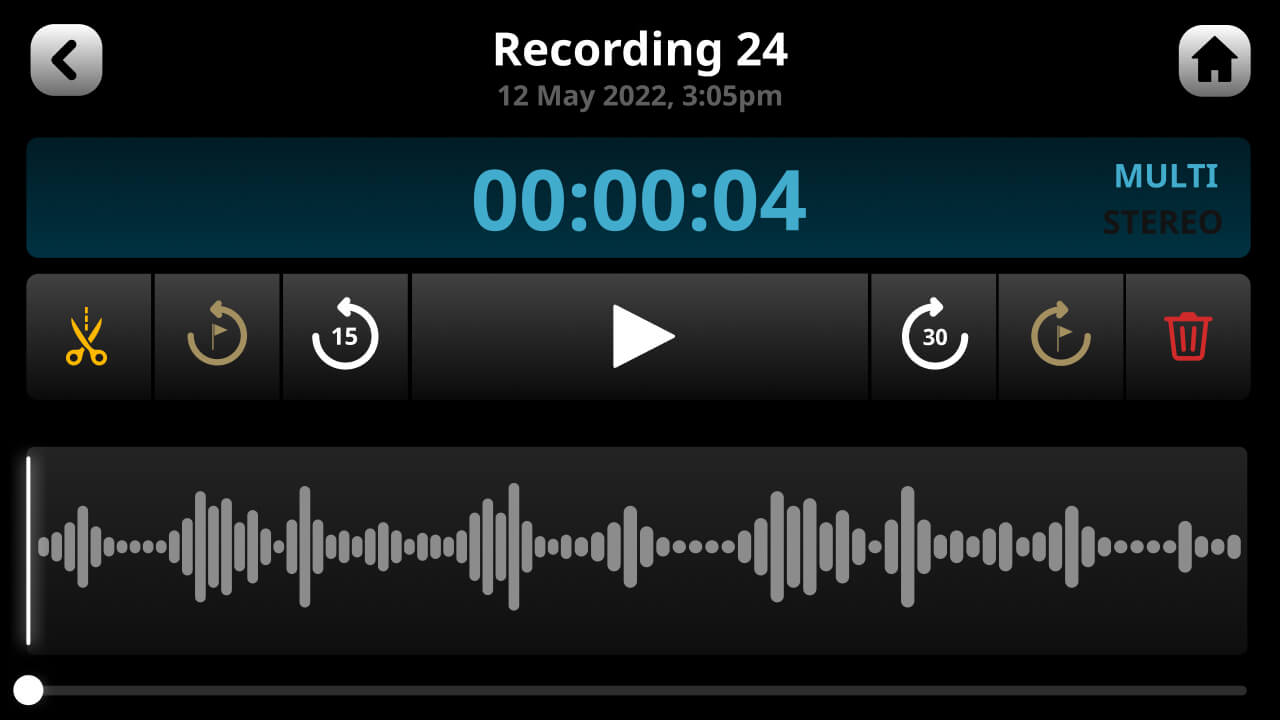
Ritaglio e modifica di una registrazione
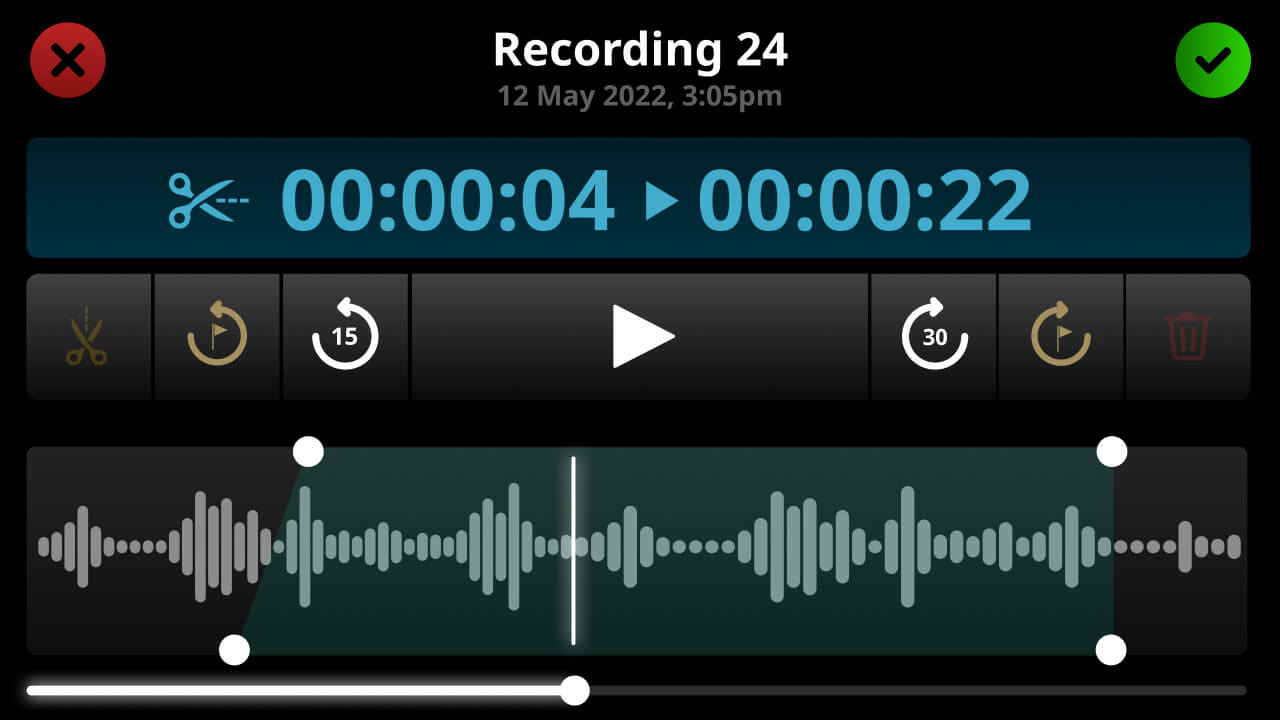
Puoi rifilare i punti iniziale e finale di una registrazione, oltre ad aggiungere una dissolvenza in entrata e in uscita. Per farlo, attiva la modalità di modifica nella schermata di riproduzione toccando l’icona delle forbici. Ora puoi trascinare gli angoli della forma d’onda per rifilare l’audio e creare una dissolvenza in entrata o in uscita. Per visualizzare in anteprima la modifica, usa i comandi di riproduzione. Premi il segno di spunta verde nell’angolo in alto a destra dello schermo per salvare la modifica e uscire dalla modalità di modifica.
Consiglio da professionisti
La modifica nella finestra di riproduzione è non distruttiva e non altera i file registrati. Puoi scegliere di esportare l’audio modificato in un nuovo file utilizzando l’app RØDECaster . Fai clic qui per ulteriori informazioni sull’utilizzo dell’app RØDECaster con RØDECaster Pro II.
Selezione del dispositivo USB principale sul computer
RØDECaster Pro II dispone di tre dispositivi audio USB che il computer riconoscerà. L’uscita USB 1 presenta due dispositivi USB denominati «RØDECaster Pro II Main» e «RØDECaster Pro II Chat». L’uscita USB 2 verrà riconosciuta come «RØDECaster Pro II Secondary».
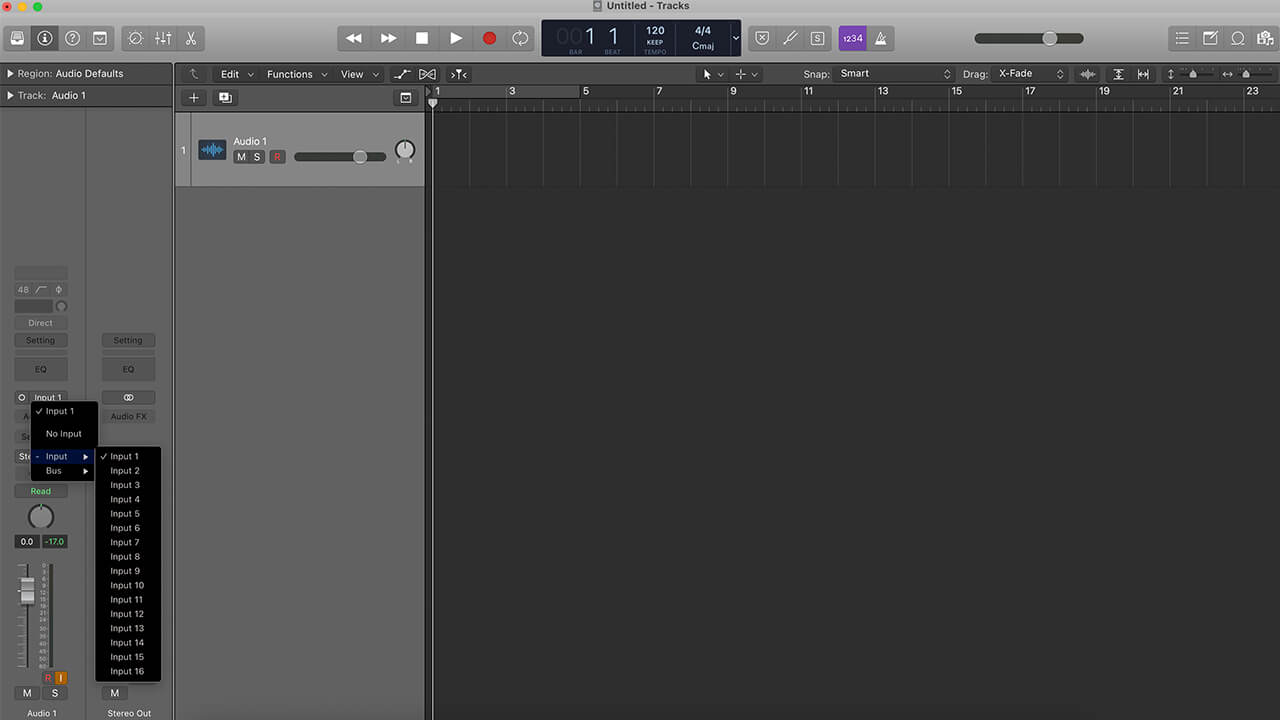
Consigliamo di utilizzare «RØDECaster Pro II Main» (USB 1) per registrare la vostra produzione, poiché questo è l’unico dispositivo che può essere configurato come dispositivo multitraccia. Assicuratevi di selezionare il dispositivo «RØDECaster Pro II Main» come ingresso nel pannello di controllo del computer oppure nella sezione dei dispositivi del vostro software di registrazione o DAW.
Passaggio dalla modalità di registrazione stereo a quella multitraccia
Per impostazione predefinita, ‘RØDECaster Pro II Main’ (USB 1) è configurato per trasmettere il mix stereo principale (tutti gli ingressi audio mixati insieme). Per attivare la registrazione multitraccia tramite USB, accedi alle impostazioni, quindi vai su ‘Outputs’ > ‘Multitrack’ > ‘USB’ e deseleziona ‘Off’.
Nota
USB 2 e USB Chat non possono essere configurati come uscite multitraccia.
Registrazione multitraccia via USB
In modalità multitraccia, l’uscita principale di RØDECaster Pro II offre 16 diverse uscite audio, come illustrato qui:
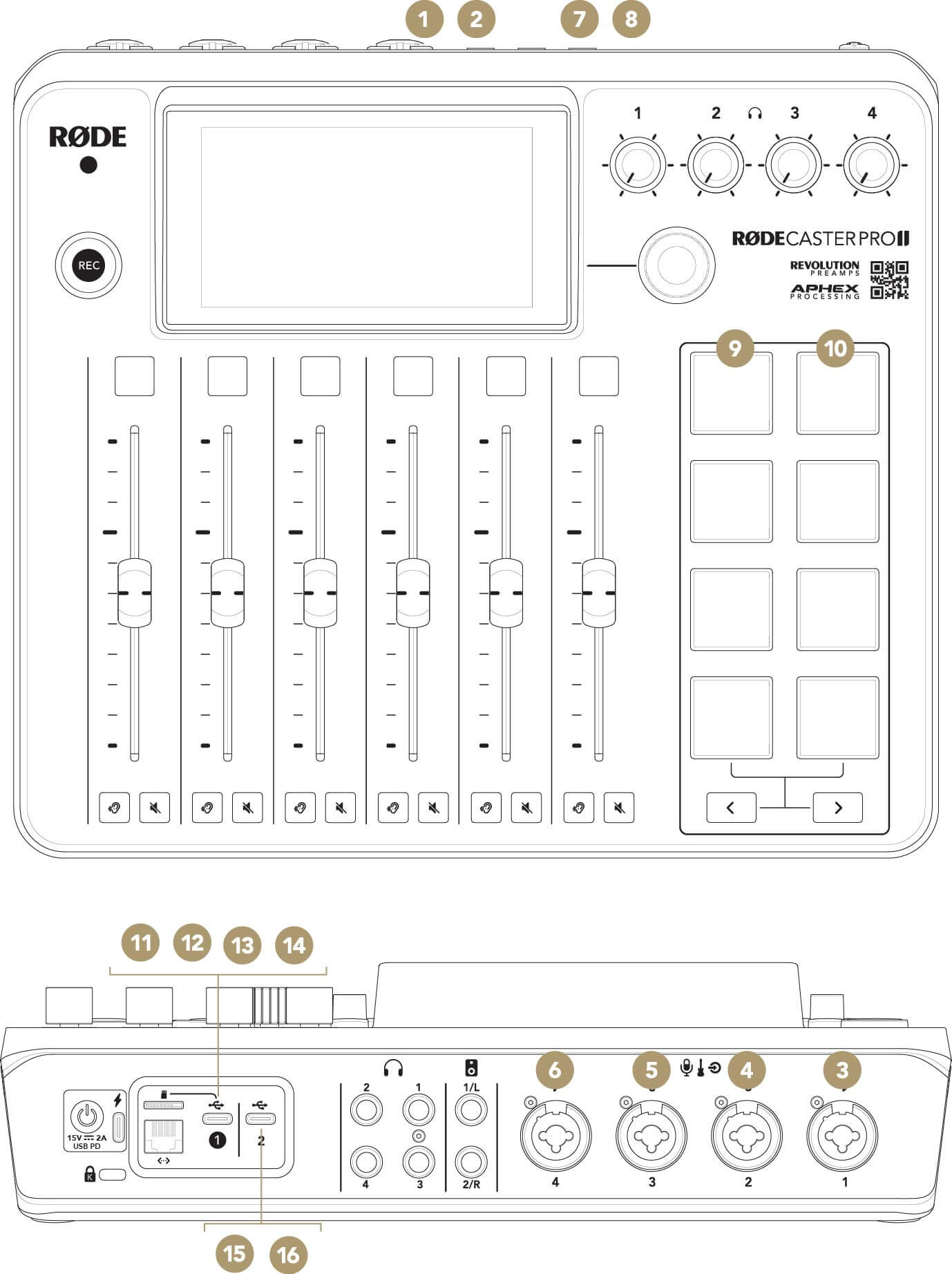
1Mix L
2Mix R
3XLR/TRS 1
4XLR/TRS 2
5XLR/TRS 3
6XLR/TRS 4
7Bluetooth L
8Bluetooth R
9SMART Pads L
10SMART Pads R
11USB Main L
12USB Main R
13USB Chat L
14USB Chat R
15USB Secondary L
16USB Secondary R
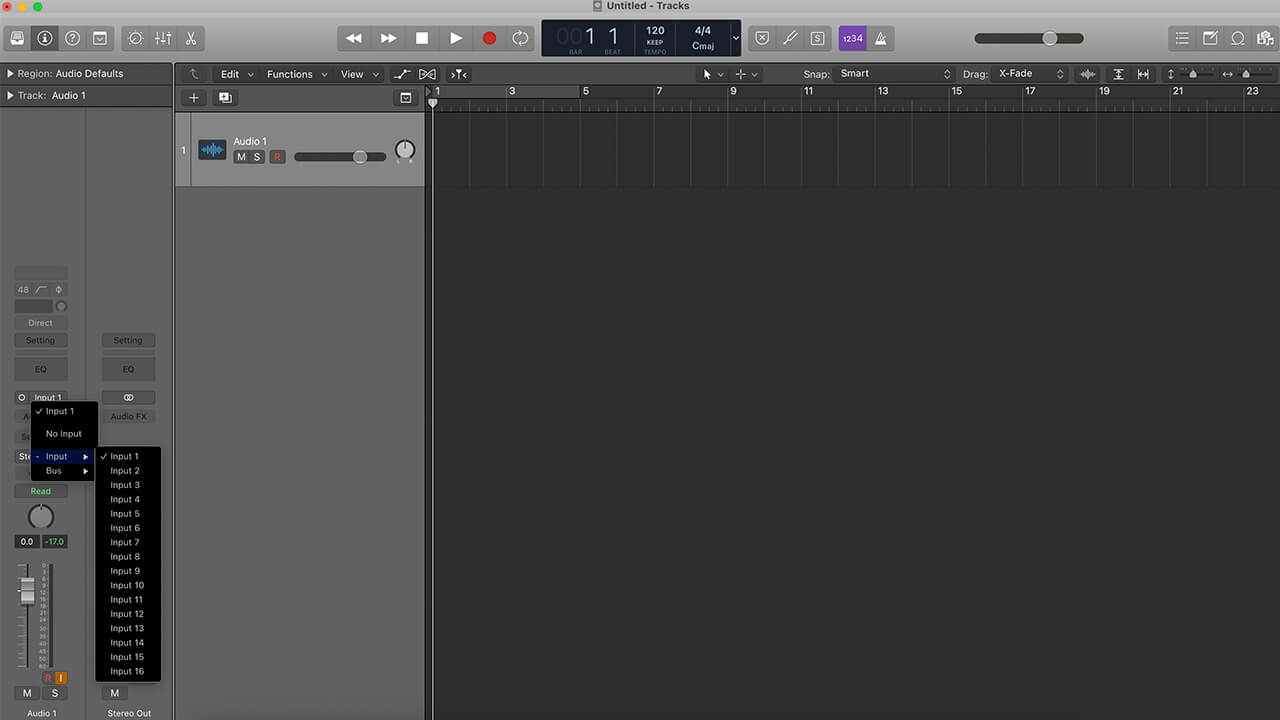
Puoi selezionare una qualsiasi di queste uscite come sorgente d’ingresso per ciascuna traccia della tua DAW. Di norma, le tracce della DAW possono essere configurate come stereo, per accettare una coppia di ingressi, oppure come mono, per un singolo ingresso. Configura le tracce della DAW in modo che corrispondano ai canali che desideri registrare, selezionando per ciascuna traccia l’uscita appropriata di RØDECaster Pro II.
Guide alla registrazione multitraccia con DAW
Di seguito trovi una serie di guide dettagliate su come configurare la registrazione multitraccia con RØDECaster Pro II e la tua DAW.
Download
Utilizzo dei driver ASIO
Alcuni software, incluse DAW come Adobe Audition, trarranno vantaggio dall’utilizzo di un driver ASIO con RØDECaster Pro II.
Fai clic sul link qui sotto per scaricare il driver ASIO di RØDECaster Pro II.
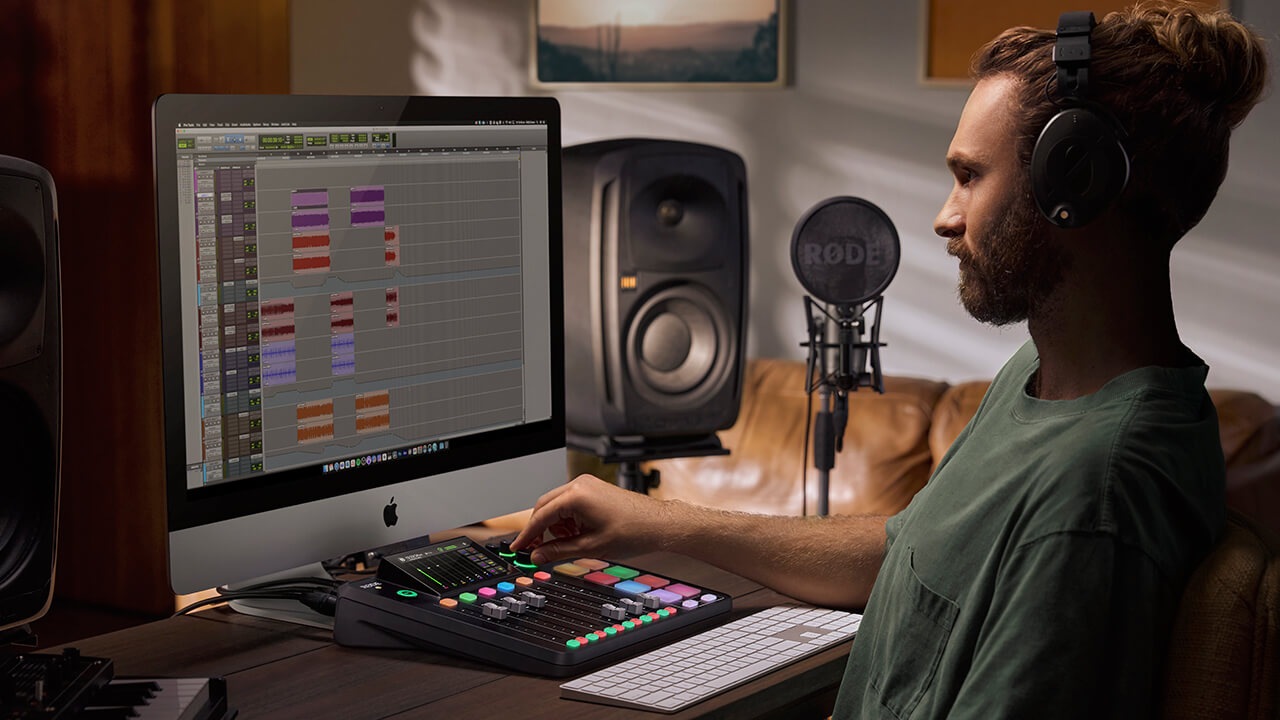
Registrazione pre- o post-fader in modalità multitraccia
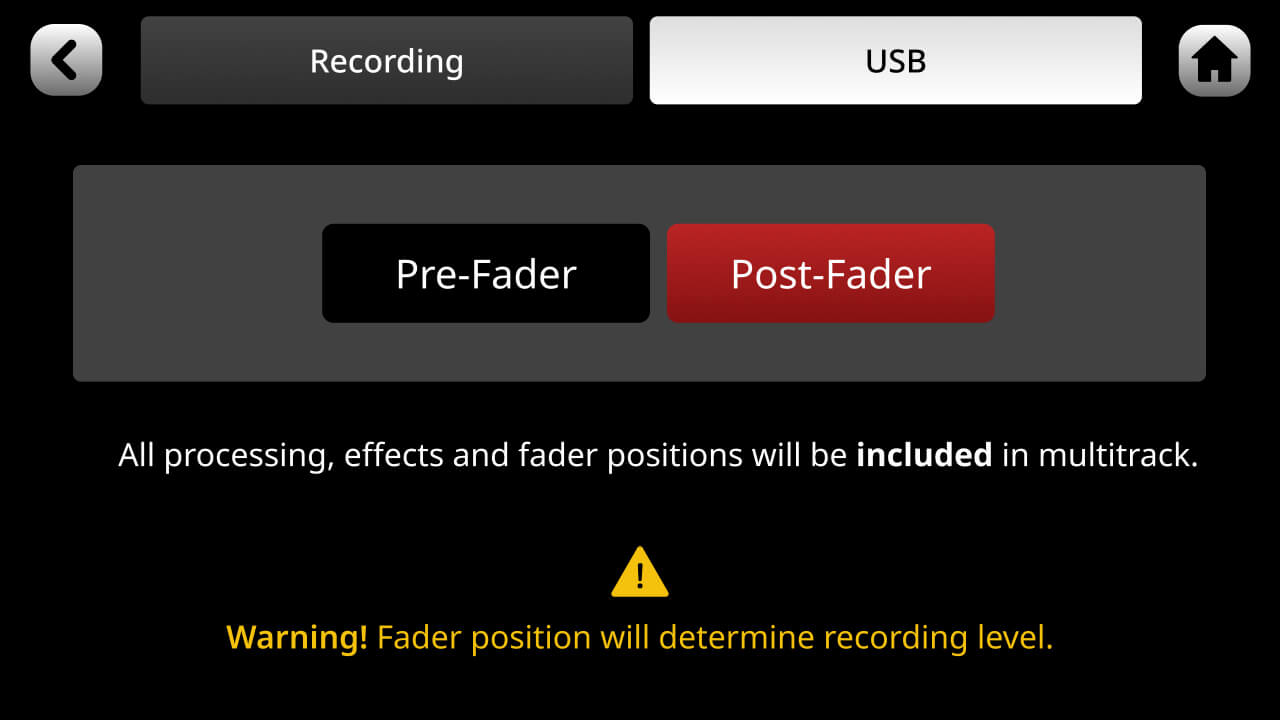
Quando registri singole tracce nella tua DAW (vedi «Registrazione multitraccia via USB» sopra), puoi scegliere di registrare l’audio pre- o post-fader. La registrazione pre-fader significa che la posizione del fader non avrà alcun effetto sull’audio registrato: anche se il livello della sorgente viene abbassato completamente, questa verrà comunque registrata a guadagno unitario. Post-fader significa che l’audio verrà registrato al livello impostato dal fader: se il livello di una sorgente viene abbassato completamente, non verrà registrato nulla. Puoi selezionare la registrazione pre- o post-fader toccando l’icona a forma di ingranaggio delle impostazioni, quindi «Uscite» > «Multitraccia». L’uscita «mix» non sarà influenzata da questa impostazione e rifletterà sempre l’uscita del mix finale, comprese le posizioni dei fader.
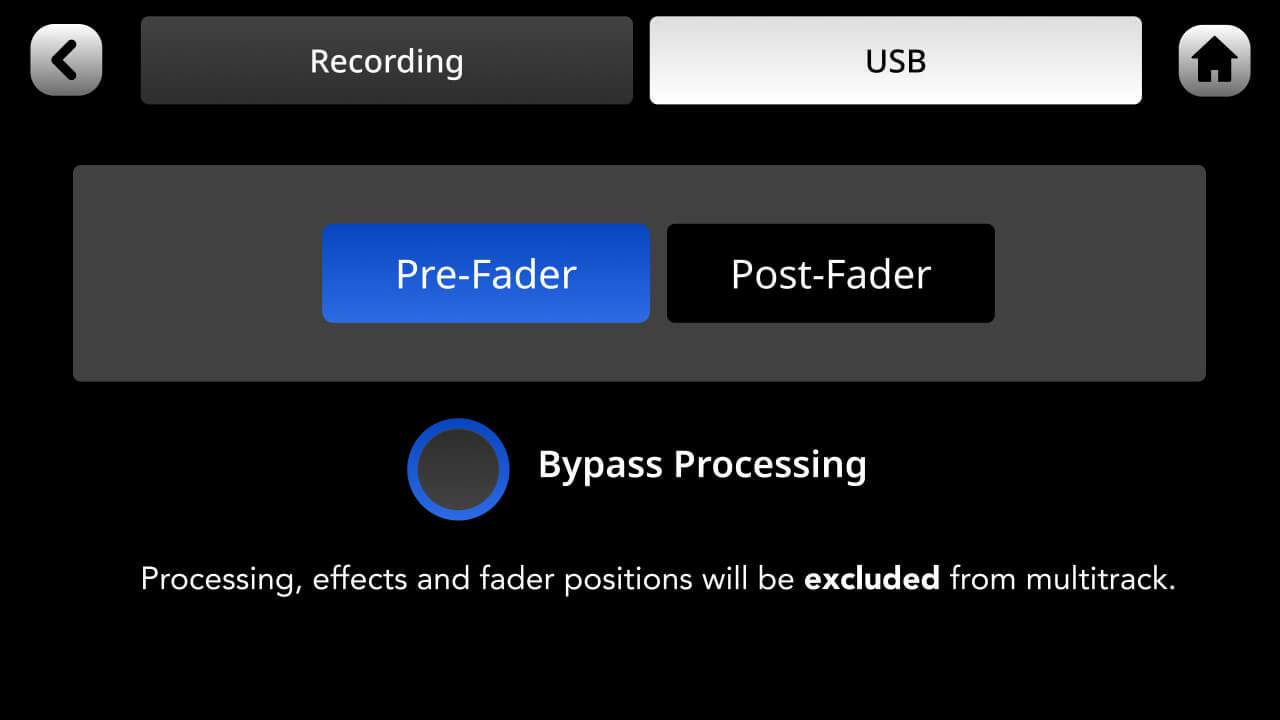
Esclusione dell’elaborazione
Durante la registrazione multitraccia, è possibile scegliere di escludere l’elaborazione dalle registrazioni. Ciò significa che l’audio non elaborato verrà registrato senza alcuna elaborazione applicata al canale (ovvero l’elaborazione APHEX o gli effetti). L’uscita «mix» non sarà influenzata da questa impostazione e rifletterà sempre l’uscita del mix finale, inclusa tutta l’elaborazione.
Avviare la registrazione
Nella configurazione predefinita, il pulsante «REC» di RØDECaster Pro II non avvia la registrazione nella DAW o nel software di registrazione. Per avviare la registrazione, verifica che le tracce siano armate e che l’ingresso sia impostato su «RØDECaster Pro II Main». A questo punto puoi avviare la registrazione nella DAW.
Utilizzo del pulsante ‘REC’ per avviare la registrazione nella DAW
È possibile utilizzare MIDI per controllare la DAW da RØDECaster Pro II. Ad esempio, è possibile assegnare il pulsante ‘REC’ alla funzione di registrazione della DAW, così da poter avviare la registrazione nella DAW direttamente dall’unità. La procedura dipende dalla DAW utilizzata. Per impostazione predefinita, il pulsante ‘REC’ invia MIDI CC#17 sul MIDI canale 1 con un valore pari a 1 per ‘On’ e 0 per ‘Off’. Se la DAW supporta il MIDI controllo, è possibile assegnare questo valore alla funzione di registrazione della DAW tramite il dispositivo ‘RØDECaster Pro MIDI’ disponibile su USB 1.
Configurazione delle connessioni USB
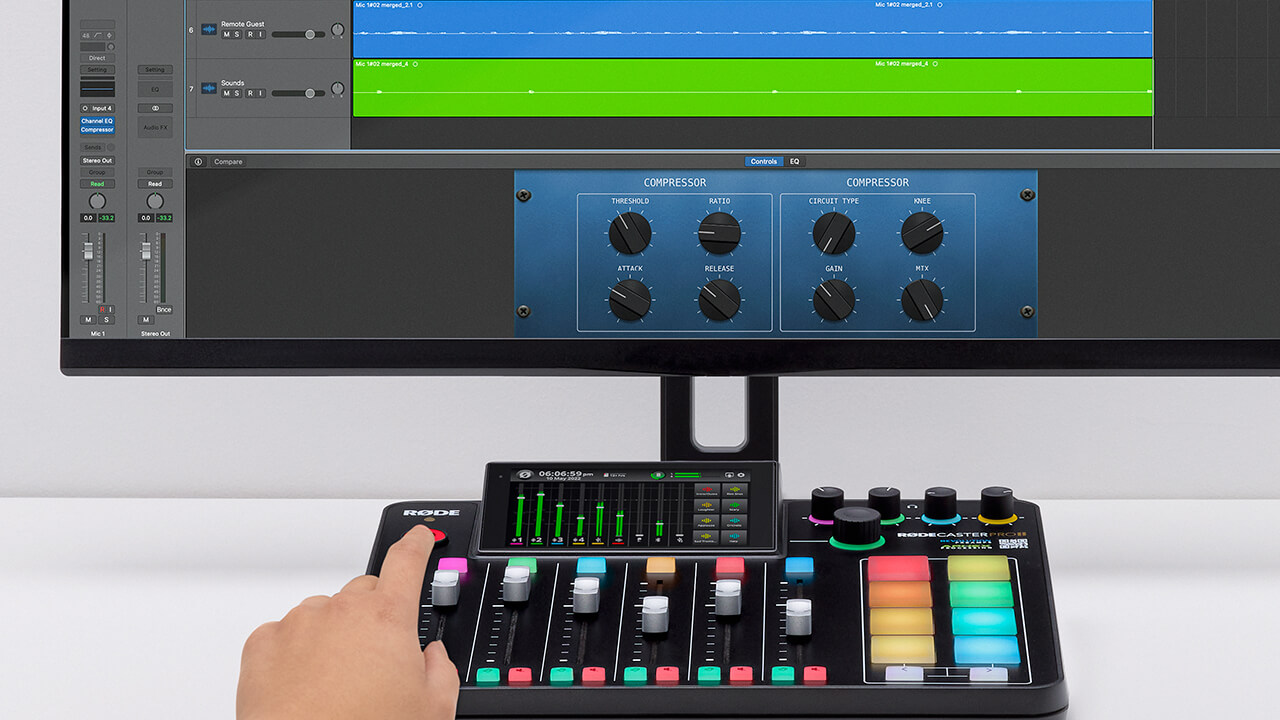
Scopri di più sulle interfacce USB di RØDECaster Pro II, incluso il loro funzionamento, il loro utilizzo consigliato e come possono aiutarti a migliorare il tuo flusso di lavoro.