비디오 스위칭 및 자동 스위칭
비디오 스위칭이란?
비디오 스위칭은 여러 가지를 의미할 수 있지만, 핵심적으로는 다양한 비디오 피드 사이를 전환하여 시청자에게 정확히 무엇을 보여줄지 제어하는 과정입니다. 라이브 스트리밍 및 방송 환경에서 매우 유용하며, 강력한 ‘라이브’ 편집 도구로도 활용할 수 있습니다.
프로덕션에 여러 카메라 앵글을 활용하여 시청자에게 더욱 역동적이고 몰입감 있는 경험을 제공할 수 있으며, 언제든 가장 관련성 높은 영상을 시청자에게 보여주기에 이상적입니다.
비디오 스위칭을 사용하면 그래픽, 이미지, 비디오 및 기타 미디어를 프로그램에 추가할 수도 있습니다. 또한 PIP, 분할 화면 또는 기타 레이아웃을 사용하여 여러 비디오 피드를 동시에 표시할 수도 있습니다.
RØDECaster Video S를 사용하여 비디오 입력, 장면 및 미디어 사이를 전환하려면 입력 버튼(1~4), 장면 버튼(A~E), 미디어 및 오버레이 기능 버튼을 사용할 수 있습니다.
프레임 레이트
RØDECaster Video S의 글로벌 프레임 레이트는 스트리밍, 녹화 및 HDMI A 출력의 프레임 레이트를 결정합니다. 프로젝트에 사용할 프레임 레이트는 하나만 선택하고, 최상의 결과를 얻으려면 모든 카메라와 기타 비디오 장치를 이 프레임 레이트로 출력하도록 설정하는 것이 중요합니다.
RØDECaster Video S에서 글로벌 프레임 레이트를 설정하려면 설정 톱니바퀴를 탭한 다음 Video > Frame Rate로 이동하여 인코더를 사용해 원하는 값을 선택하세요.
프레임 레이트: 23.98, 24, 25, 29.97, 30, 50, 59.94, 60
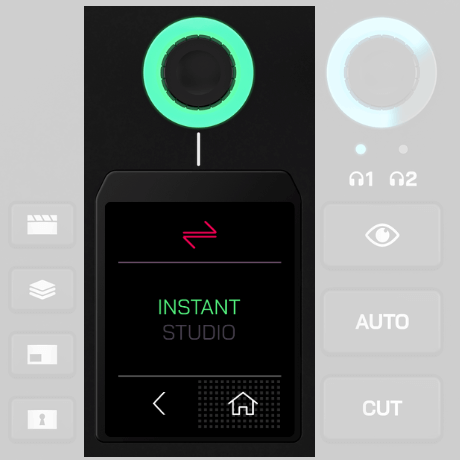
즉시 전환 및 스튜디오 전환 모드
RØDECaster Video S에서 영상을 전환할 때 상호작용 방식을 변경하는 두 가지 전환 모드가 있습니다. 모드를 변경하려면 설정 > 비디오 > 전환으로 이동하여 즉시 또는 스튜디오를 선택하거나, RØDECaster App에서 장치 구성 > 비디오 > 전환으로 이동하세요.
즉시 전환
즉시 모드에서 입력, 장면, 미디어 또는 오버레이 버튼을 누르면 해당 항목이 라이브 프로그램 피드에 즉시 표시됩니다. “Cut” 버튼을 선택한 경우 즉시 전환되며, “Auto” 버튼을 선택하면 전환 설정에 따라 전환됩니다.
두 모드 중 더 즉각적인 방식으로, 버튼을 한 번만 눌러 전환할 수 있습니다. 따라서 RØDECaster Video S를 동시에 조작하면서 카메라에 출연하는 1인 크리에이터에게 이상적이며, 보다 즉각적인 전환을 원하는 경우에도 적합합니다.
스튜디오 전환
스튜디오 모드에서 입력, 장면 또는 미디어 버튼을 누르면 해당 항목이 프리뷰 피드로 전송되고, 라이브 프로그램 피드는 변경되지 않은 상태로 유지됩니다. 그런 다음 Cut 또는 Auto를 누르면 프리뷰 피드에 있는 항목이 라이브 프로그램 피드로 전송됩니다(즉시 전환되거나 전환 효과와 함께 전환됨).
스튜디오 모드는 방송 제작자가 가장 일반적으로 사용하는 모드이며, 전담 오퍼레이터가 RØDECaster Video S를 제어하는 제작 환경에 더 적합합니다. 라이브로 전송하기 전에 입력 또는 장면을 미리 확인할 수 있기 때문입니다.
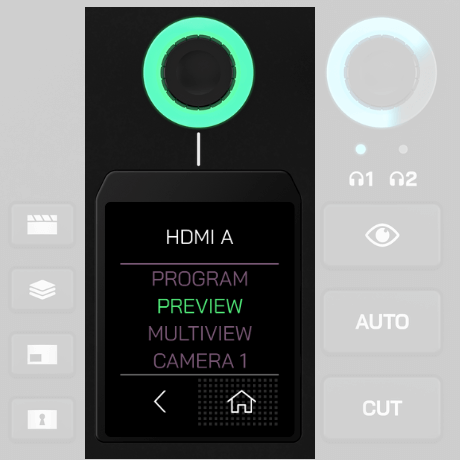
Program, Preview, Multiview 및 Camera 출력
RØDECaster Video S는 Program, Preview, Multiview 및 Camera 1~4 등 7가지의 서로 다른 비디오 출력 피드를 제공합니다. 이 7가지 피드 중 하나를 선택하여 HDMI A, USB 1 및 NDI 출력으로 전송할 수 있습니다. Settings > Video로 이동한 다음 HDMI A, USB 1 또는 NDI를 탭하여 설정을 조정할 수 있습니다. RØDECaster App에서는 Device Configuration > Video > Outputs 메뉴에서 이 설정을 찾을 수 있습니다.
Program
주요 프로덕션, 즉 ‘라이브’ 비디오 피드입니다. 스트리밍 및/또는 녹화 중인 화면을 정확히 표시합니다.
Preview
Studio 모드에서 Preview 피드를 사용하면 입력, 장면 또는 미디어를 Program 피드로 전송하기 전에 확인할 수 있습니다. 이를 통해 비디오 소스를 라이브로 전환하기 전에 확인하고, 구성하고, 배치할 수 있습니다. Instant 모드에서는 사용할 수 없습니다.
Multiview
Multiview 피드는 모든 비디오 소스, 장면, 미디어 및 그래픽을 한 화면에 배치하여 표시합니다. 또한 녹화 및 스트리밍 상태, 오디오 믹서, 날짜와 시간, 실행 시간 등 중요한 장치 정보도 표시합니다.
Camera (1 – 4)
이 4가지 Camera 옵션은 4개의 입력 버튼에 할당된 카메라를 나타내며, 이러한 카메라 중 하나의 피드를 3개의 출력 중 하나로 직접 전송할 수 있습니다. 예를 들어 HDMI 1에 연결된 카메라가 Input Button 1에 할당되어 있다면 “Camera 1” 옵션을 선택하여 이 카메라의 피드를 HDMI A 출력으로 직접 전송할 수 있습니다.
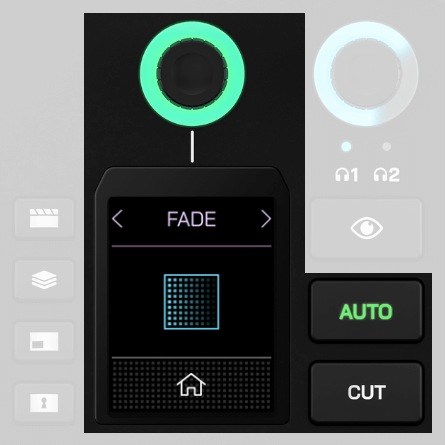
컷, 오토 및 트랜지션
컷 및 오토 버튼은 비디오 피드 간 전환을 위한 두 가지 방식을 제공하며, 인스턴트 또는 스튜디오 모드 중 어떤 모드를 사용하는지에 따라 다르게 작동합니다.
컷
컷은 기본 모드로, 인스턴트 모드에서는 입력, 미디어 및 장면 간을 즉시 전환하고 스튜디오 모드에서는 프리뷰 및 프로그램 비디오 피드 간을 즉시 전환할 수 있습니다.
오토
인스턴트 모드에서 오토는 설정한 트랜지션 설정에 따라 입력, 미디어 또는 장면 간을 전환하며, 스튜디오 모드에서는 프리뷰 및 프로그램 피드 간을 전환합니다.
트랜지션 설정
트랜지션 타이밍을 조정하려면 화면에 표시된 스톱워치 아이콘을 탭하고 로터리 인코더를 조정한 다음, 인코더를 클릭해 확인하면 됩니다. 트랜지션 유형을 변경하려면 스톱워치 왼쪽에 있는 화면 아이콘을 탭하고 인코더를 사용해 페이드, 딥 또는 와이프를 선택하세요. 와이프에는 여러 하위 유형이 있습니다.
참고
전환 타이밍은 페이드 투 블랙 버튼을 눌렀을 때 전환에 걸리는 시간도 결정합니다.
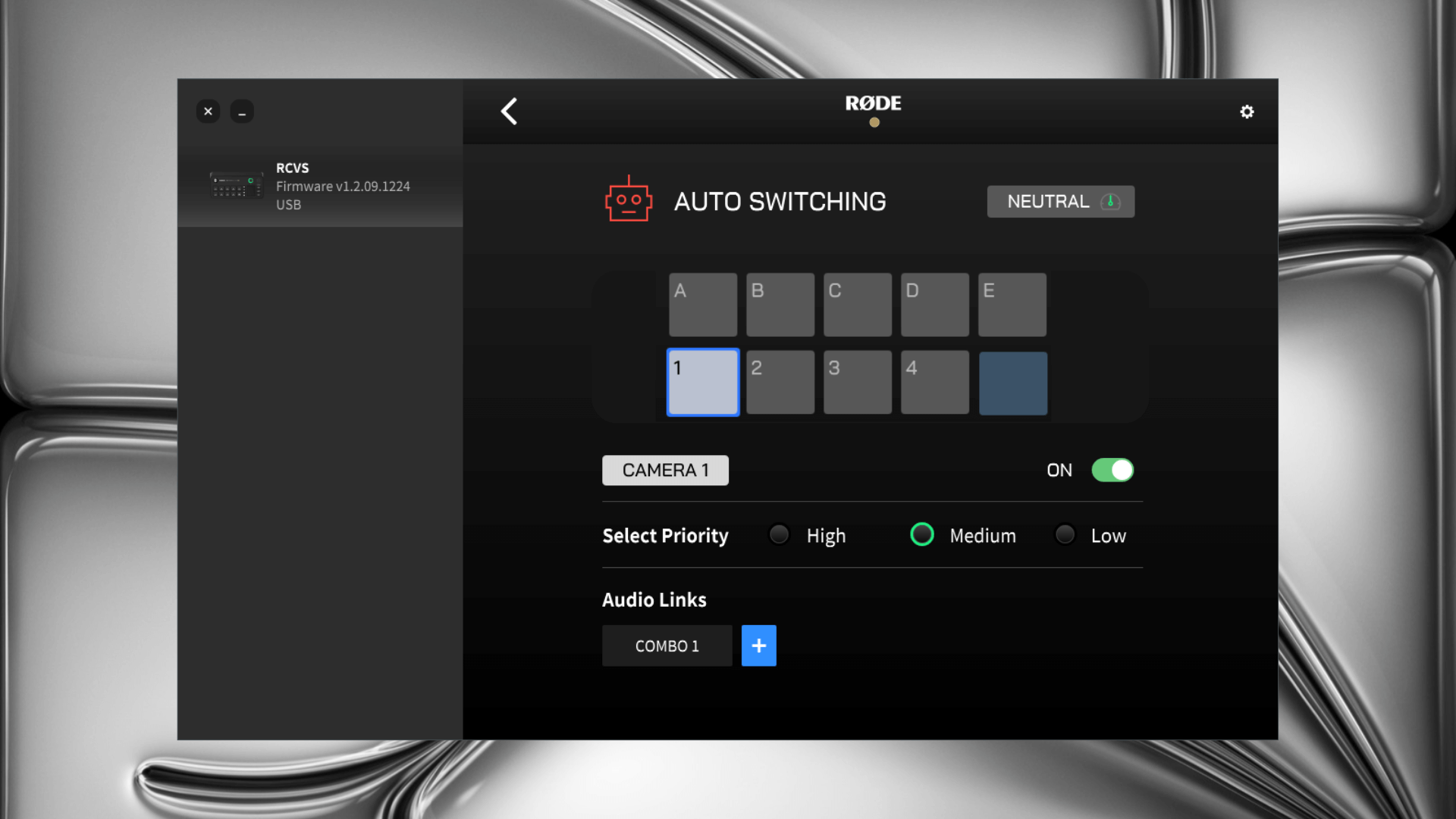
자동 전환
RØDECaster Video S는 특정 채널에서 오디오를 감지하면 입력과 장면을 자동으로 전환하여 자연스러운 전환 과정을 구현하는 독창적이고 혁신적인 자동 전환 기술을 제공합니다. 예를 들어 비디오 팟캐스트에서 각 인물이 말할 때 인터뷰어와 인터뷰이의 화면을 전환하는 데 사용할 수 있습니다.
RØDECaster App
자동 전환을 설정하려면 RØDECaster Video S가 컴퓨터와 동일한 네트워크에 연결되어 있는지 확인하거나 USB 1을 통해 컴퓨터에 직접 연결한 다음, RØDECaster App을 열고 자동 전환 메뉴를 여세요.
입력 및 장면
RØDECaster App의 자동 전환 메뉴에서 입력 버튼(1~4) 또는 장면 버튼(A~E) 중 하나를 선택하여 오디오 소스에 연결하고 ‘켜짐’ 설정을 활성화하세요.
우선순위
각 입력 또는 장면에 낮음, 중간 또는 높음의 우선순위를 지정할 수 있습니다. 우선순위가 높을수록 전체 제작에서 해당 입력 또는 장면에 더 많은 시간이 할당됩니다. 예를 들어 비디오 팟캐스트나 인터뷰에서는 각 화자의 클로즈업 화면에 전체 대화를 담는 와이드 앵글 화면보다 높은 우선순위를 지정할 수 있습니다.
오디오 링크
오디오 링크 섹션 아래의 ‘+’ 버튼을 클릭하면 현재 선택한 입력 또는 장면 버튼에 하나 이상의 오디오 입력을 할당할 수 있습니다. 하나의 화면에 여러 microphone(및 화자)가 포함되는 카메라 앵글에는 여러 오디오 입력을 할당하는 것이 이상적이며, 이를 통해 제작 화면이 대화를 동적으로 따라가도록 할 수 있습니다.
RØDECaster Pro II 또는 Duo 연결
자동 전환 기능은 RØDECaster Pro II 또는 RØDECaster Duo의 오디오 채널에 연결할 수 있습니다. RØDECaster Pro II 또는 Duo의 USB 2 포트를 RØDECaster Video S의 USB 4 포트에 연결하세요. 이는 장치 간에 오디오를 전달할 때와 동일한 과정입니다. 연결되면 RØDECaster Pro II 또는 Duo의 오디오 채널이 오디오 연결 옵션으로 표시됩니다.
느슨하게, 중립적으로 또는 빠르게
자동 전환 메뉴의 오른쪽 상단에서 느슨하게, 중립적으로 또는 빠르게 중 하나를 선택할 수 있습니다. 이 옵션을 사용하면 프로그램의 진행 속도에 맞게 기능을 조정할 수 있습니다. 전환이 너무 자주 일어나거나 충분히 자주 일어나지 않는다면 이 설정으로 세밀하게 조정하세요.
자동 전환 활성화
RØDECaster App을 사용해 자동 전환을 설정한 후, RØDECaster Video S의 ‘Auto’ 버튼을 길게 눌러 자동 전환 모드를 활성화하세요. 입력 버튼이나 장면 버튼을 누르면 이 모드가 종료되고 수동 조작으로 돌아갑니다. 자동차의 크루즈 컨트롤과 비슷한 방식입니다.