ビデオスイッチングと自動切り替え
ビデオスイッチングとは
ビデオスイッチングとは、いくつかの異なる意味を持つ言葉ですが、その本質は、視聴者に表示する内容を正確にコントロールするため、複数の映像フィードを切り替えるプロセスを指します。ライブストリーミングや放送の現場で非常に役立つだけでなく、強力な「ライブ」編集ツールとしても機能します。
制作に複数のカメラアングルを取り入れることで、視聴者にとってよりダイナミックで魅力的な体験を生み出せます。また、その時々に最も関連性の高い映像を視聴者に見せるのにも最適です。
ビデオスイッチングを使って、番組にグラフィック、画像、動画などのメディアを追加することもできます。ピクチャーインピクチャー、分割画面、その他のレイアウトを使用して、複数の映像フィードを同時に表示することも可能です。
RØDECaster Videoを使用してビデオ入力、シーン、メディアを切り替えるには、入力ボタン(1~6)、シーンボタン(A~G)に加え、メディアボタンとオーバーレイ機能ボタンを使用します。
フレームレート
RØDECaster Videoのグローバルフレームレートは、ストリーム、録画、HDMI AおよびHDMI B出力のフレームレートを決定します。最良の結果を得るには、プロジェクトで使用するフレームレートを1つだけ選択し、すべてのカメラやその他のビデオ機器をこのフレームレートで出力するように設定することが重要です。
RØDECaster Videoでグローバルフレームレートを設定するには、設定の歯車アイコンをタップし、「Video」>「Frame Rate」に移動して、エンコーダーで選択します。
フレームレート:23.98、24、25、29.97、30、50、59.94、60
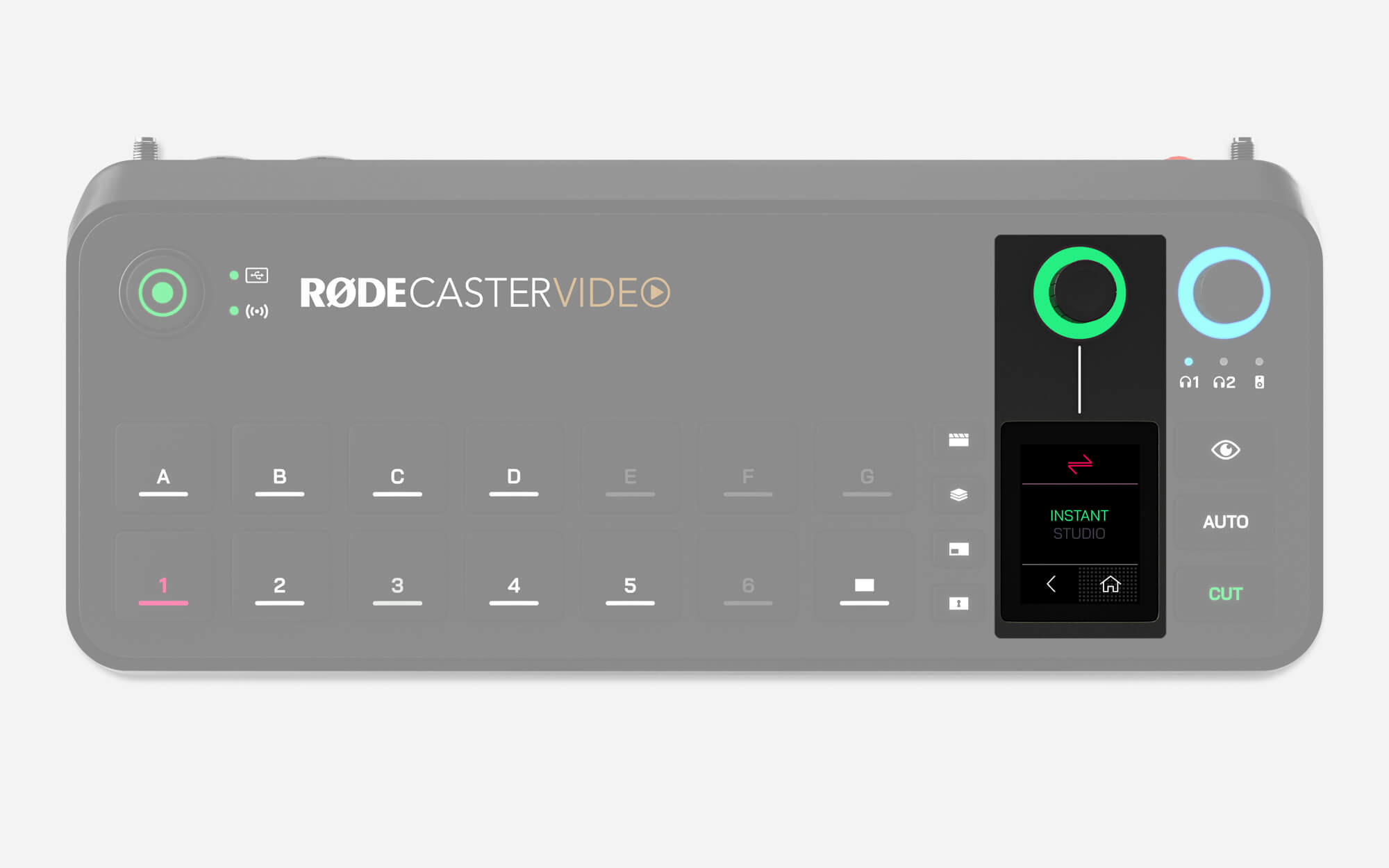
InstantモードとStudioモードの切り替え
RØDECaster Videoとの操作感を変える、2つの切り替えモードがあります。モードを変更するには、「Settings」>「Video」>「Switching」に移動して「Instant」または「Studio」を選択するか、RØDECaster Appで「Device Configuration」>「Video」>「Switching」に移動します。
Instantモード
Instantモードで入力、シーン、メディア、またはオーバーレイボタンを押すと、ライブのProgramフィードに即座に表示されます。「Cut」ボタンを選択している場合は瞬時に切り替わり、「Auto」ボタンを選択すると、トランジション設定に基づいて切り替わります。
2つのモードのうち、ボタンを1回押すだけで切り替えを実行できる、よりダイレクトなモードです。RØDECaster Videoを操作しながら同時にカメラに映るソロクリエイターや、よりダイレクトな操作を求める方に最適です。
Studioモード
Studioモードで入力、シーン、またはメディアボタンを押すと、ライブのProgramフィードは変更されず、Previewフィードに送られます。次に「Cut」または「Auto」を押すと、Previewフィードに表示されている内容がライブのProgramフィードに送られます(瞬時に、またはトランジションを伴って切り替わります)。
Studioモードは放送局で最も一般的に使用されるモードで、専任のオペレーターがRØDECaster Videoを操作する制作環境に適しています。ライブに送出する前に入力やシーンをプレビューできるためです。
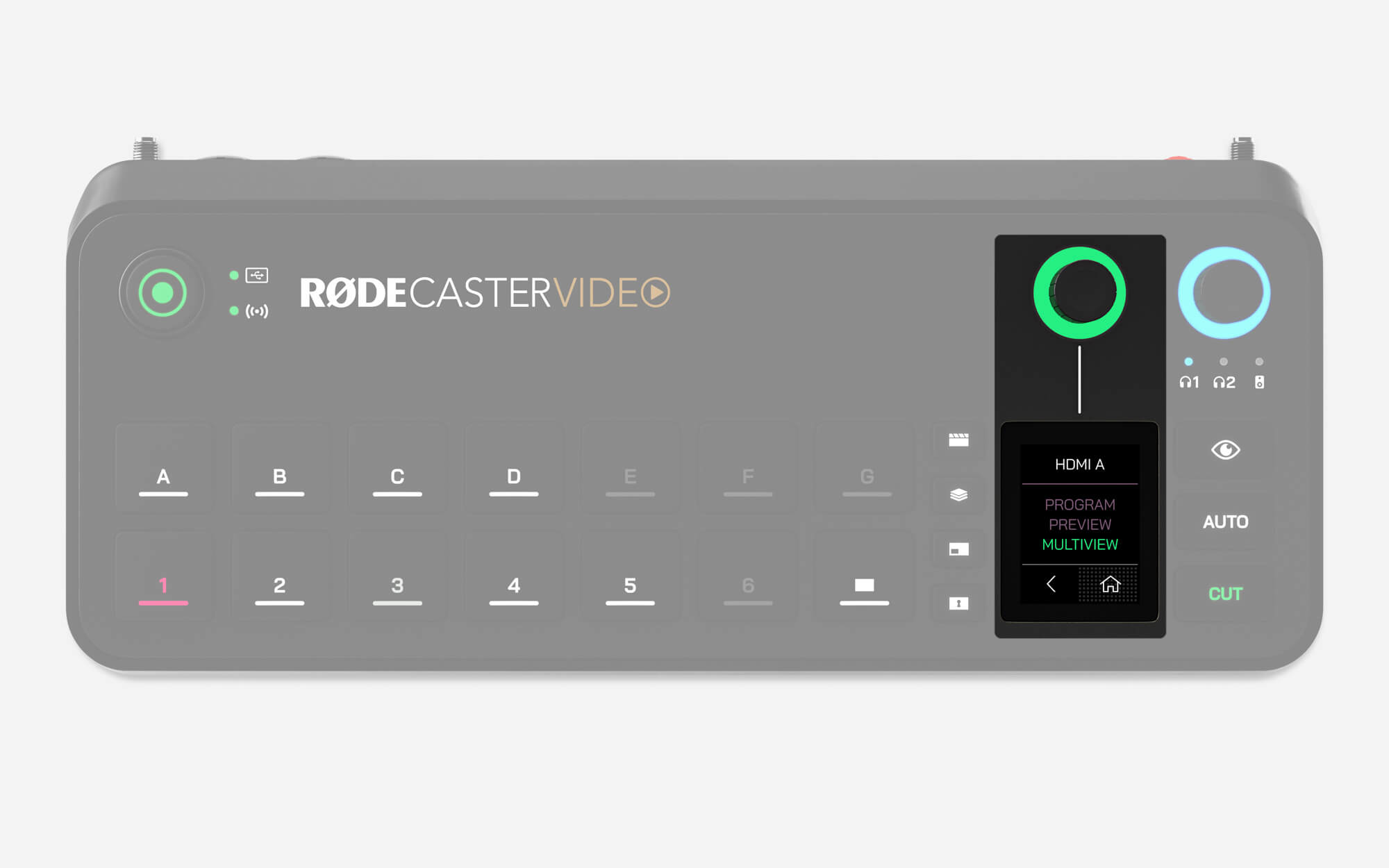
Program、Preview、Multiview、Camera出力
RØDECaster Videoには、Program、Preview、Multiview、Camera 1~6の9種類のビデオ出力フィードがあります。これら9種類のフィードから任意のものを選択し、出力先(HDMI A、HDMI B、USB 1)に送信できます。設定は、Settings > Videoを開き、HDMI A、HDMI B、またはUSB 1をタップして調整できます。RØDECaster Appでは、Device Configuration > HDMI Outputメニューにこの設定があります。
Program
メインの制作、または「ライブ」ビデオフィードです。ストリーミングおよび/または録画されている映像が、そのまま表示されます。
Preview
Studioモードでは、Previewフィードを使用して、入力、シーン、メディアをProgramフィードに送信する前に確認できます。これにより、ビデオソースをライブにする前に、確認、設定、配置を行えます。Instantモードでは利用できません。
Multiview
Multiviewフィードには、すべてのビデオソース、シーン、メディア、グラフィックが1画面にレイアウトされて表示されます。また、録画・ストリーミングの状態、オーディオミキサー、日付と時刻、稼働時間など、重要なデバイス情報も表示されます。
Camera(1~6)
6つのCameraオプションは、6つの入力ボタンに割り当てられたカメラを表し、これらのカメラのいずれかのフィードを3つの出力のいずれかに直接送信できます。たとえば、HDMI 1に接続したカメラをInput Button 1に割り当てている場合、「Camera 1」オプションを選択すると、このカメラのフィードをHDMI B出力に直接送信できます。
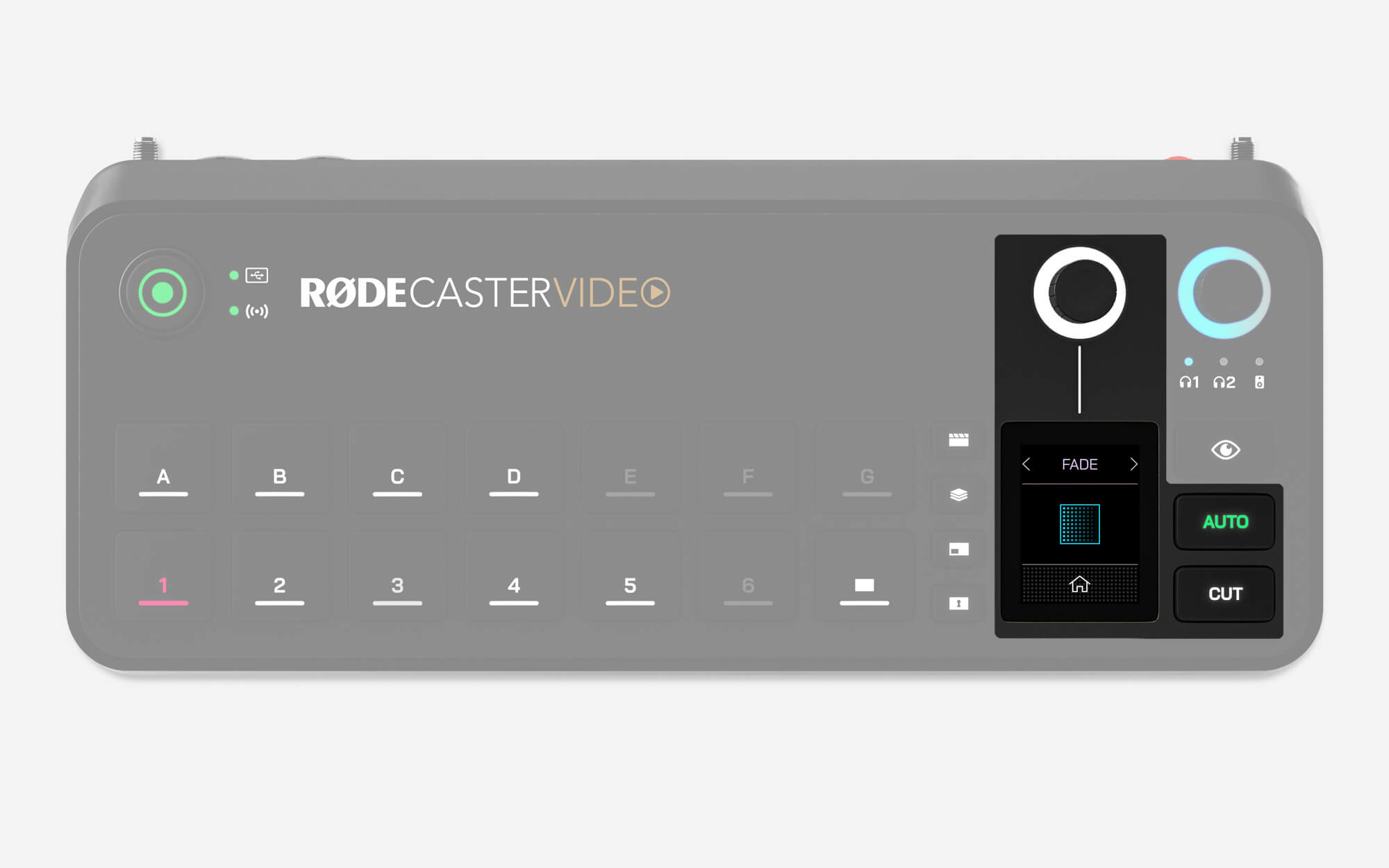
カット、オート、トランジション
カットボタンとオートボタンでは、映像フィードを切り替える方法が異なります。また、インスタントモードまたはスタジオモードのどちらを使用しているかによって動作も異なります。
カット
カットはデフォルトモードです。インスタントモードでは入力、メディア、シーンを瞬時に切り替え、スタジオモードではプレビュー映像フィードとプログラム映像フィードを瞬時に切り替えます。
オート
インスタントモードでは、オートを使用するとトランジション設定に従って入力、メディア、シーンが切り替わります。スタジオモードでは、プレビュー映像フィードとプログラム映像フィードが切り替わります。
トランジション設定
トランジションのタイミングを調整するには、画面上のストップウォッチアイコンをタップし、ロータリーエンコーダーを回して調整した後、エンコーダーをクリックして確定します。トランジションの種類を変更するには、ストップウォッチの左側にある画面上のアイコンをタップし、エンコーダーを使ってフェード、ディップ、ワイプを選択します(ワイプには複数のサブタイプがあります)。
注
トランジションのタイミングは、フェード・トゥ・ブラックボタンを押したときのトランジションにかかる時間も決定します。
-2395x1429-ec9dd10.jpg)
自動切り替え
RØDECaster Videoには、特定のチャンネルで音声を検出したタイミングに基づき、入力とシーンを自動的に切り替えて自然な切り替えプロセスを再現する、独自の革新的な自動切り替えテクノロジーが搭載されています。たとえば、ビデオポッドキャストで、各人が話すたびにインタビュアーとインタビュイーのショットを切り替える用途に使用できます。
RØDECaster App
自動切り替えを設定するには、RØDECaster Videoがコンピューターと同じネットワークに接続されていること(またはUSB 2経由でコンピューターに直接接続されていること)を確認し、RØDECaster Appを開いて自動切り替えメニューを開きます。
入力とシーン
RØDECaster Appの自動切り替えメニューで、入力ボタン(1~6)またはシーンボタン(A~G)のいずれかを選択して音声ソースにリンクし、「オン」に切り替えます。
優先度
各入力またはシーンに、低・中・高の優先度を設定できます。優先度が高いほど、全体の制作においてその入力またはシーンに割り当てられる時間が長くなります。たとえば、ビデオポッドキャストやインタビューでは、会話全体を映すワイドショットよりも、各話者のクローズアップショットの優先度を高く設定できます。
音声リンク
音声リンクセクションの「+」ボタンをクリックすると、現在選択されている入力ボタンまたはシーンボタンに、1つ以上の音声入力を割り当てられます。複数の音声入力を割り当てると、1つのショットに複数のマイク(および話者)が含まれるカメラアングルに最適です。会話の進行に合わせて、制作をダイナミックに追従させられます。
RØDECaster Pro IIまたはDuoのリンク
自動切り替え機能は、RØDECaster Pro IIまたはRØDECaster Duoの音声チャンネルにリンクできます。RØDECaster Pro IIまたはDuoのUSB 2ポートを、RØDECaster VideoのUSB 4または5ポートに接続します。これは、デバイス間で音声を伝送する場合と同じ手順です。接続すると、音声をリンクする際の選択肢として、RØDECaster Pro IIまたはDuoの音声チャンネルが表示されます。
リラックス、ニュートラル、ファスト
自動切り替えメニューの右上で、「リラックス」、「ニュートラル」、「ファスト」を切り替えられます。これらのオプションを使うと、番組のテンポに合わせて機能を調整できます。切り替え頻度が高すぎる、または十分でないと感じる場合は、ここで微調整できます。
自動切り替えを有効にする
RØDECaster Appで自動切り替えを設定したら、RØDECaster Videoの「Auto」ボタンを長押しして、自動切り替えモードを有効にします。入力ボタンまたはシーンボタンを押すと、このモードが終了して手動操作に戻ります。車のクルーズコントロールと同じような仕組みです。