入门指南
为您的 RØDECaster Video 供电
将随附的电源连接至 USB-C 电源端口,然后按下旁边的红色按钮,开启您的 RØDECaster Video。RØDECaster Video 将启动,并显示一个链接至概览视频的二维码。点击“Home”图标,即可进入默认主屏幕。
连接网络并更新固件
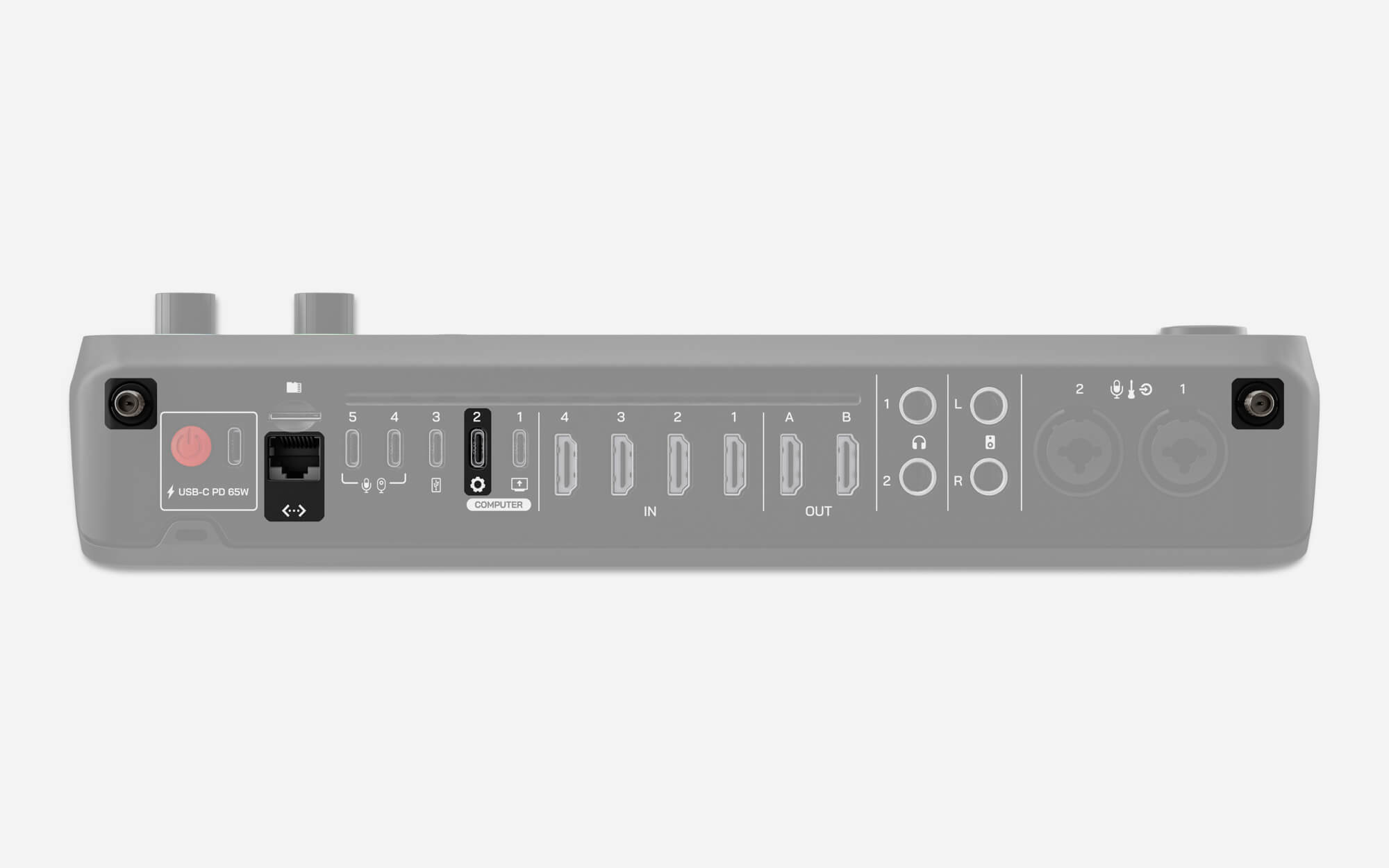
当您的 RØDECaster Video 连接到网络(通过 Wi-Fi 或 Ethernet )后,您可以使用同一网络上的计算机,通过 RØDECaster App 对其进行远程控制和配置。网络连接还可让您直接从 RØDECaster Video 进行串流。
首先,将外部天线旋入后面板两侧的接口。如果您希望使用以太网,请使用 Ethernet 电缆将 RØDECaster Video 直接连接到路由器或其他网络设备。接下来,使用随附的 USB 电缆将 RØDECaster Video 的 USB 2 端口连接到计算机,然后下载、安装并打开 RØDECaster App。
在左侧菜单中选择您的 RØDECaster Video,并按照提示在需要时更新至最新固件。现在,前往高级配置 > 系统 > 网络 > Wi-Fi,并按照提示连接到 Wi-Fi 网络。
USB-C 输入(1–3)
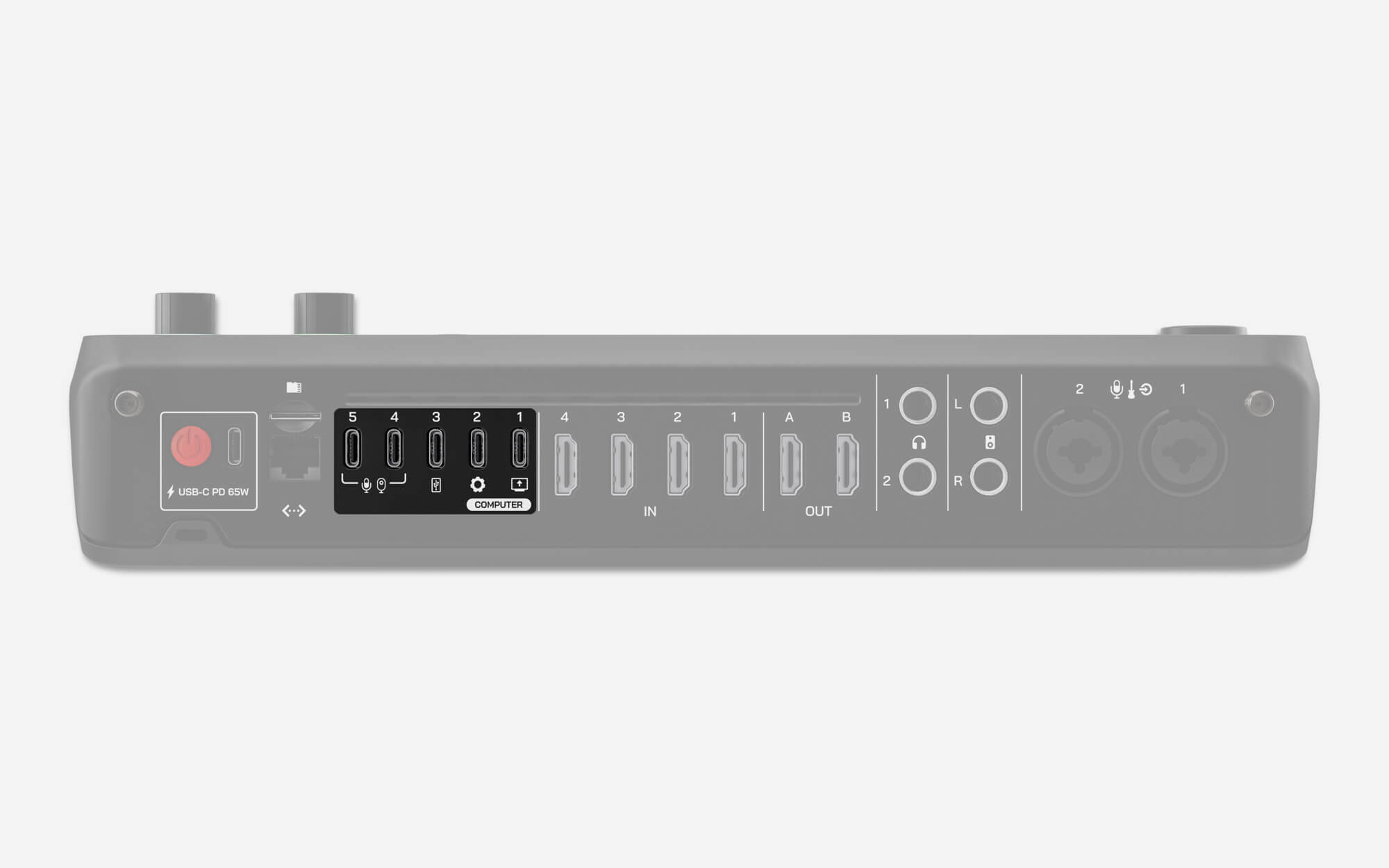
USB 1 – 视频和音频接口
USB 1 可将来自 RØDECaster Video 的视频流发送至电脑,同时提供多轨音频接口和额外的“USB Chat”音频通道。使用随附的 SuperSpeed 线缆将此端口连接至电脑,然后前往“设置” > “视频” > “USB 1”,选择要发送的视频输出:节目、预览、多画面或摄像机 1–6。
USB 2 – 控制和辅助音频
将 USB 2 连接至运行 RØDECaster App 的电脑后,可用于控制和配置 RØDECaster Video——请务必使用 SuperSpeed USB 线缆,例如随附的线缆。它还可作为辅助音频接口使用,并通过 MFi 认证,非常适合连接辅助电脑、iOS 和 Android 手机。您还可以将 USB 1 和 USB 2 同时连接至同一台电脑,以获得更大的灵活性。
USB 3 – USB 存储
USB 3 用于连接 USB 大容量存储设备,例如外置硬盘和 U 盘。视频和音频将在此处录制为单个文件或多轨文件。
注意
RØDECaster Video 要求存储设备采用 exFAT 文件格式。您可以依次进入“设置” >“存储” > USB Storage,然后点击“抹掉”来格式化驱动器。
USB-C 输入(4 和 5)
RØDECaster Video 配备 2 个多用途 USB-C 端口(USB 4 和 5),可用于连接 USB 视频设备,例如兼容的网络摄像头、采集卡,以及 RØDE USB 音频设备,例如 RØDECaster Pro II 和 Duo;还可连接多种 RØDE USB 麦克风,包括 NT-USB+、PodMic USB 等。默认情况下,USB 4 和 5 将分别分配至输入按钮 5 和 6。
USB 视频设备
RØDECaster Video 支持使用 UVC(USB 视频类)标准的网络摄像头及类似 USB 视频设备。连接后,RØDECaster Video 将为 UVC 设备供电并将其识别为一个输入,让您可以像使用 HDMI 输入一样使用它。
注意
RØDECaster Video 仅支持能够提供最低 1080p24 UVC 视频流的未压缩 USB Video 设备。未压缩格式通常标示为 YUV 或 NV12,而不受支持的(压缩)格式通常标示为 MP4 或 H.264。有关更多信息,请参阅我们的 USB Video 设备兼容性文章。
HDMI 输入和输出
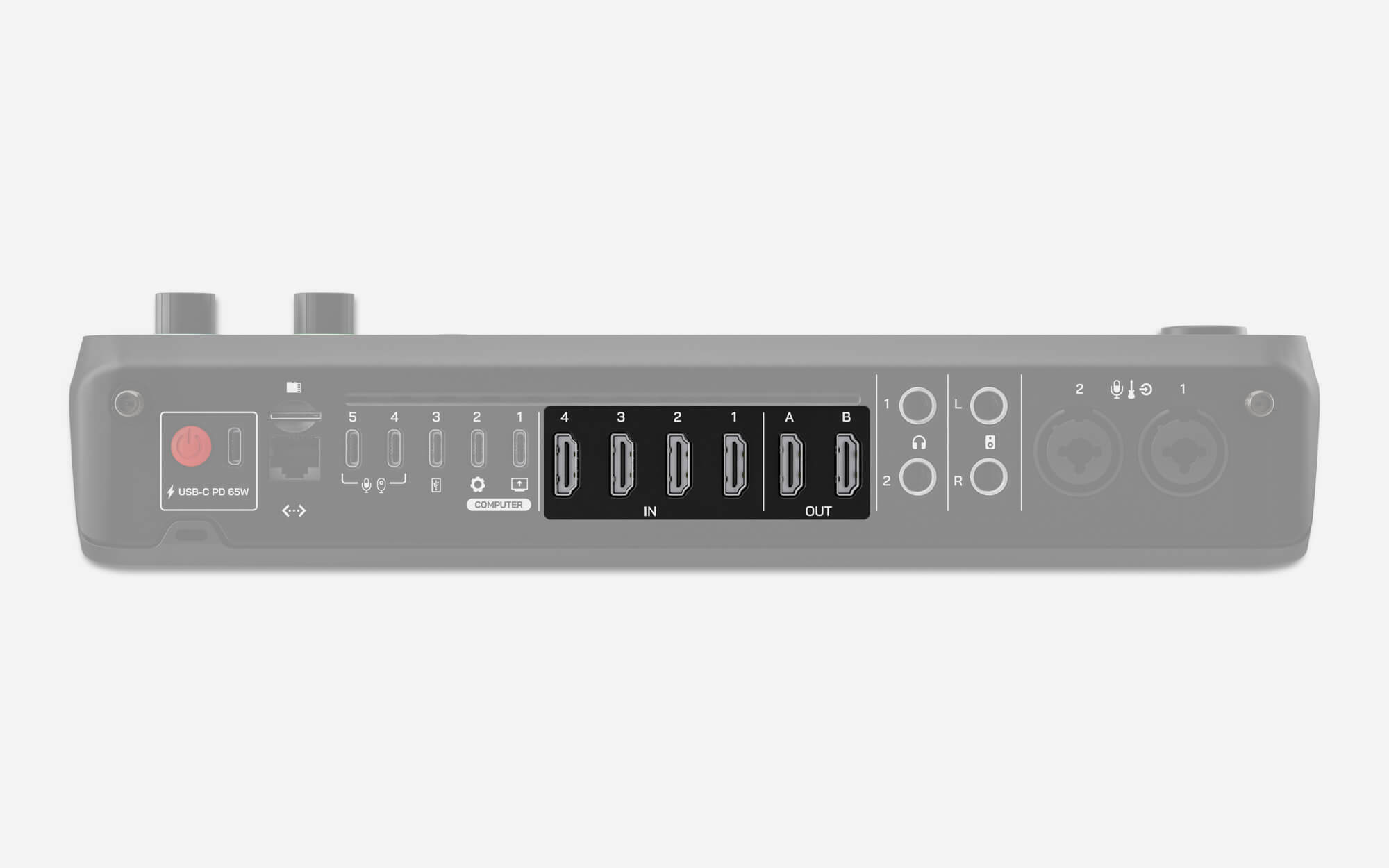
RØDECaster Video 配备 4 个 HDMI 输入,标记为 1–4,以及 2 个 HDMI 输出,标记为 A 和 B。
HDMI 输入(1–4)
4 个 HDMI 输入用于连接摄像机及其他视频设备。默认情况下,输入 1–4 将分配给前 4 个输入按钮。RØDECaster Video 支持任何能够输出 1920x1080 视频流的视频源;如果您的视频设备能够生成该分辨率,系统将自动请求使用此分辨率。
HDMI 输出(A 和 B)
两个 HDMI 输出用于连接显示器,以监看并输出您的制作内容。前往“设置” > “视频” > “HDMI A”或“HDMI B”,选择要发送至各输出的视频信号(节目、预览、多画面或摄像机 1–6)。
注意
如果来自某个 HDMI 视频源的图像未能通过您的 RØDECaster Video 显示,请检查视频源(摄像机、采集卡等)的分辨率,确保其支持 1920x1080 输出。
网络视频输入与输出
您的 RØDECaster Video 既可以接收网络中其他设备发送的 NDI® 视频,也可以发送自身的 NDI 视频流。只需使用以太网线将您的 RØDECaster Video 连接到本地网络,即可使用这些功能。
NDI 输入
共有 4 个网络输入源,可用于连接摄像机或其他设备。您可以在硬件上使用 Inspect 模式完成此操作。进入 Inspect 模式后,选择一个输入按钮,再选择设备类型,然后使用编码器向下滚动并选择一个网络选项。系统会显示网络中的 NDI 设备列表,供您选择并分配给该按钮。您也可以在 RØDECaster app 的 Scene Builder 中,通过 Input Source 使用此功能。
NDI 输出
启用 NDI 输出后,即可通过局域网传输视频流。这样,RØDECaster Video 就能作为其他设备(例如软件或硬件解码器)的输入选项。您可以在硬件设备上选择 设置 > 视频 > NDI,然后选择要传输的信号源来启用此功能。您也可以在 RØDECaster app 中选择 设备配置 > 视频 > 输出, 然后从 NDI 下拉列表中选择一个选项来启用此功能。
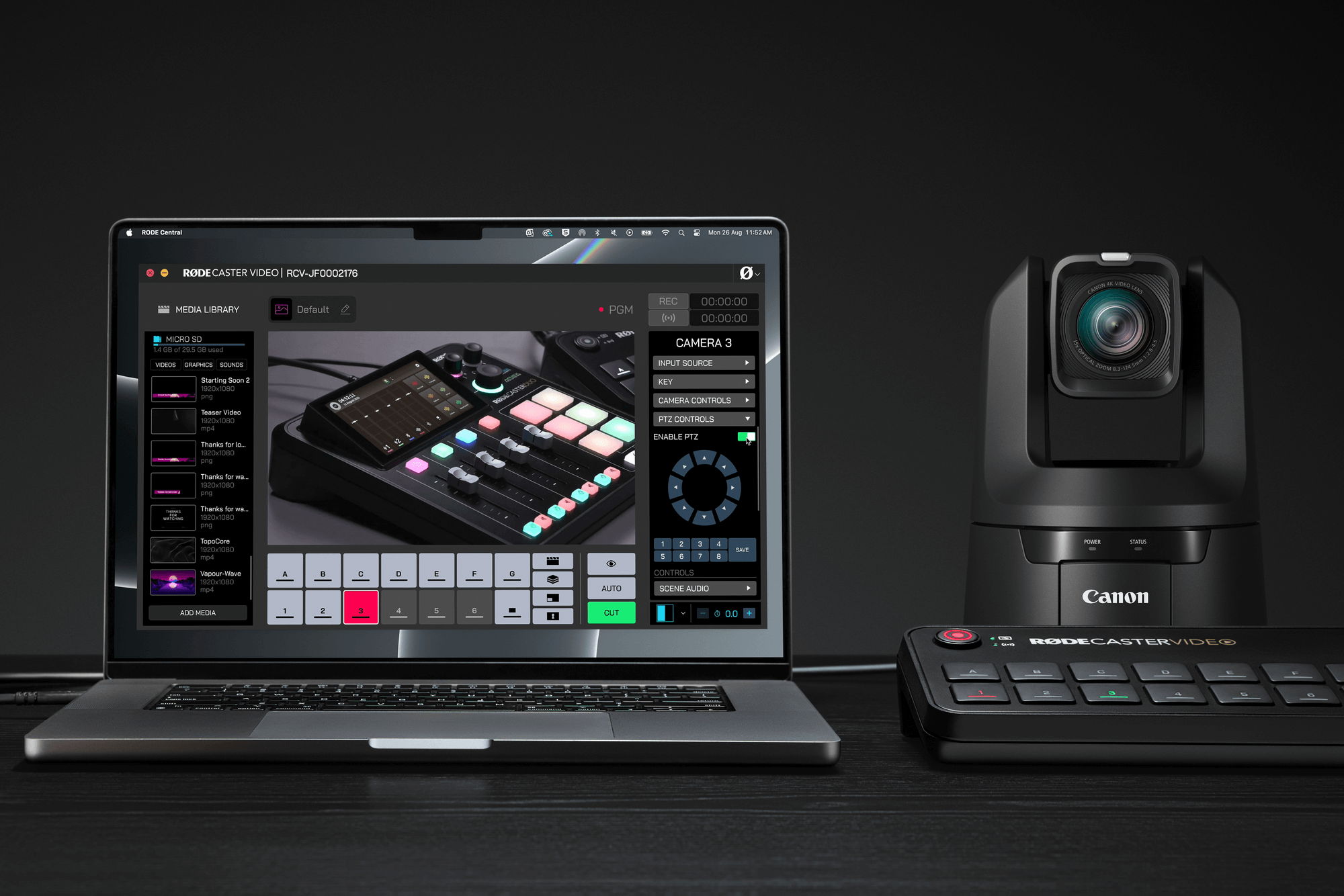
使用 RØDECaster Video 控制 PTZ 摄像机
借助 RØDECaster Video,您还可以在本地网络中对兼容的 PTZ 摄像机进行完整的水平、俯仰、变焦和对焦控制。
要启用对兼容摄像机的 PTZ 控制,只需在“Scene Builder”的下拉菜单中选择 PTZ 控件,并启用 PTZ,即可远程控制设备。您可以将预设直接保存至摄像机输入,随后在场景中进行分配,只需按下按钮即可调用预设。
您可以利用此功能为画面构图,并为创建的每个场景动态调整摄像机角度。
使用 RØDE Capture 添加 iPhone 摄像头
借助 NDI 功能,您可以将 iPhone 直接连接到 RØDECaster Video,并使用免费的 RØDE Capture 应用将其摄像头添加到制作中。这意味着您可以使用 iPhone 的主摄像头,也可以将主摄像头和自拍摄像头作为独立的视频源同时使用,而且无需将任何线缆连接到手机。
启用此功能:
- 确保 iPhone 与 RØDECaster Video 位于同一网络中。您的 RØDECaster Video 需要通过以太网以有线方式连接到网络,而 iPhone 则可以通过 Wi-Fi(连接到同一网络)或使用 Ethernet 适配器通过 Ethernet 连接
- 打开 RØDE Capture 中的设置箭头,并开启“NDI Cast”
- 如果您只想使用主摄像头,请确保关闭“Dual Cam”模式。若要发送前置和后置摄像头的画面,请启用 Dual Cam 模式(选择“PiP”或“Split”设置),然后在 Capture 的设置中选择“Separate”以获得两个独立信号,或选择“Combined”将两个摄像头合并为一个信号。
- 在 RØDECaster Video 上选择输入源时(可在硬件上操作,也可通过 RØDECaster App 操作),请选择 Network > RØDE Capture Stream A。如果处于 Separate Dual Cam 模式,还会提供“Stream B”。
.png)
注意
您可以前往 iPhone 的“设置”应用,然后依次选择“App” > RØDE Capture,编辑“NDI 设备名称”,从而重命名您的 RØDE Capture NDI 流。在此处,您还可以调整 NDI 流编解码器。
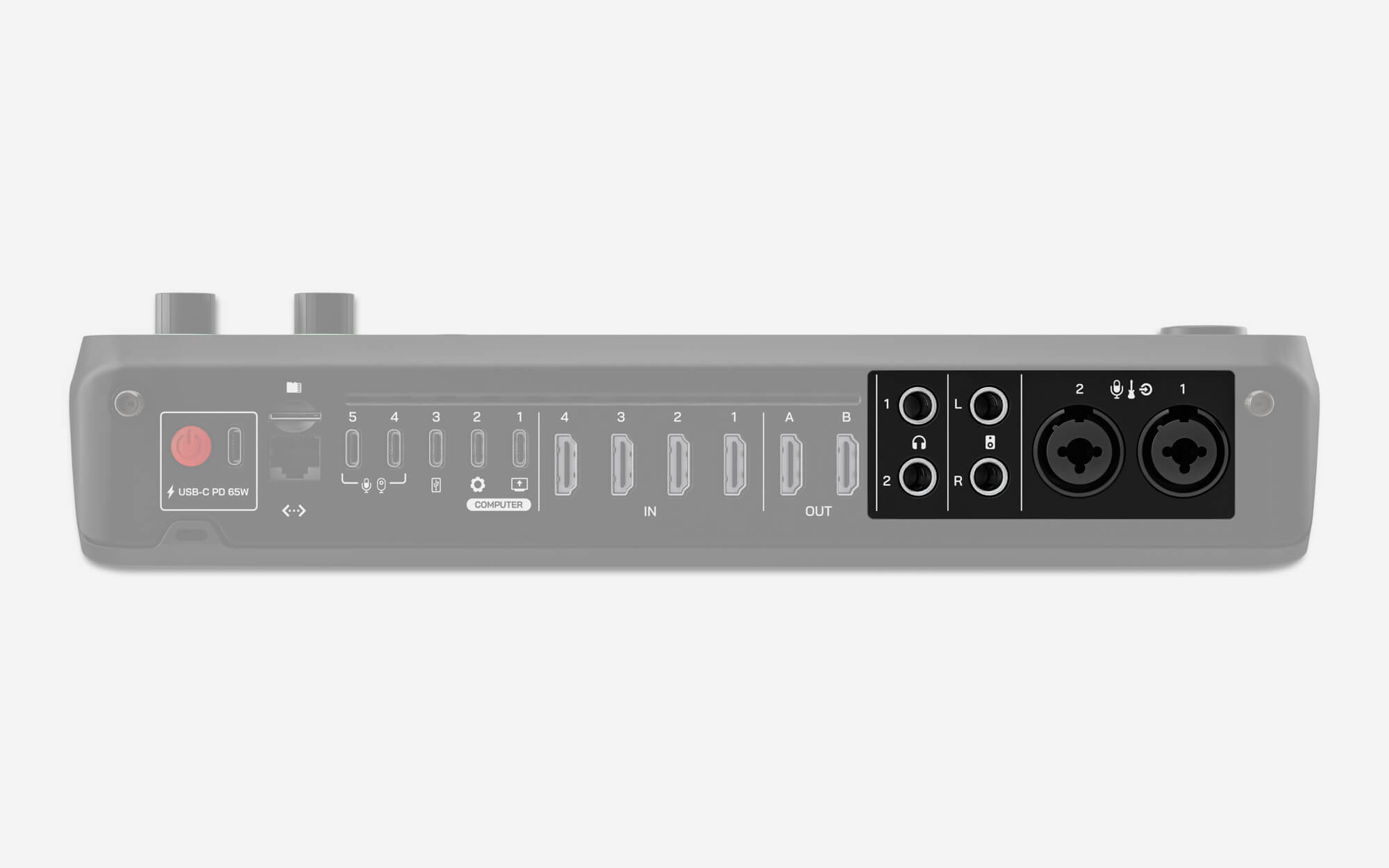
音频输入与输出
除了强大的视频切换功能外,RØDECaster Video 还配备了完全集成的专业音频接口。
组合输入
RØDECaster Video 配备一对高品质 Neutrik™ 组合插孔,可通过 XLR 或 1/4 英寸连接,接入麦克风、乐器和线路电平设备。如果您的麦克风需要幻象电源,请阅读音频混音器部分,了解如何在任一组合输入上启用该功能。
耳机与扬声器输出
RØDECaster Video 背面设有两个输出,可连接两副耳机,例如NTH-100。如果您的耳机配备 3.5mm 接头,请使用 1/4 英寸转 3.5mm 转接头(例如RØDE HJA-4)将其连接到设备。
RØDECaster Video 背面还设有两个平衡式 1/4 英寸线路输出,分别标记为左和右,用于连接一对扬声器。
要调节耳机 1、耳机 2 或扬声器的输出电平,请按下 Audio Encoder,直到耳机 1、耳机 2 或扬声器图标上方的 LED 亮起,然后旋转编码器调节音量。
microSD 卡槽
RØDECaster 视频microSD 卡槽用于存储制作中使用的视频、图像、图形和声音。
注意
我们建议使用 UHS-I 级或更高等级的存储卡,写入速度至少为 30MB/s。
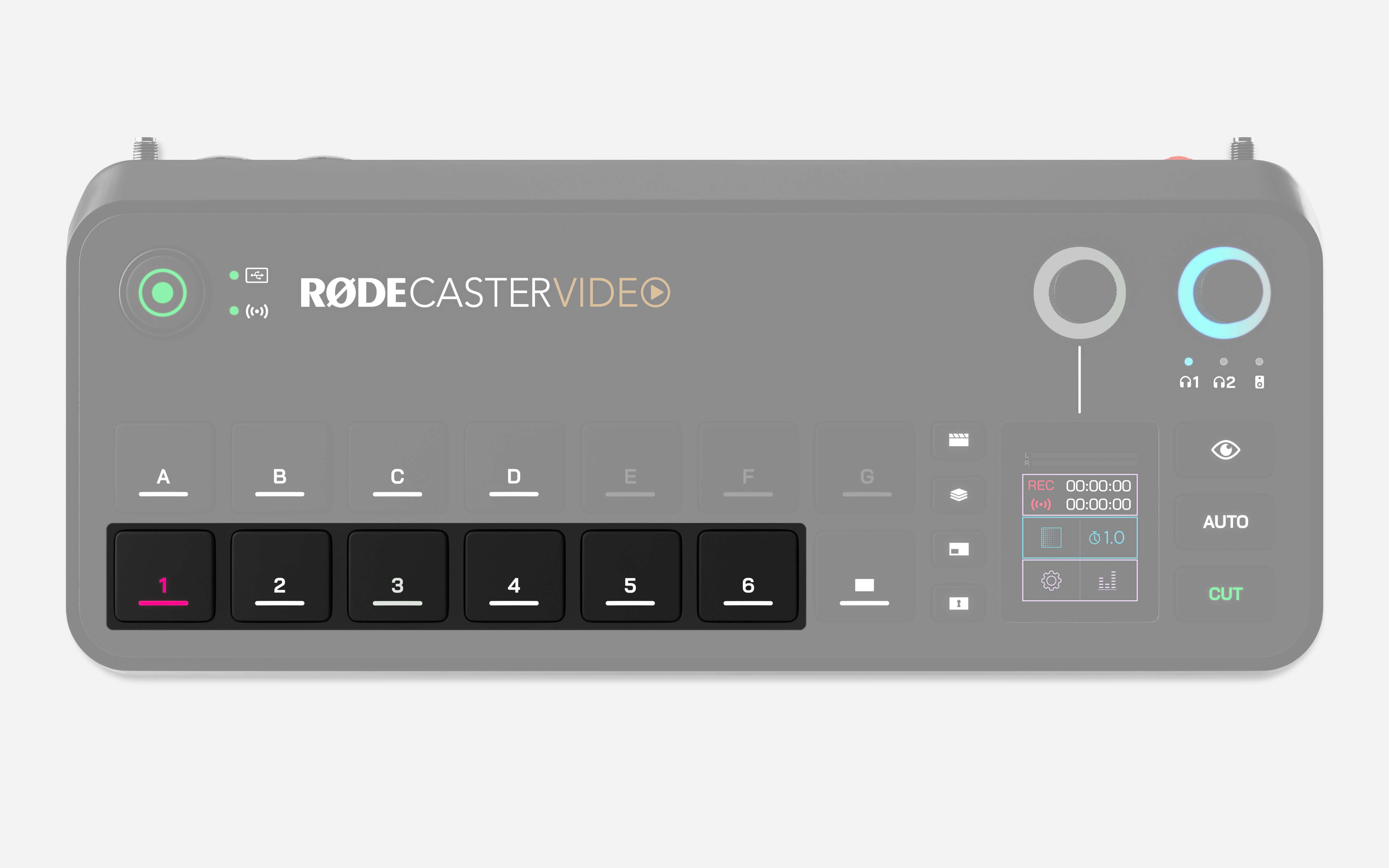
输入按钮(1–6)
底部一排标有 1–6 的按钮为输入按钮,分别对应可同时分配到 RØDECaster Video 上的 6 个输入源。当为按钮分配了输入源时,按钮会亮白灯;当前处于直播状态(节目输出)时亮红灯;排队等待直播(预览输出)时亮绿灯。
为某个按钮分配输入源后,按下该按钮即可将该输入切换至直播节目源(处于即时模式时),或切换至预览源(处于演播室模式时)。
将输入源分配给输入按钮
默认情况下,HDMI 1–4 会分配给前 4 个输入按钮,USB 4 和 5 会分配给输入按钮 5 和 6;不过,您可以将任意输入分配给这 6 个按钮中的任意一个。操作步骤如下:
- 按下 Inspect 按钮
- 选择要调整的输入按钮
- 点击屏幕上的输入选择框(其中会显示当前分配的输入)
- 旋转编码器浏览输入选项,然后按下编码器确认选择
- 完成分配后,再次按下 Inspect 按钮
场景按钮(A – G)
七个场景按钮均可完全自定义,配置不同的输入源、图像、视频、图形叠加和键控布局,让您能够随时在预配置设置之间快速切换。您可以直接在 RØDECaster Video 上快速创建场景,也可以使用 RØDECaster App 场景构建器进行更深入的自定义。
淡出至黑屏按钮
按下淡出至黑屏按钮(位于输入按钮旁)后,画面将切换至空白屏幕,覆盖当前的节目输出,同时正在播放的音频也会淡出。如果您需要快速切断直播信号,或希望以淡出至黑屏的方式结束节目或片段,此功能非常实用。淡出所需的时间由您的转场时长设定。
注意
按下 Inspect 按钮,然后按下 Fade to Black 按钮,即可启用或禁用此功能。
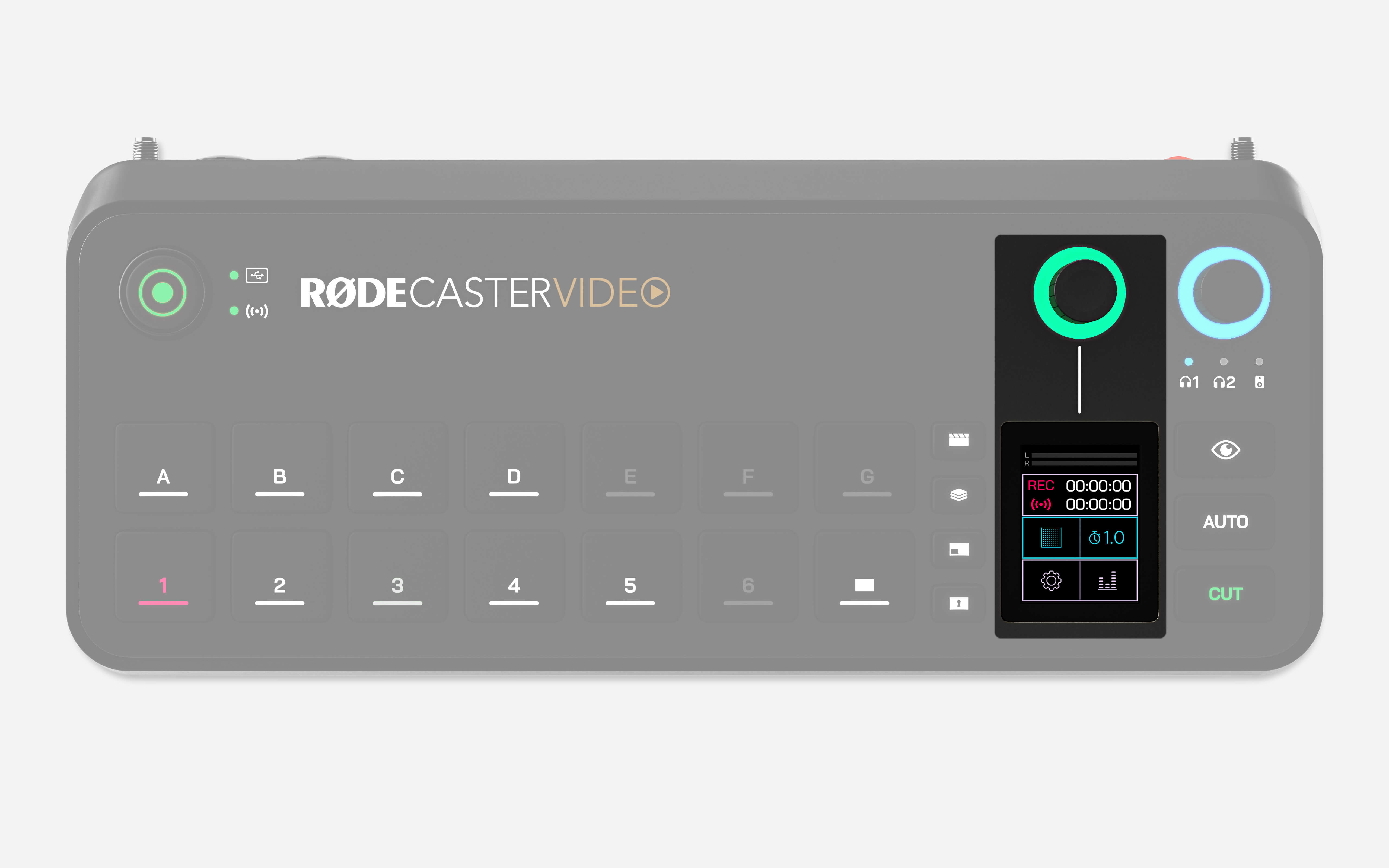
显示屏与编码器
触摸屏显示屏及其上方的编码器用于浏览和调整 RØDECaster Video 的设置与控制项。点击图标并旋转编码器,即可浏览菜单、选择项目、确认设置、切换页面或返回主页。
编码器周围的 LED 环在可用于浏览菜单时亮白色,在可用于调整屏幕设置时亮绿色。
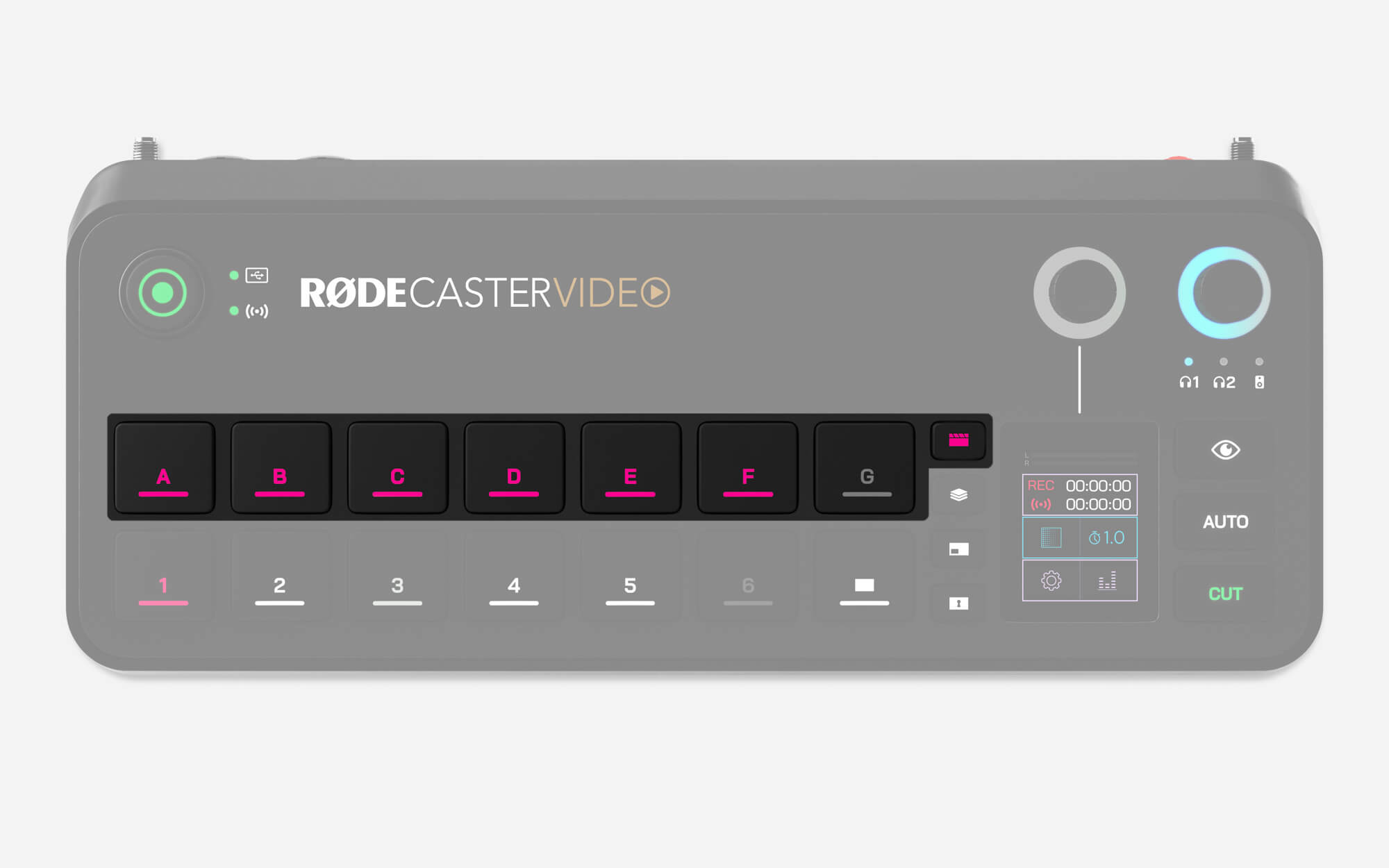
媒体按钮
媒体按钮可访问您加载到 microSD card 并分配给媒体按钮的视频、图像和声音。按下媒体按钮后,该按钮会亮起紫色,场景按钮(A – G)的功能也会改变,以显示已分配的媒体。已分配媒体的按钮会亮起紫色,未分配媒体的按钮则不会亮起。
您可以像操作输入按钮和场景按钮一样操作这些按钮,也就是说,您可以切换到视频、图像和声音,并在场景中使用它们。
再次按下媒体按钮即可退出此模式——场景按钮将恢复其默认功能,用于选择场景。
注意
视频文件不会在预览画面中播放,但切换到节目画面后会立即开始播放。
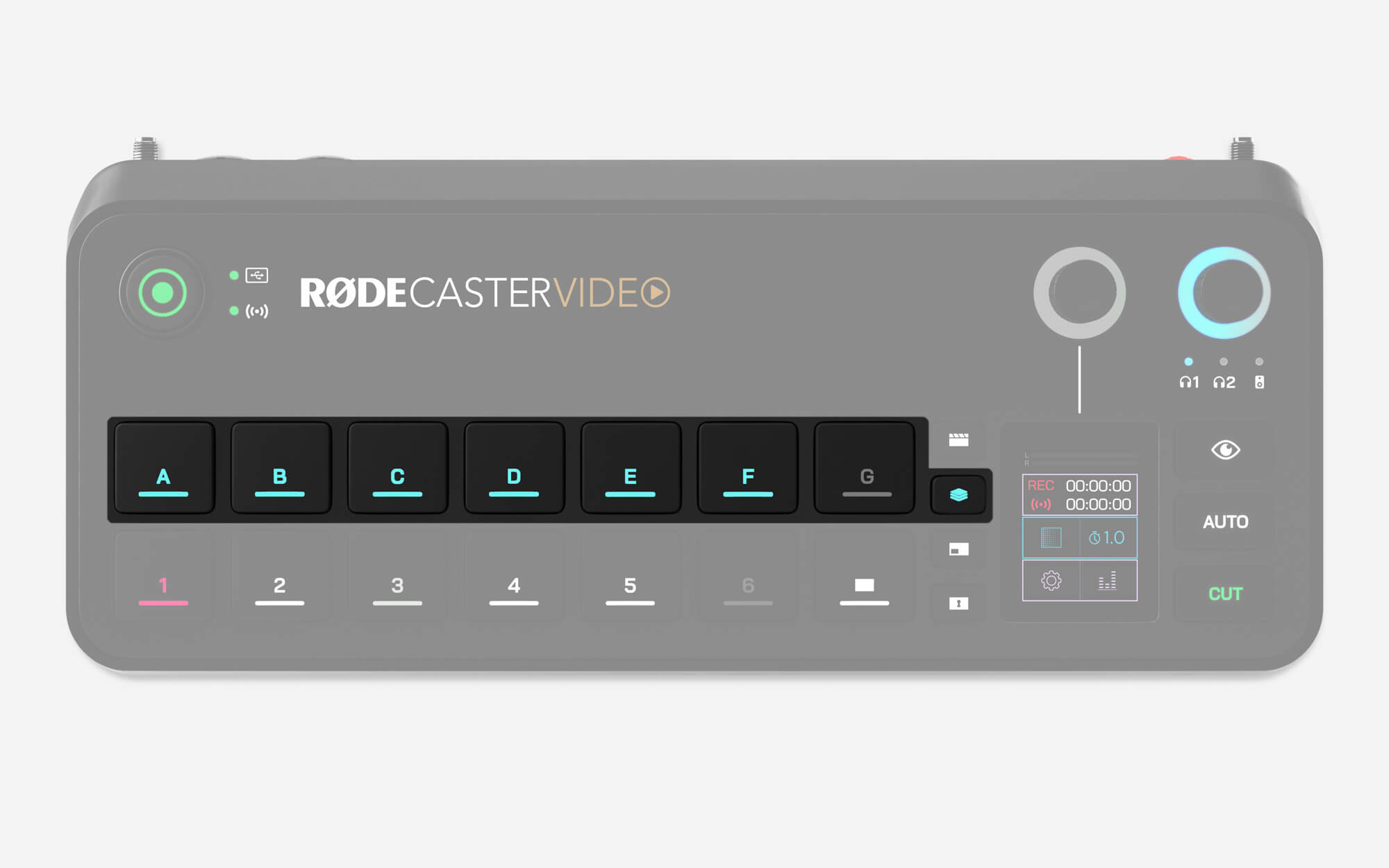
叠加按钮
叠加按钮可访问您加载到 microSD card 中并分配给叠加按钮的图像。按下后,叠加按钮将亮起蓝色,场景按钮(A – G)的功能也会改变,用于表示已分配的图形叠加。已分配图形叠加的按钮将亮起蓝色,未分配的按钮则不会亮起。
按下其中一个按钮即可启用相应的图形叠加,并在节目和预览画面中将其显示在现有信号之上。叠加内容会一直显示在屏幕上,直到再次按下该按钮,因此您可以切换输入、场景和媒体,而不会使叠加内容消失。
虽然简单的叠加可以使用 JPG 文件,但使用带有透明图层的 PNG 文件,可以在节目中保留透明效果。这使其非常适合用作下三分之一字幕、徽标、水印及其他类似元素。
再次按下图形叠加按钮即可退出此模式——场景按钮将恢复其默认功能,用于选择场景。
注意
一次只能启用一个图形叠加层。
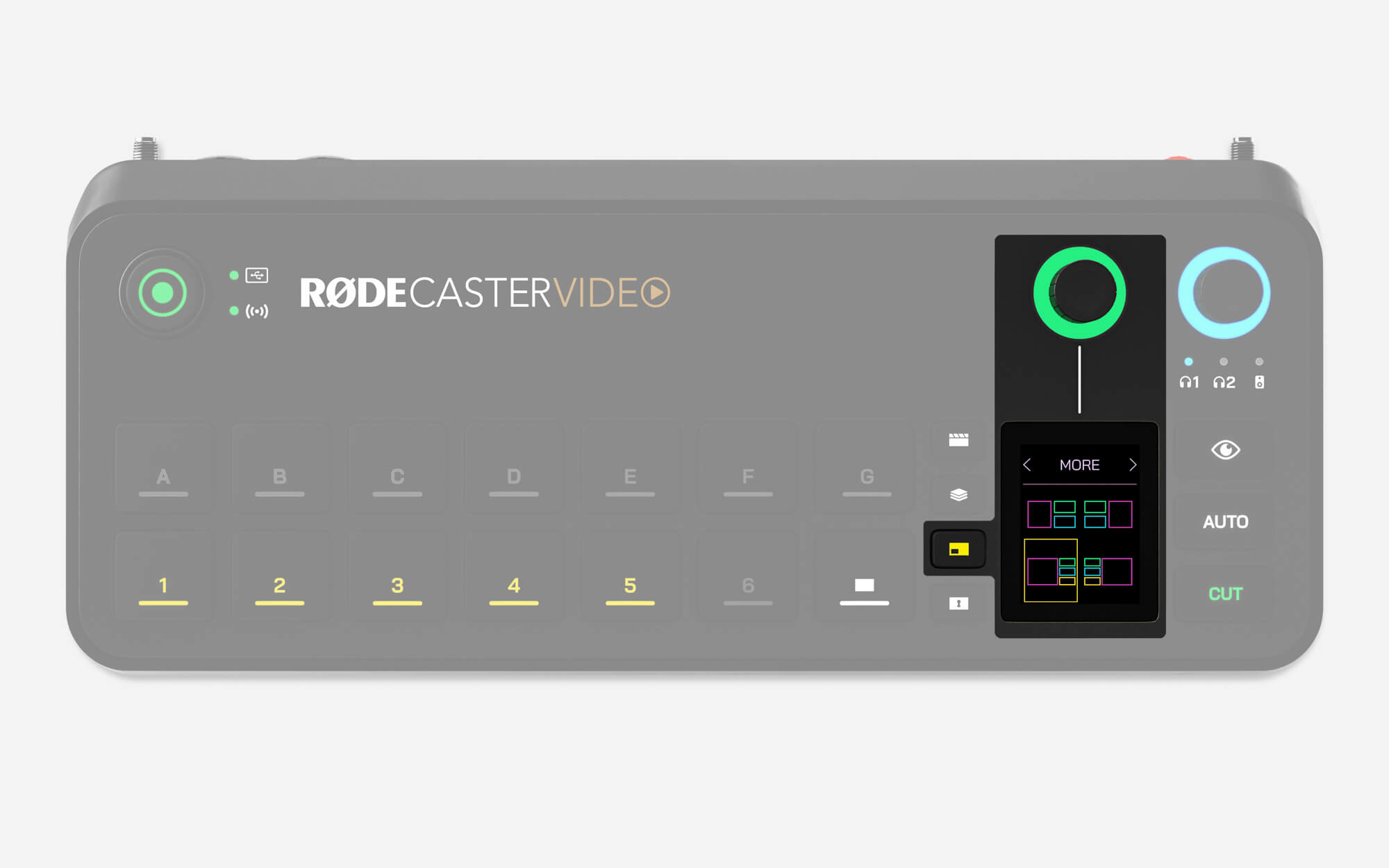
多源按钮
此按钮可让您快速创建输入源和媒体的多源布局,例如画中画或分屏配置。您可以创建这些配置,以便在制作过程中即时使用,也可以将其保存到空白场景按钮中,供日后使用。
按下多源按钮后,按钮将亮起黄色,屏幕上会显示布局菜单。点击此菜单的顶部区域,即可使用编码器从各种预设布局中浏览,然后点击编码器进行选择。选择布局后,您可以使用编码器依次切换多源布局中的各个画面,并按下输入或媒体按钮,将其分配到相应画面。
完成多源布局设置后,按下绿色勾号进行确认。在演播室模式下,此多源布局将应用于预览视频信号;在即时模式下,则应用于节目输出。如果您希望将此布局保存为场景,只需按住一个空白场景按钮。
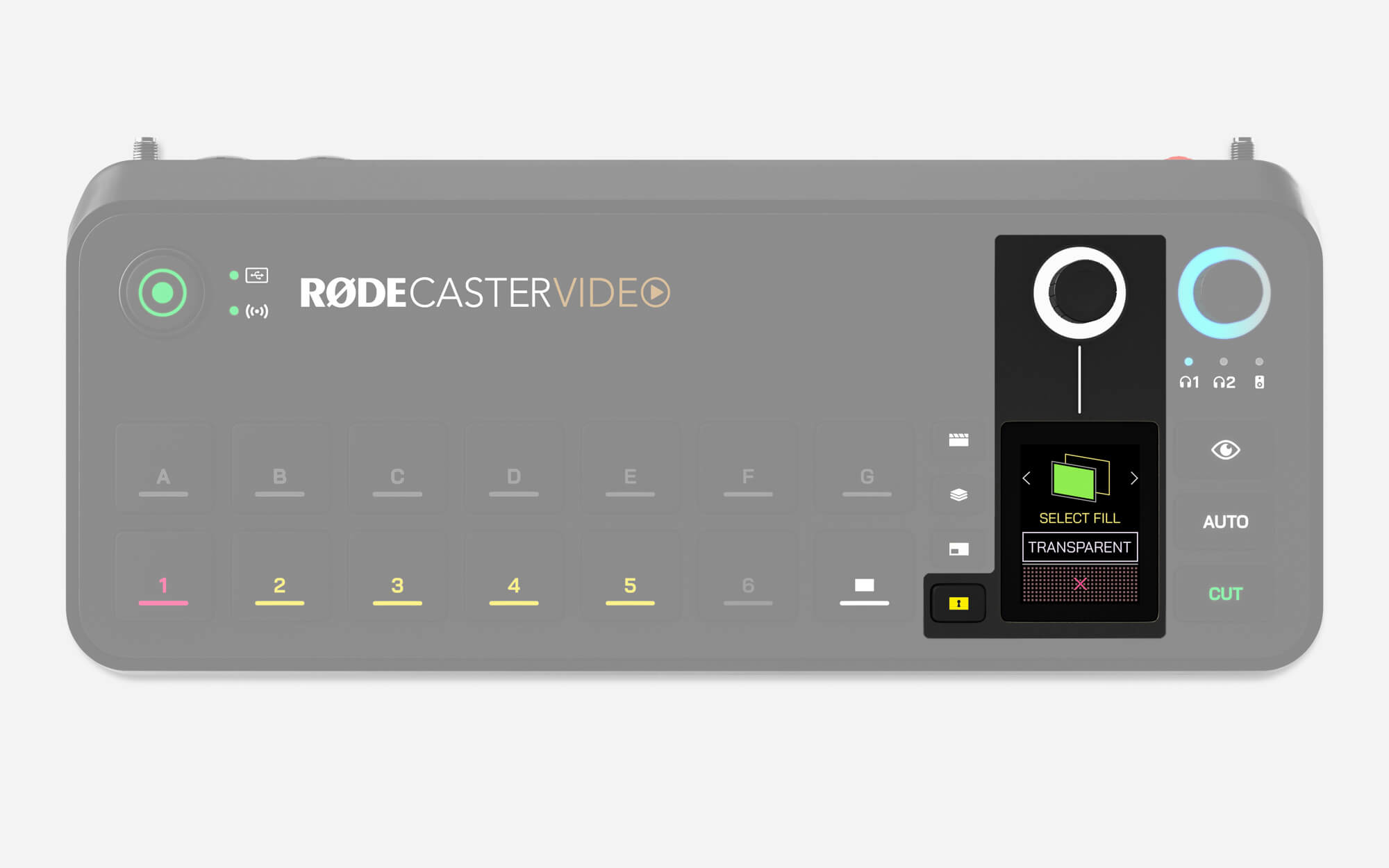
抠像按钮
抠像按钮可在 Studio 模式下自动对预览画面,或在 Instant 模式下自动对节目画面应用色度键(绿幕或蓝幕)或亮度键,让您能够将主体置于图像、视频,甚至其他输入源的前方。
按下要应用抠像的输入按钮,然后按下抠像按钮。现在,您可以使用编码器选择绿幕或蓝幕,然后按下另一个输入或媒体按钮,将其选作替换背景。若要选择无背景(透明),只需点击屏幕而不是按下按钮即可——这样,您就可以在场景中使用经过抠像的输入源。
对输入源应用抠像后,每次使用该输入源时,此设置都会自动关联;如需取消关联,您必须为该输入源停用抠像。
高级抠像
对于更高级的设置,您可以使用亮度抠像和抠像遮罩功能来创建叠加效果和视觉特效。
亮度抠像会根据亮度值对视频进行滤镜处理,有助于从输入视频源中移除黑色背景。
随后,抠像遮罩可让您裁剪画面,从而对特定区域强制设置透明效果,为抠像区域提供精确控制,适用于无法完全覆盖摄像机画面的情况。
对于这部分抠像区域,您还可以控制柔化程度和阴影。
柔化控制可平滑遮罩边缘,使融合效果更加自然。通过阴影控制,您可以加深遮罩区域内部的色调,增强对比度,让白色文字等重要视觉元素清晰突出。
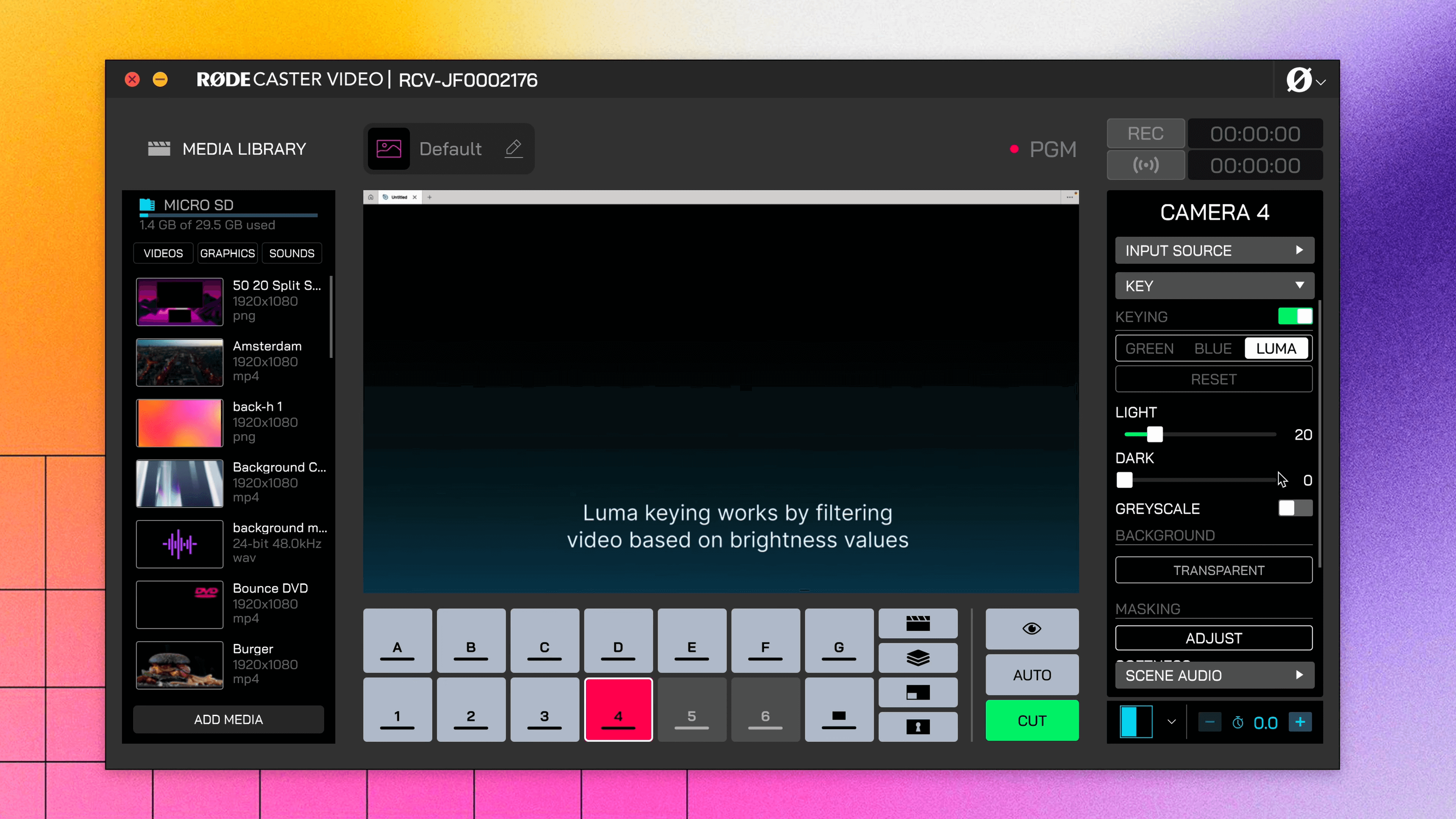
专业提示
由于 Luma Key 基于渐变工作,区域越暗,该区域显示得就越透明。
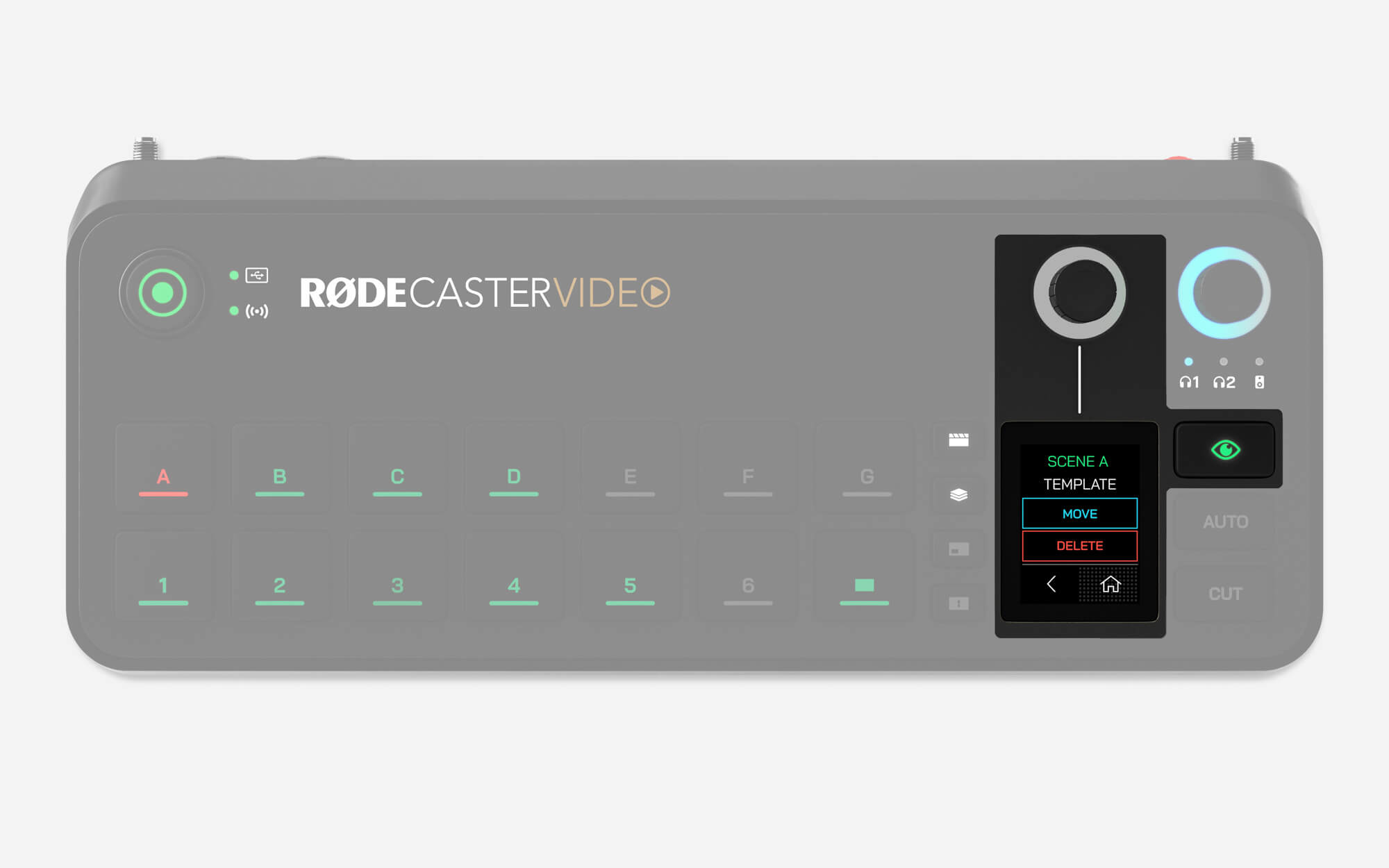
检查按钮
检查按钮可让您安全地查看输入、场景、媒体或叠加层的信息并调整其设置,而无需切换或预览它们。在即时模式下,您还可以将任意输入、场景、媒体或叠加层发送至预览输出,以便在将其发送至直播输出前安全查看。按下检查按钮后,该按钮会亮起绿色,并保持亮起状态,直到再次按下按钮退出此模式。
处于检查模式时,按下以下按钮即可查看和执行相应的信息与操作:
输入按钮:显示所连接输入的分辨率、帧率和色彩空间信息,并允许您更改分配给该按钮的输入源。
场景按钮:允许您删除场景,或将场景移动至另一个场景按钮。
媒体和叠加层按钮:显示文件名和缩略图预览,并允许您删除文件,或将文件移动至另一个媒体或叠加层按钮。
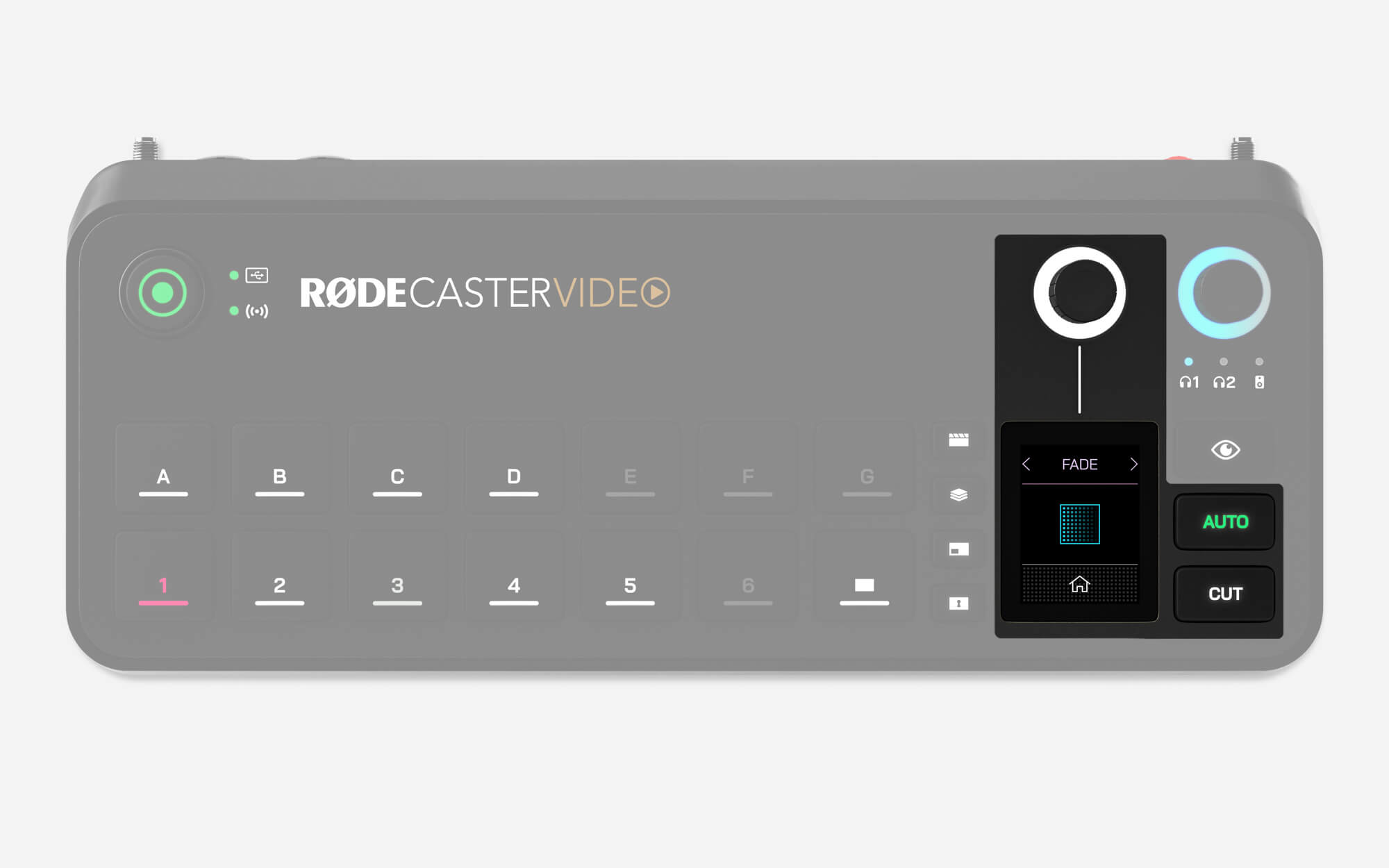
切换、自动切换与转场
“切换”和“自动”按钮提供了两种不同的视频源切换方式,其具体行为取决于您当前使用的是即时模式还是演播室模式。
切换
“切换”是默认模式。在即时模式下,您可以在输入源、媒体和场景之间即时切换;在演播室模式下,则可在预览视频源和节目视频源之间切换。
自动
在即时模式下,“自动”会根据您的转场设置,在输入源、媒体或场景之间进行切换;在演播室模式下,则会在预览视频源和节目视频源之间进行切换。
转场设置
如需调整转场时长,只需点按屏幕上的秒表图标,调节旋钮编码器,然后按下编码器确认。如需更改转场类型,请点按秒表左侧的屏幕图标,并使用编码器选择淡化、叠化或擦除(擦除包含多种子类型)。
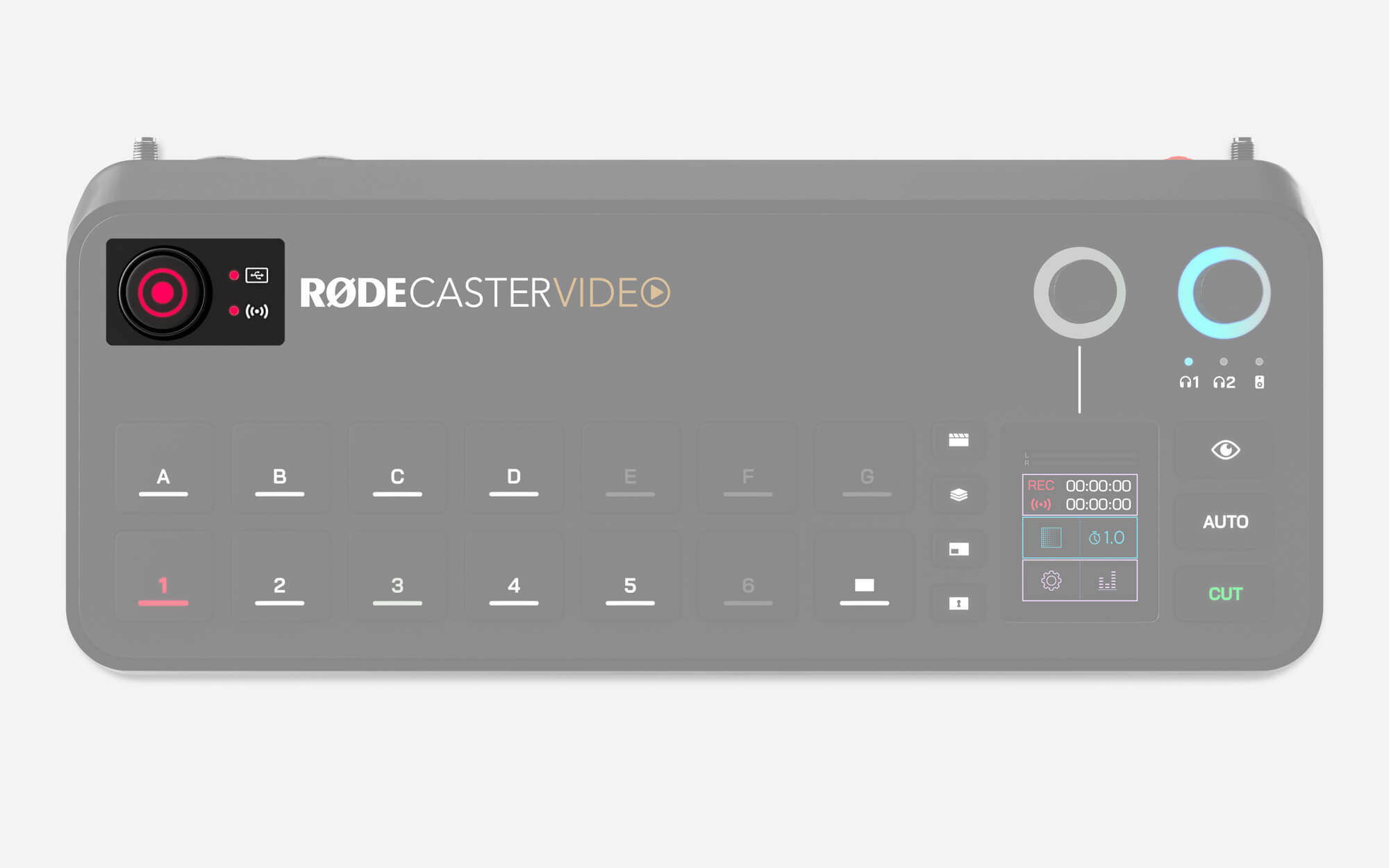
录制按钮和存储/网络指示灯
录制按钮用于开始和停止录音。准备录音时,录制按钮及其旁边的存储指示灯 LED 均会亮绿色;录音过程中则会亮红色。如果其中任一指示灯未亮起,则表示您未将兼容的 USB 存储设备连接到 USB 3、设备未格式化为正确的 exFAT 格式,或设备已无可用空间。
同样,准备进行流式传输时,网络指示灯 LED 会亮绿色;流式传输过程中会亮红色;如果 RØDECaster Video 尚未准备好进行流式传输,则指示灯不会亮起。这表示您尚未在 RØDECaster Video 上设置流媒体配置文件,或其未连接到互联网。
帧率
RØDECaster Video 的全局帧率决定流媒体、录制、HDMI A 和 HDMI B 输出的帧率。为项目选择唯一的帧率非常重要,并将所有摄像机及其他视频设备设置为以该帧率输出,以获得最佳效果。
要在 RØDECaster Video 上设置全局帧率,请点击设置齿轮,然后导航至 Video > Frame Rate,并使用编码器进行选择。
帧率:23.98、24、25、29.97、30、50、59.94、60
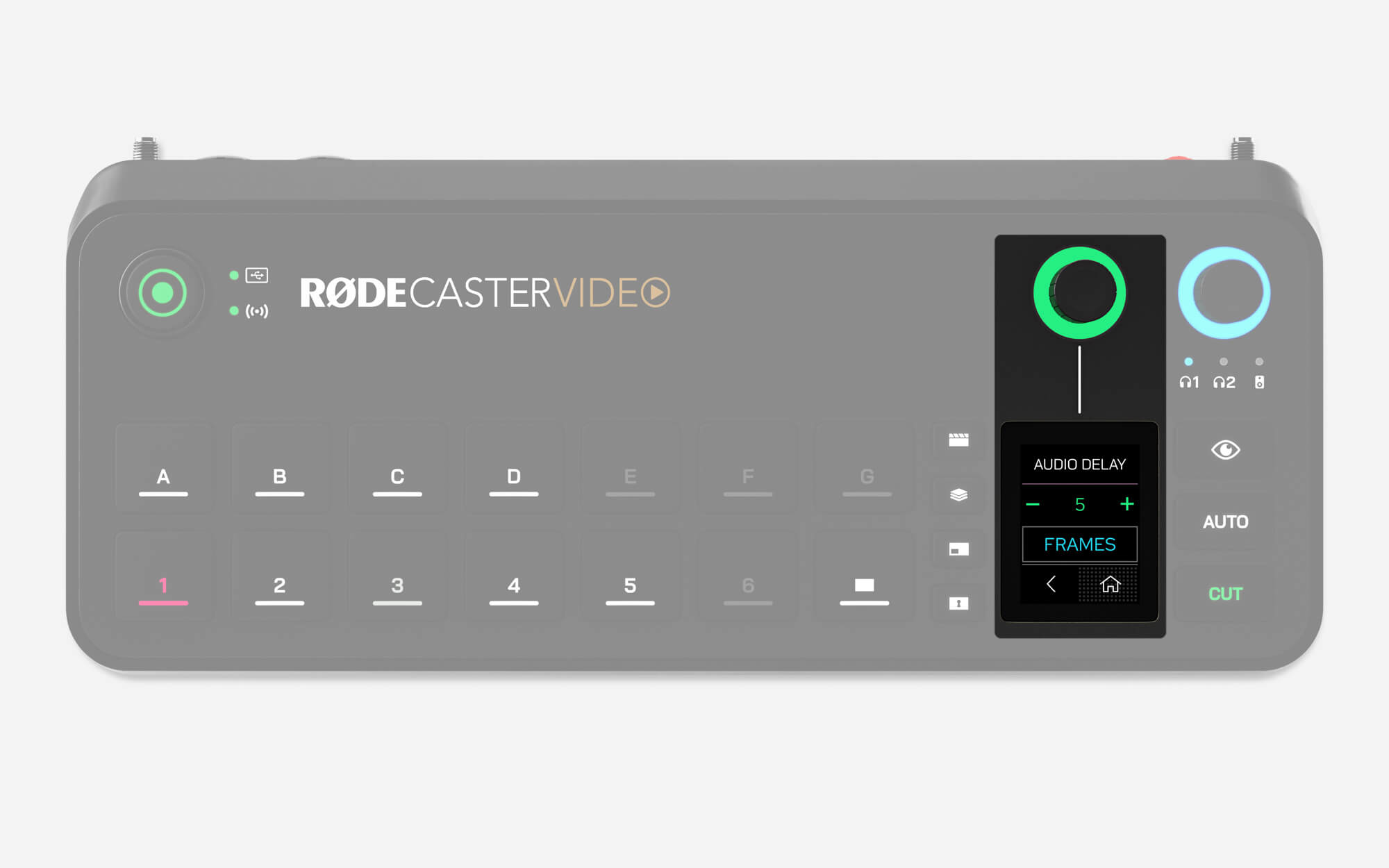
音频输出延迟
一般来说,任何摄像机(或其他视频设备)的视频信号中都会存在轻微延迟。不过,音频设备产生的延迟通常要低得多。为弥补这一差异,RØDECaster Video 配备了音频输出延迟功能,可让您在直播和录制时将音频与视频完美同步。
默认情况下,延迟设置为 5 帧,这应能适应最广泛的使用场景;但您也可以在 RØDECaster Video 中前往“设置” > “音频延迟”进行微调,或通过 RØDECaster App 中的音频混音器进行调整。您可以按 1 毫秒或 1 帧的增量调节延迟。
如何测量音频输出延迟
要确定适合您系统的延迟值,只需执行以下步骤一次:
- 确保您的 RØDECaster Video 和所有视频设备设置为相同的帧率
- 录制一段您在镜头前拍手的短视频,并确保同时录下音频
- 弹出您的 USB 存储设备,将其连接到电脑,然后将视频文件导入您选择的 NLE(非线性编辑器),例如 DaVinci Resolve 或 Adobe Premiere Pro
- 在 NLE 中找到拍手发生时对应的视频帧,并在波形中查找拍手音频的峰值
- 在时间线上标记拍手音频峰值与拍手画面之间的差值,以测量延迟(以帧或毫秒为单位)
- 将音频输出延迟设置为该数值
注意
音频输出延迟仅适用于您的直播和录音——为了让您实时监听自己的声音,耳机或监听音箱不会应用该延迟。