视频切换与自动切换
什么是视频切换
视频切换有多种含义,但其核心是指在不同视频信号源之间进行切换,从而精确控制观众看到的内容。这在直播和广播场景中非常实用,同时也是一种强大的“实时”编辑工具。
通过在制作过程中使用多个摄像机机位,您可以为观众打造更加动态、更具吸引力的体验;此外,视频切换还非常适合在任何时刻向观众呈现最相关的画面。
您还可以使用视频切换为节目添加图形、图像、视频及其他媒体内容。借助画中画、分屏或其他布局,您甚至可以同时显示多个视频信号源。
要使用 RØDECaster Video 在视频输入、场景和媒体之间进行切换,您可以使用其输入按钮(1-6)、场景按钮(A-G),以及媒体和叠加功能按钮。
帧率
RØDECaster Video 的全局帧率决定了流媒体、录制、HDMI A 和 HDMI B 输出的帧率。为项目选择唯一的帧率非常重要,并将所有摄像机及其他视频设备设置为以该帧率输出,以获得最佳效果。
要在 RØDECaster Video 上设置全局帧率,请点击设置齿轮,然后依次进入“视频” > “帧率”,并使用编码器进行选择。
帧率:23.98、24、25、29.97、30、50、59.94、60
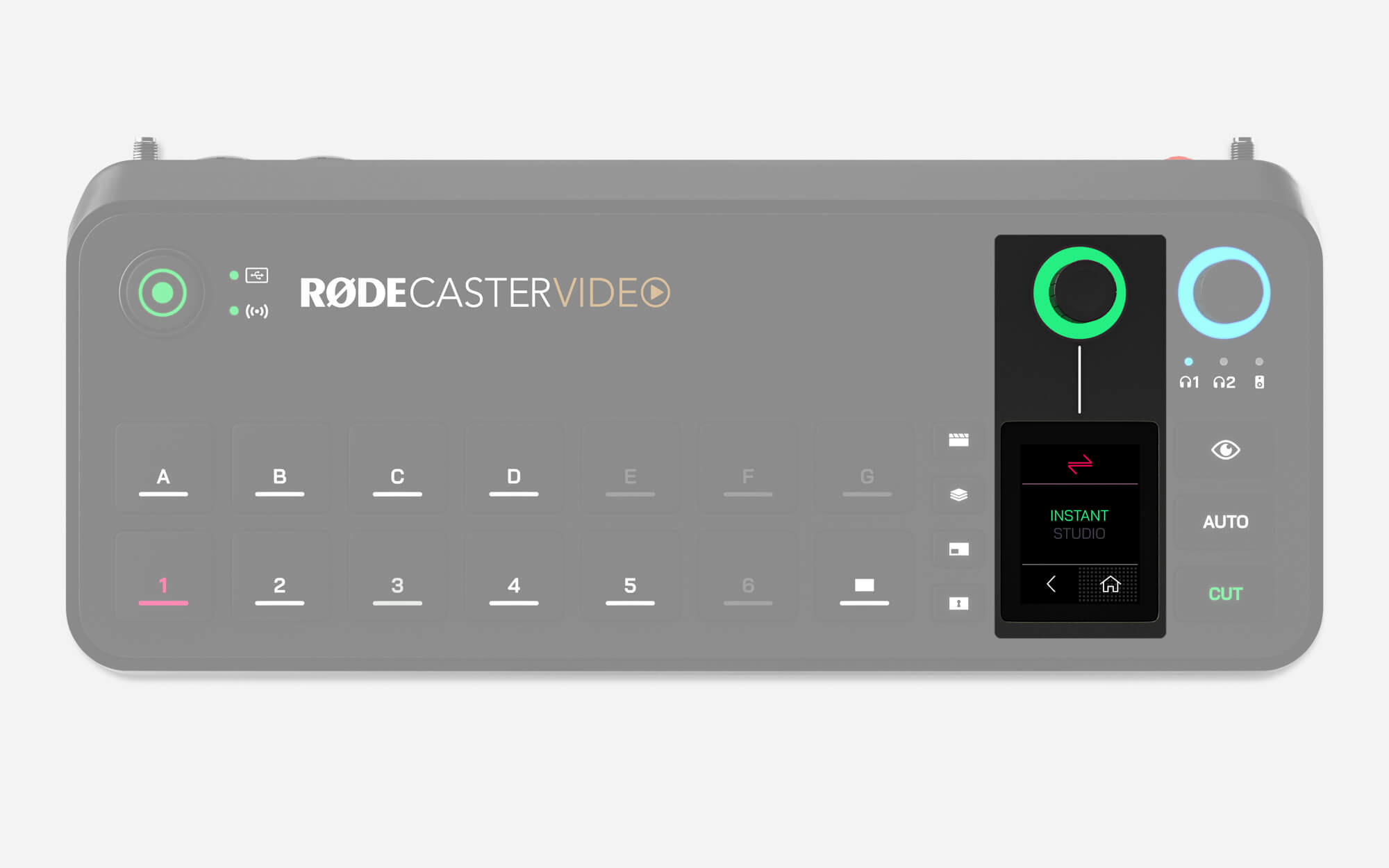
即时与演播室切换模式
两种切换模式会改变您在切换视频时与 RØDECaster Video 的交互方式。要更改模式,请前往 Settings > Video > Switching,然后选择 Instant 或 Studio;或者在 RØDECaster App 中,前往 Device Configuration > Video > Switching。
即时切换
在即时模式下按下输入、场景、媒体或叠加按钮时,所选内容会立即出现在直播 Program 画面中。如果您选择了“Cut”按钮,画面将立即切换;而“Auto”按钮则会根据您的转场设置执行切换。
这是两种模式中响应更直接的一种,只需按下一个按钮即可完成切换。如果您是独立创作者,需要同时操作 RØDECaster Video 并出镜,或者只是希望获得更即时的操作体验,这种模式会非常理想。
演播室切换
在演播室模式下按下输入、场景或媒体按钮时,所选内容会发送至 Preview 画面,而直播 Program 画面保持不变。随后按下 Cut 或 Auto,Preview 画面中的内容就会发送至直播 Program 画面(立即切换或通过转场切换)。
演播室模式是广播机构最常使用的模式,更适合由专职操作员控制 RØDECaster Video 的制作环境,因为操作员可以先预览输入或场景,再将其发送至直播画面。
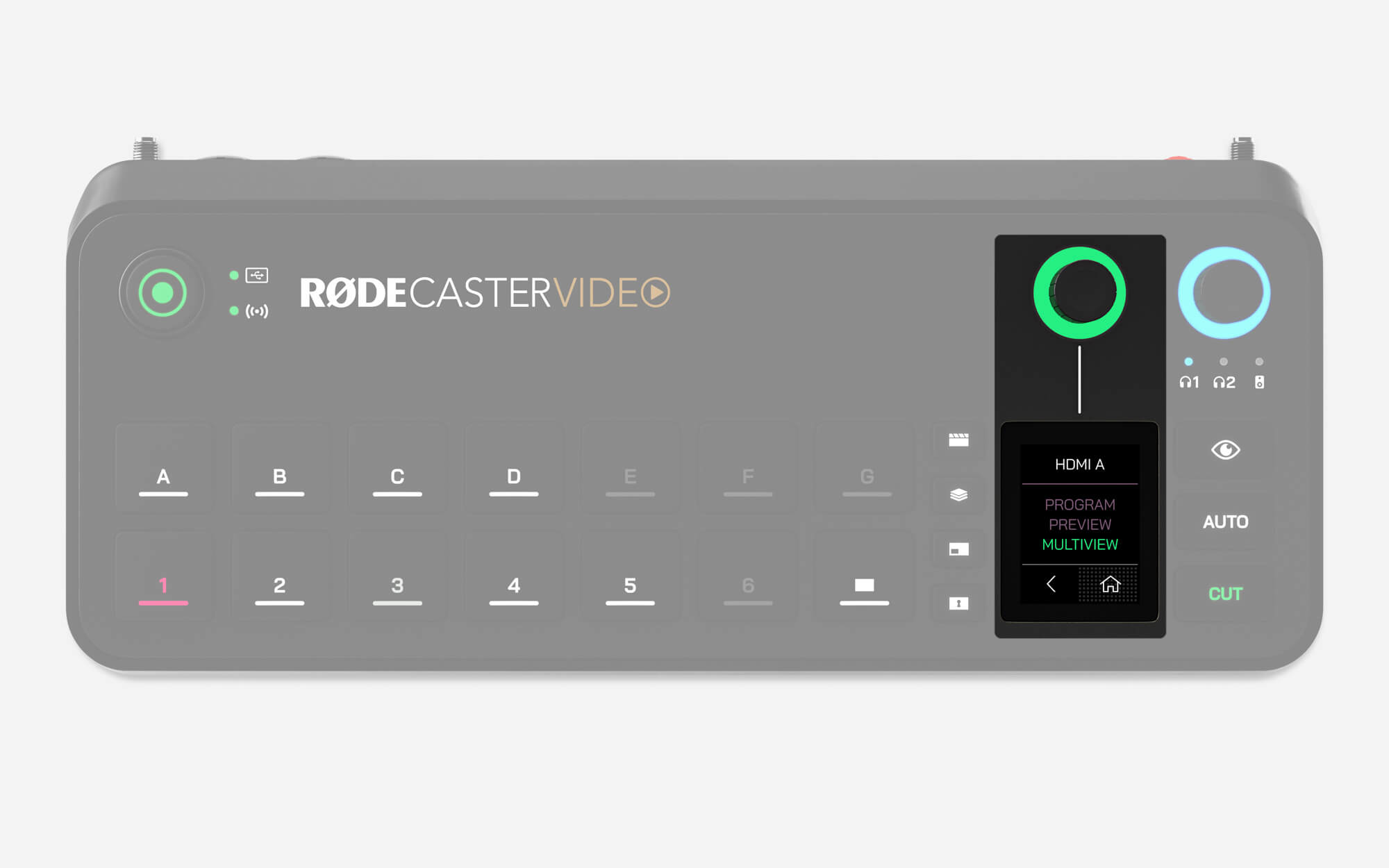
节目、预览、多画面和摄像机输出
RØDECaster Video 提供九种不同的视频输出信号源——节目、预览、多画面和摄像机 1–6。您可以选择其中任意一种信号源发送至输出端:HDMI A、HDMI B 和 USB 1。您可以通过“设置” > “视频”,然后点按 HDMI A、HDMI B 或 USB 1 来调整此设置。在 RØDECaster App 中,可在“设备配置” > “HDMI 输出”菜单中找到此设置。
节目
这是主要的制作或“直播”视频信号源。它将准确显示当前正在串流和/或录制的内容。
预览
在工作室模式下,预览信号源可让您在输入源、场景或媒体发送至节目输出之前查看它们,从而可以在视频源正式播出前进行检查、配置和编排。即时模式下不提供此功能。
多画面
多画面信号源会在一个屏幕上显示所有视频源、场景、媒体和图形。它还会显示录制和串流状态、音频混音器、日期和时间以及运行时长等关键设备信息。
摄像机(1–6)
这六个摄像机选项分别对应分配给六个输入按钮的摄像机,让您可以将任意摄像机的信号直接发送至三个输出端中的一个。例如,如果连接至 HDMI 1 的摄像机被分配至输入按钮 1,您可以选择“摄像机 1”选项,将该摄像机的信号直接发送至 HDMI B 输出。
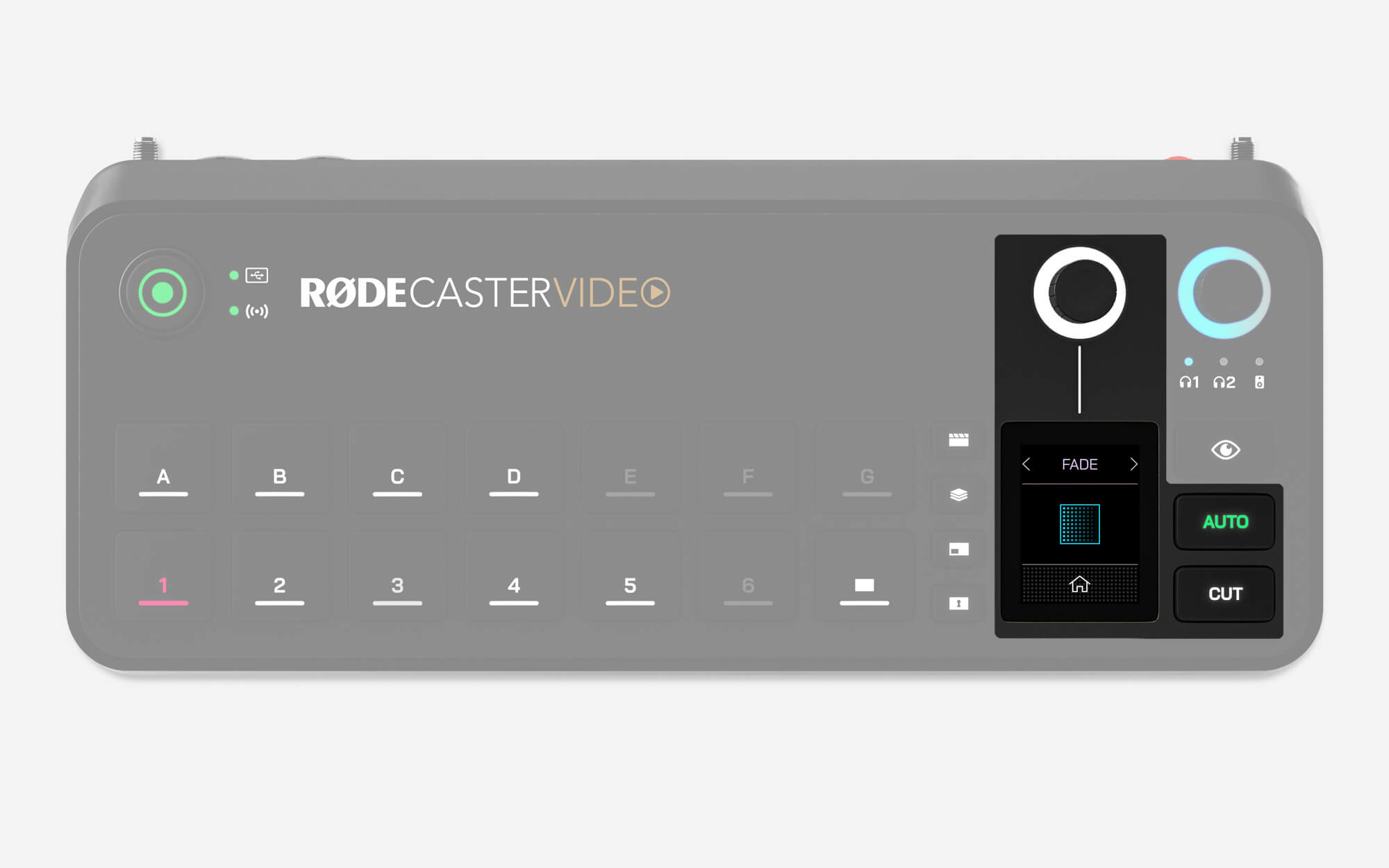
切换、自动切换与转场
“切换”和“自动”按钮提供了两种不同的视频源切换方式,其具体行为取决于您当前使用的是即时模式还是演播室模式。
切换
“切换”是默认模式。在即时模式下,您可以在输入源、媒体和场景之间即时切换;在演播室模式下,则可在预览视频源和节目视频源之间切换。
自动
在即时模式下,“自动”会根据您的转场设置,在输入源、媒体或场景之间进行切换;在演播室模式下,则会在预览视频源和节目视频源之间切换。
转场设置
如需调整转场时长,只需点击屏幕上的秒表图标,调节旋钮编码器,然后按下编码器确认。如需更改转场类型,请点击秒表左侧的屏幕图标,并使用编码器选择淡化、叠化或擦除(擦除包含多种子类型)。
注意
转场时长还决定了按下淡入黑场按钮时完成转场所需的时间。
-2395x1429-ec9dd10.jpg)
自动切换
RØDECaster Video 配备独特且创新的自动切换技术,可根据检测到特定通道中的音频,在输入源和场景之间自动切换,模拟自然流畅的切换过程。例如,在视频播客中,可根据采访者和受访者的发言,在两人的镜头之间进行切换。
RØDECaster App
要设置自动切换,请确保您的 RØDECaster Video 与电脑连接到同一网络(或通过 USB 2 直接连接),打开 RØDECaster App,然后打开自动切换菜单。
输入源和场景
在 RØDECaster App 的自动切换菜单中,选择一个输入按钮(1-6)或场景按钮(A-G),将其关联至音频源,然后将设置切换为“开启”。
优先级
您可以为每个输入源或场景选择优先级(低、中或高)。优先级越高,该输入源或场景在整体制作中获得的时间就越多。例如,在视频播客或访谈中,您可以将每位发言者的特写镜头设置为高于完整对话广角镜头的优先级。
音频链接
点击“音频链接”部分下方的“+”按钮,即可将一个或多个音频输入分配给当前选中的输入或场景按钮。当单个镜头包含多个麦克风(及发言者)时,分配多个音频输入非常理想,可让您的制作动态跟随对话进行切换。
连接一台 RØDECaster Pro II 或 Duo
自动切换功能可关联至 RØDECaster Pro II 或 RØDECaster Duo 上的音频通道。将您的 RØDECaster Pro II 或 Duo 的 USB 2 端口连接至 RØDECaster Video 的 USB 4 或 5 端口。这与设备之间传输音频的连接方式相同。连接完成后,您的 RØDECaster Pro II 或 Duo 音频通道将作为音频链接选项显示。
舒缓、中性或快速
在自动切换菜单的右上角,您可以在“舒缓”“中性”和“快速”之间进行切换。这些选项可让您根据节目节奏调整该功能——如果您发现切换过于频繁或不够频繁,可以通过此处进行微调。
启用自动切换
使用 RØDECaster App 设置好自动切换后,长按 RØDECaster Video 上的“Auto”按钮,即可启用自动切换模式。按下任意输入或场景按钮将退出该模式并返回手动操作——其原理类似于汽车的巡航控制。