RØDECaster Sync
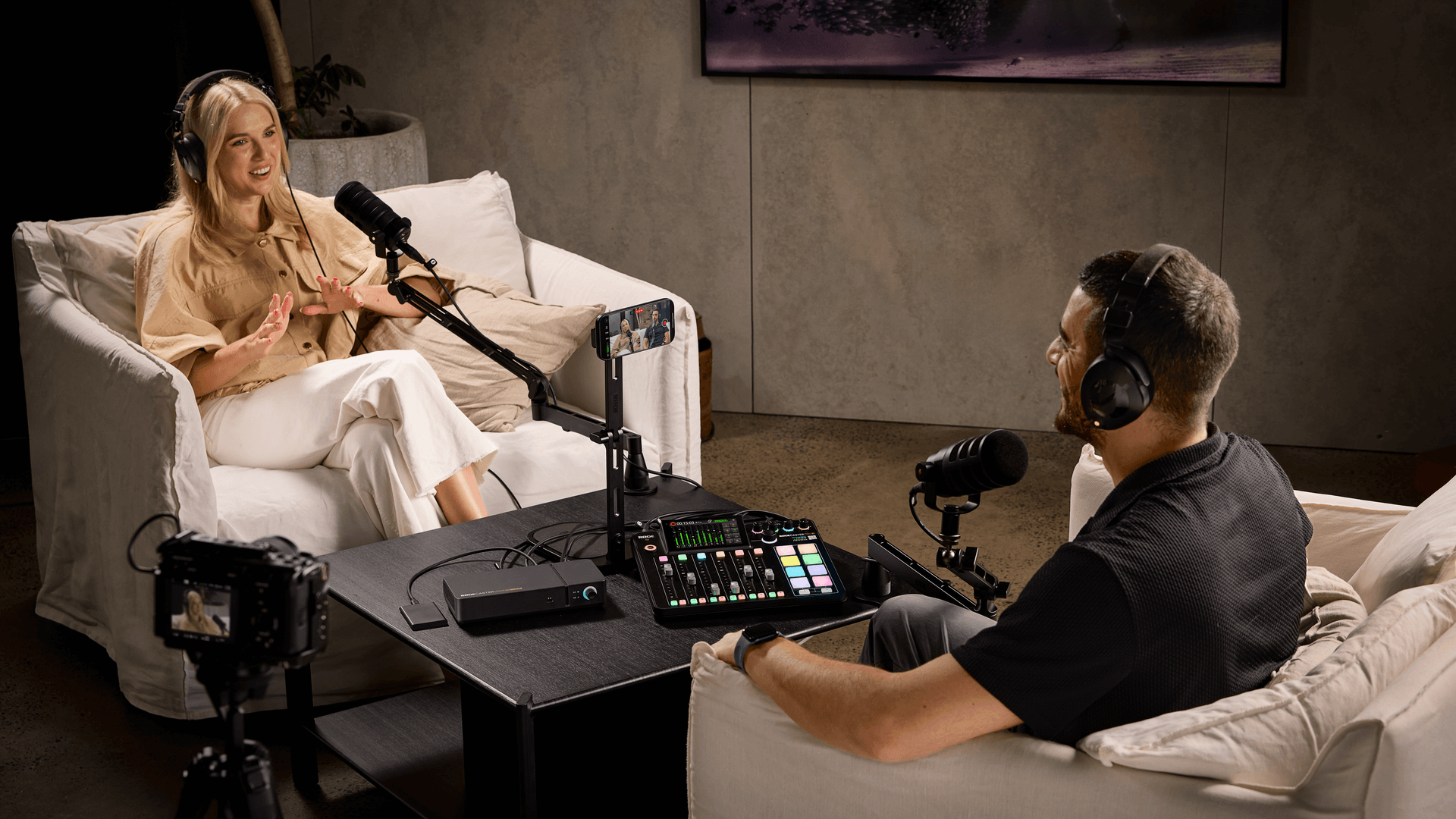
RØDECaster Syncは、RØDECaster Video CoreをRØDECaster Pro IIまたはDuoと組み合わせた際の連携機能を大幅に拡張する新機能です。これにより、各機器の単純な合計をはるかに上回る、包括的なAV制作スタジオを構築できます。1本のUSB-Cケーブルでこれらの機器を接続するだけで、より直感的な操作性と、拡張された入出力を利用できます。
強化されたインターフェース:RØDECaster Pro IIまたはDuoのインターフェースから、両方の機器のビデオとオーディオを操作できます。物理フェーダーとバーチャルフェーダー、ミュートボタンとリッスンボタン、SMARTパッド、タッチスクリーンディスプレイなどを使用できます。
入出力の拡張:接続された両方の機器のすべてのオーディオ入出力を統合ミキサーで利用できるため、これまでRØDECasterで利用できたことのない、より多くのI/Oにアクセスできます。
接続と切断
両方のデバイスの電源が入っている状態で、USB-Cケーブルを使用して2台を接続できます。RØDECaster Video CoreのUSB 4または5と、RØDECaster Pro IIまたはDuoのUSB 1を使用してください。
接続すると、RØDECaster Pro IIまたはDuoのディスプレイにSync Modeへの移行を促すメッセージが表示されます。RØDECaster Pro IIまたはDuoでSettings > Operation Modeに移動すると、このモードへの移行または終了を手動で行えます。
ジョイントオーディオミキサー
Syncモードでは、2台のデバイスが、いずれかのデバイスの任意の入力から構成できる9チャンネルのミキサーを1つ共有します。このミキサー構成には、最初の接続時にRØDECaster Video Coreで現在設定されている構成が反映されます。ミキサーに加えた変更は、RØDECaster Video Coreに保持されます。RØDECaster Pro IIまたはDuoでこのモードを終了した場合も同様です。
オーディオチャンネルの追加、移動、削除
9つのチャンネルを追加、削除、並べ替える方法は主に2つあります:
- RØDECaster Pro IIまたはDuoのタッチディスプレイを使用する: チャンネルアイコンをタップするかチャンネルボタンを押し、設定の歯車アイコンをタップして選択し、緑色のチェックマークで確定します。または、「フェーダー」アイコンをタップして配置を並べ替えます。空いているチャンネルの「+」アイコンをタップすると、チャンネル選択ページに直接移動できます。
- RØDECaster Appを使用する: RØDECaster Video Coreをコンピューターに接続した状態で(USB 1を介して直接接続するか、Ethernet経由で同じネットワークに接続)、RØDECaster Appを開き、左側のリストからデバイスを選択します。Audio Mixerを開くと、「+」アイコンで新しいトラックを追加したり、トラック左上の角をクリックしてドラッグして並べ替えたり、右上をクリックして削除したりできます。
RØDECaster Pro IIまたはDuoのディスプレイでミキサーを表示すると、2本の緑色の矢印が付いたアイコンによって、RØDECaster Video Coreからの入力を制御しているチャンネルが示されます。同様に、RØDECaster AppのAudio Mixerでは、チャンネル名の前にあるアスタリスクと、その上に表示されるフェーダーアイコンによって、RØDECaster Pro IIまたはDuoからの入力が示されます。これは重要です。一見すると、両方のデバイスで同じように表示される入力があるためです(たとえば「Combo 1」と「USB 2」)。
SMART Pad ビデオコントロール
お使いのRØDECaster Pro IIまたはDuoで、すべての手動ビデオスイッチングコントロールにアクセスできる追加のSMART Pad タイプ(ビデオ)が利用可能になりました。
RØDECaster Pro II / Duoのディスプレイ右側をタップすると、SMART Pads を追加またはカスタマイズできます。このメニューでは、割り当て済みのパッドをタップして編集したり、空のパッドをタップして機能を選択したりできます。新しいビデオSMART Pads には、以下が含まれます:
- 入力(1~4)
- シーン(A~E)
- メディア(A~E)
- オーバーレイ(A~E)
- オート
- カット
- FTB
注: Syncモードに入る際、SMART Pads の8番目のバンクが空白の場合、すぐに使い始められるよう、重要なスイッチングコントロールがいくつか自動的に入力されます。
共有コントロール
Sync Mode中は、RØDECaster Pro IIまたはDuoのインターフェースから、以下を含むさまざまな共有コントロールにアクセスできます:
- 録音: RØDECaster Pro IIまたはDuoのREC buttonを押すと、制作の録音を開始/停止できます。RØDECaster AppのScene Builderからも実行できます。
- プロセッシング: RØDECaster Pro IIまたはDuoでチャンネルアイコンをタップするか、チャンネルボタンを押すと、どのデバイス上にあるチャンネルでも、そのチャンネルの詳細なDSPコントロールにアクセスできます。RØDECaster AppのAudio Mixerからも変更できます。
- カスタム出力ミックス: RØDECaster Pro IIまたはDuoでSettings > Outputs > Routingに移動すると、いずれのデバイス用にも完全にカスタマイズしたミックスを作成できます。RØDECaster AppのAudio Mixerからも変更できます。
録画とファイル
すべてのファイルはRØDECaster Video Coreに接続された外付けハードドライブに記録されるため、映像と音声に1か所からアクセスできます。ISO、マルチトラックなどの録画設定を調整するには、RØDECaster Appを使用してください。
Sync Modeを終了する
Sync Modeを終了するには、RØDECaster Pro IIまたはDuoでSettings > Operation Modeに移動するか、USB cableを取り外してください。モード変更を促すメッセージが表示されます。Podcast Modeに戻ると、RØDECaster Pro IIまたはDuoはSync Modeに入る前のフェーダー、トラック、チャンネル設定を記憶していますが、システム設定とSMART Pads の変更は保持されます。